Legend
Legends help users understand the symbology and meaning of your map layers. GOAT automatically displays legends for all visible layers, but you can customize their appearance and add descriptive captions to make your maps more informative.
How to manage layer legends
1
In the
Layers panel, click your layer. Its settings panel opens on the right with the Style tab selected. Open the Legend section at the bottom of this tab.2
Under
Options, toggle the Show checkbox to enable or disable the legend display3
While
Show is enabled, you can fill in the Caption field explaining the layer's content. The caption will appear below the layer name in the legend list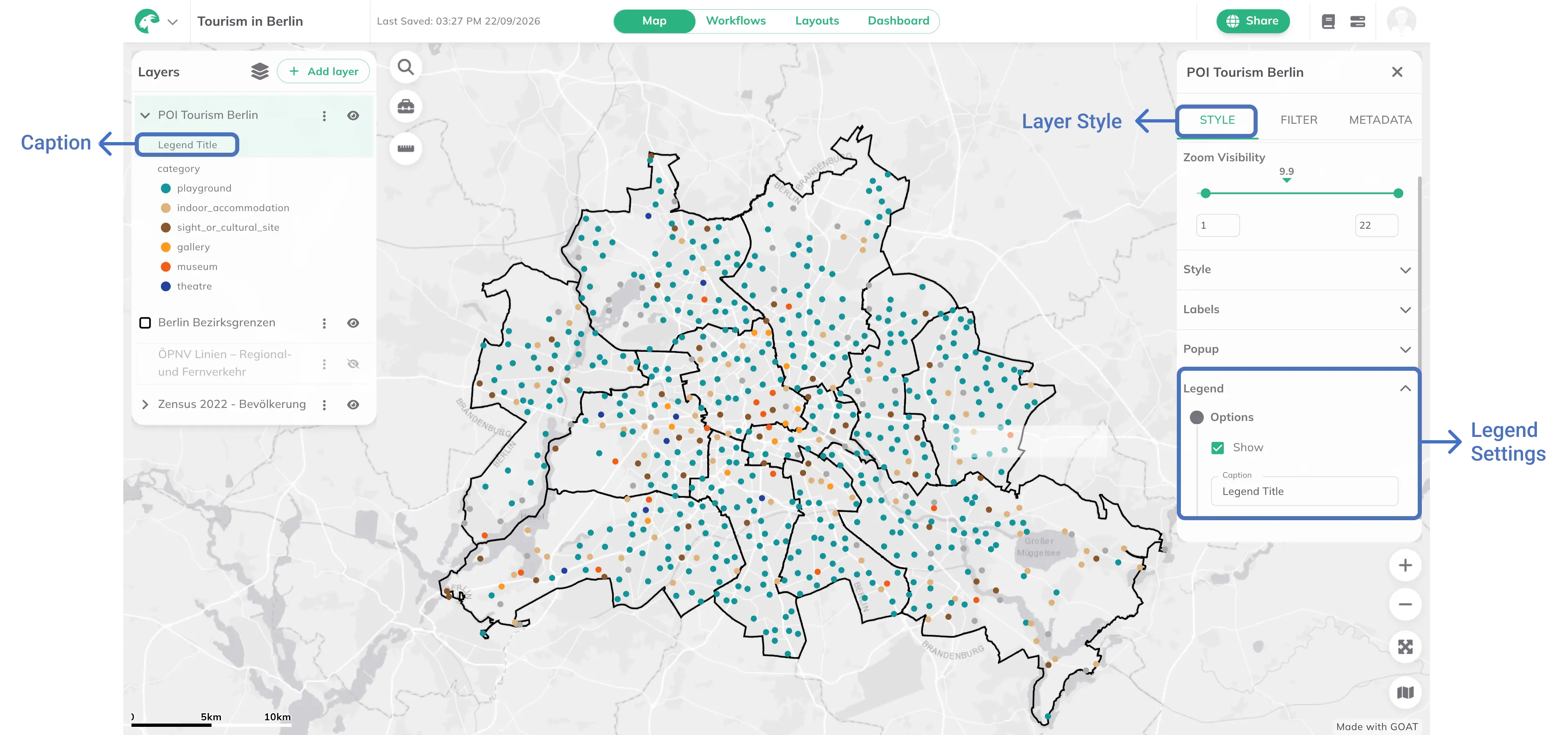
Custom legend labels for color steps
When using attribute-based styling with a color scale (any classification method, including Custom Breaks and Custom Ordinal), you can add a custom label to each color step. These labels replace the raw data values in the map legend with human-readable descriptions.
1
In the  next to
Style section of the Style tab, click the options icon next to Fill Color or Stroke Color. With a field selected in Color based on, click the Color scale selector to open the classification panel. See Attribute-based Styling.2
Below each color step row you will see a text input with the placeholder
Legend label. Type a custom label, for example Low, Medium, or High, to replace the numeric value in the legend.3
Leave the field empty to show the default value in the legend. Click
Apply to save your labels.Best practices
- Use clear, descriptive captions that explain what the layer represents
- Keep captions concise but informative
- Disable legends for layers that don't need visual explanation (e.g., reference layers)
- Review legend visibility to avoid cluttering the map interface