Zoom visibility
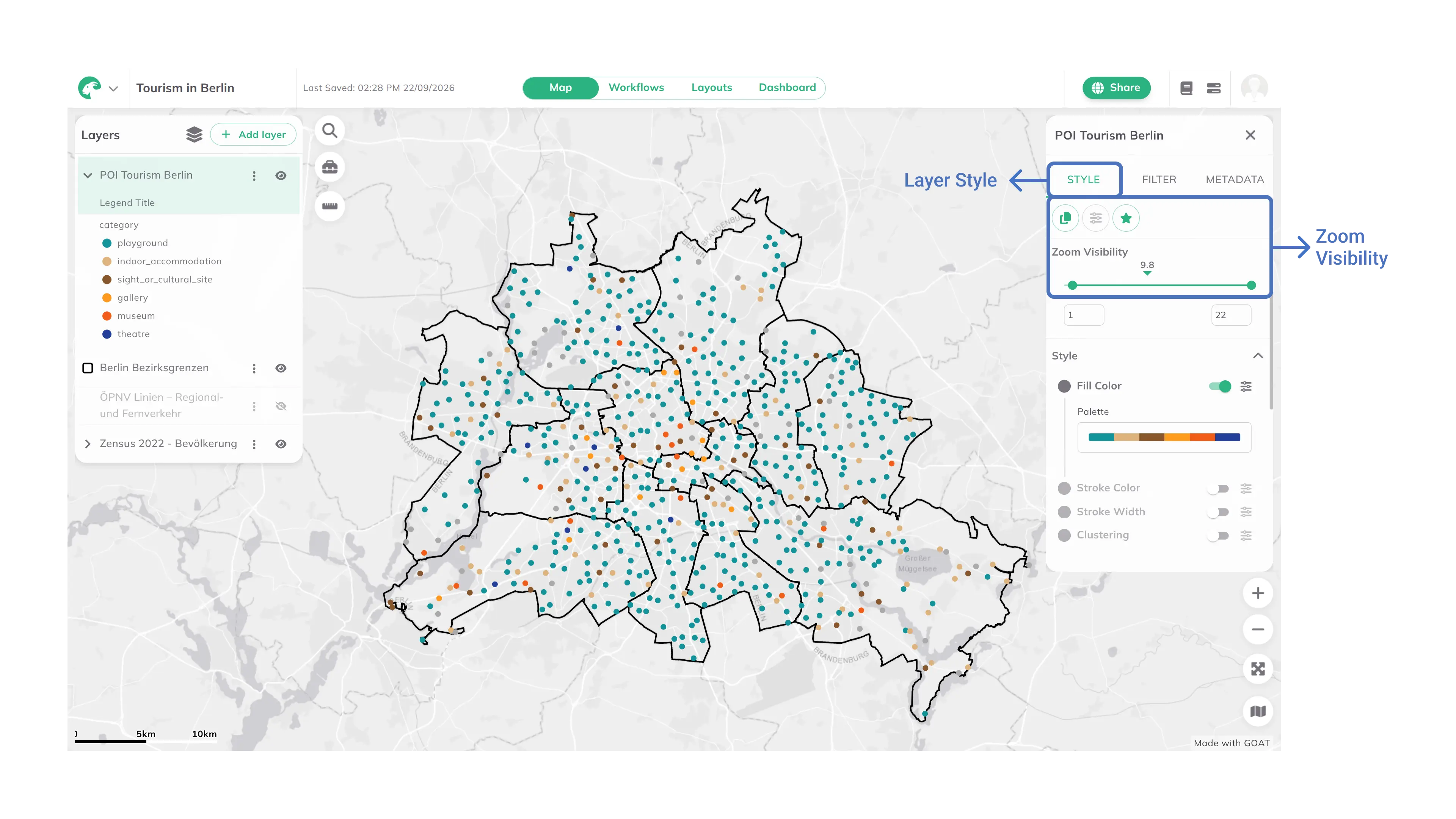
The Zoom visibility feature controls the zoom range at which each layer appears on your map. This helps you display the most relevant data at different zoom levels and optimize map performance.
Understanding zoom levels
GOAT uses zoom levels from 0 (world view) to 22 (street-level detail):
| Zoom Level | Typical use case |
|---|---|
| 0-8 | Global to regional context |
| 9-14 | City to neighborhood analysis |
| 15-22 | Street-level details |
All layers are visible across zoom levels 1-22 unless configured otherwise.
How to set zoom visibility
Layers panel, click your layer. Its settings panel opens on the right with the Style tab selected. Zoom Visibility is at the top of this tab. The marker above the scale shows the current zoom level of the map.Best practices
Detailed features (Buildings, POIsGlossaryPoint of Interest (POI)A specific location that matters in an analysis. In accessibility work, usually a place of everyday need: a supermarket, a school, a doctor, a pharmacy.Read more ↗): Use higher zoom levels (14-22) to prevent clutter.
Regional data (Demographics, Boundaries): Use intermediate levels (8-16) for context.
Background layers (Roads, Water): Use full range (1-22) for consistent reference.
Summary data (Heat maps, Aggregated): Use lower levels (1-14) for overview.
Test your settings by zooming in and out to see how layers appear at different scales.
Explore other Layer styling options and combine with Filters for advanced data presentation.