Layers
In the Layers section, layers can be added and organized. Among others, the layer order can be adjusted, layers can be enabled/disabled, duplicated, renamed, downloaded, and removed.
How to manage your Layers
The Layers Panel is your central hub for organizing and controlling all the data in your GOAT project. Here you can add new datasets, arrange layer order for optimal visualization, group related layers together, and control visibility.

Add Layers
You can add layers from different sources to your map:
New data
- Upload dataset: a dataset from your device (GeoPackage, GeoJSON, Shapefile, KML, CSV, XLSX, Parquet, and GTFSGlossaryGTFSAn open standard for publishing public transport timetables, stops and routes as a set of text files, so any software can read the same data.Read more ↗ or OvertureGlossaryOverture MapsAn open map dataset of roads, buildings, places, addresses and boundaries, released monthly in one schema by the Overture Maps Foundation.Read more ↗ archives)
- Create layer: a new empty layer you draw into
- Connect service: a layer served by WFS, WMS, WMTS, XYZ Tiles or COG, added by URL
Existing data
- My datasets: anything already in your spaces
- Catalog: ready-made datasets from official providers
+ Add layer.- Upload dataset
- Create layer
- My datasets
- Catalog
- Connect service
Set up columns to pick the worksheet and say whether the first row holds column names.Upload.Point, Line, Polygon, or Table), and define your fields. For full details, see Layer Editing.Add layer (Add 3 layers when you have selected three).Add layer. GOAT prepares a copy for your project; the layer reads Preparing data … while that runs.URL of the service, then follow the steps for the kind of source you are adding.- WFS
- WMS
- WMTS
- XYZ
- COG
A WFS layer needs a GetCapabilities link.
You then choose which layer to add. Only one layer can be added at a time.A WMS layer also needs a GetCapabilities link.
You can select several layers here, but GOAT merges them into one.A WMTS can be added by direct URL or GetCapabilities link. If the URL carries more than one layer, only one can be added at a time.
The projection must be Web Mercator (EPSG:3857) and GoogleMaps compatible. Zoom levels differ otherwise, so a source that does not meet both will not appear in the list.An XYZ Tiles layer is any tile URL with {z}/{x}/{y} placeholders. The address is the layer, so there is no list to choose from — check the preview shows what you expect.
A Cloud Optimized GeoTIFF (COG) is added by a direct .tif/.tiff link. The file is read in pieces straight from where it is stored, so nothing is uploaded to GOAT.
You can manage all your datasets on the Content page.
Order Layers
When visualizing several data sets at once, the layer order is crucial for creating clear, readable maps. Therefore, the layer order can be changed interactively.
Click on the layer you want to move, then drag and drop the layer to your desired position.
Show / Hide Layers
Click the  icon next to the layer name to temporarily hide a layer from the map view. Clicking the eye again will make the layer visible again.
Group Layers
Click the 
Group Layers button on top of the Layers Panel to create layer groups that help organize related datasets together.
Group Layers button at the top of the Layers Panel.Create to create the new layer group.Layer Options
By clicking on 
more options icon next to each layer you have further options to manage and organize the selected layer.
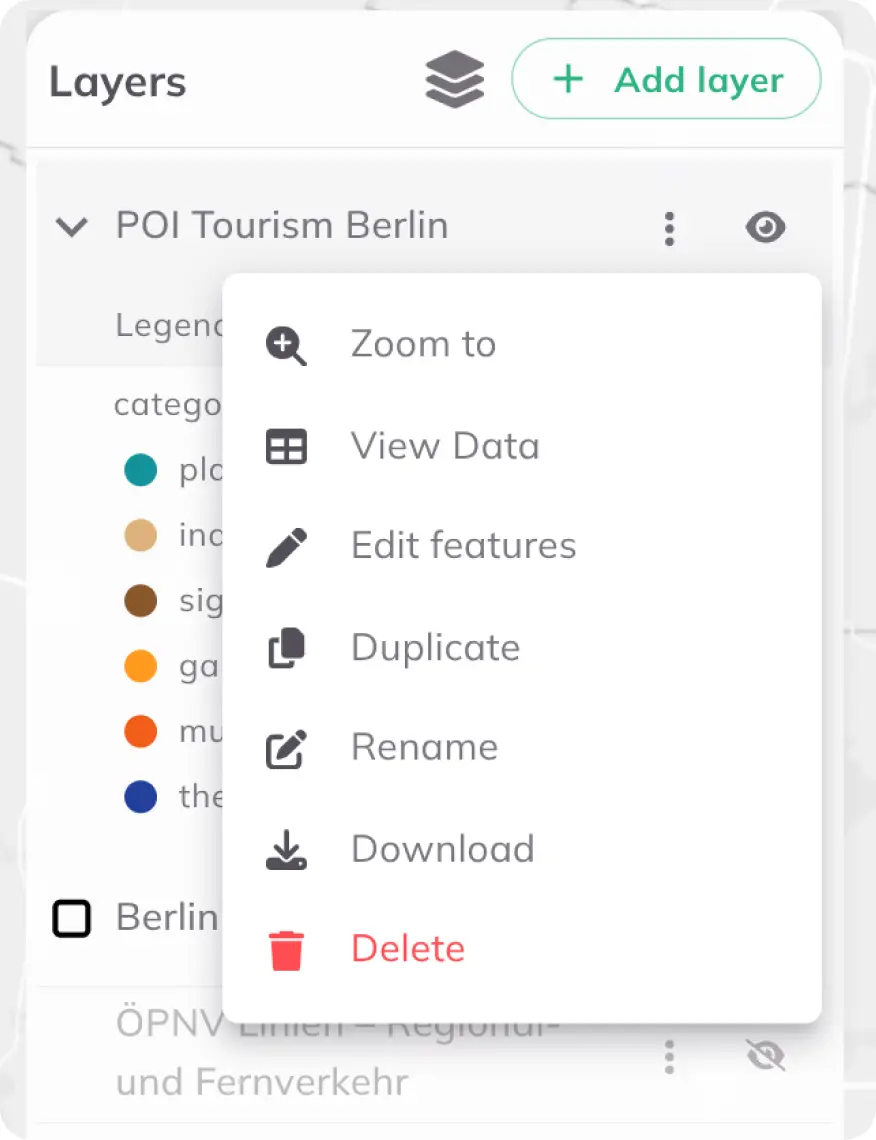
Want to change the design of your layers? See Layer Style.
Only want to visualize parts of your dataset? See Filter.
Edit Features
Use Edit features from the layer's more options menu to update feature data directly on the map.
Edit features in the layer options to start editing mode.Feature attributes panel.Done to confirm the feature edit.Save to apply all pending changes, or Discard to cancel them.