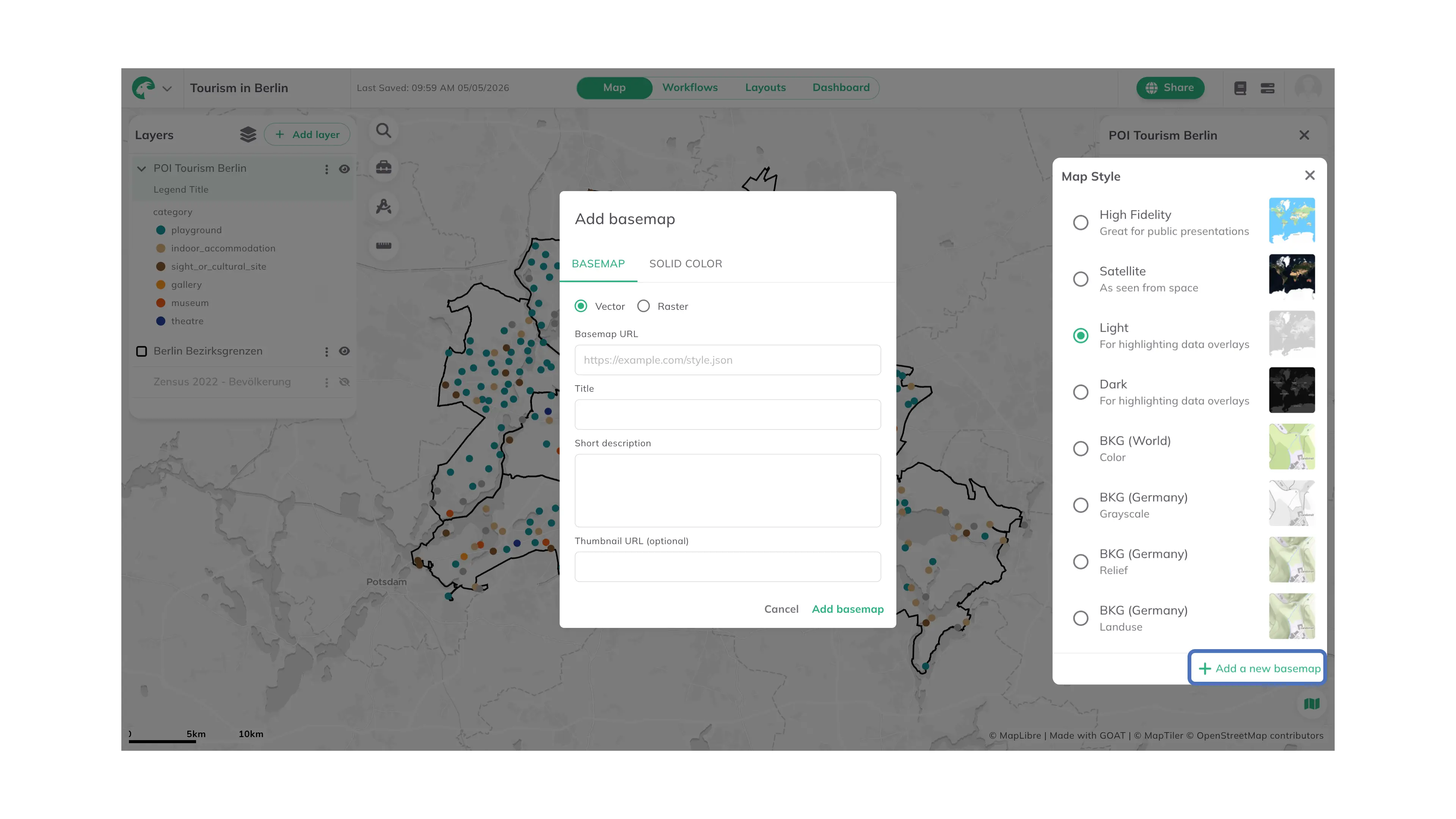
Map Interface
Opening a project will take you to the Map Interface. Here, you can create, organize, and style layers, visualize spatial data, and harness all of GOAT's powerful spatial analysis capabilities.
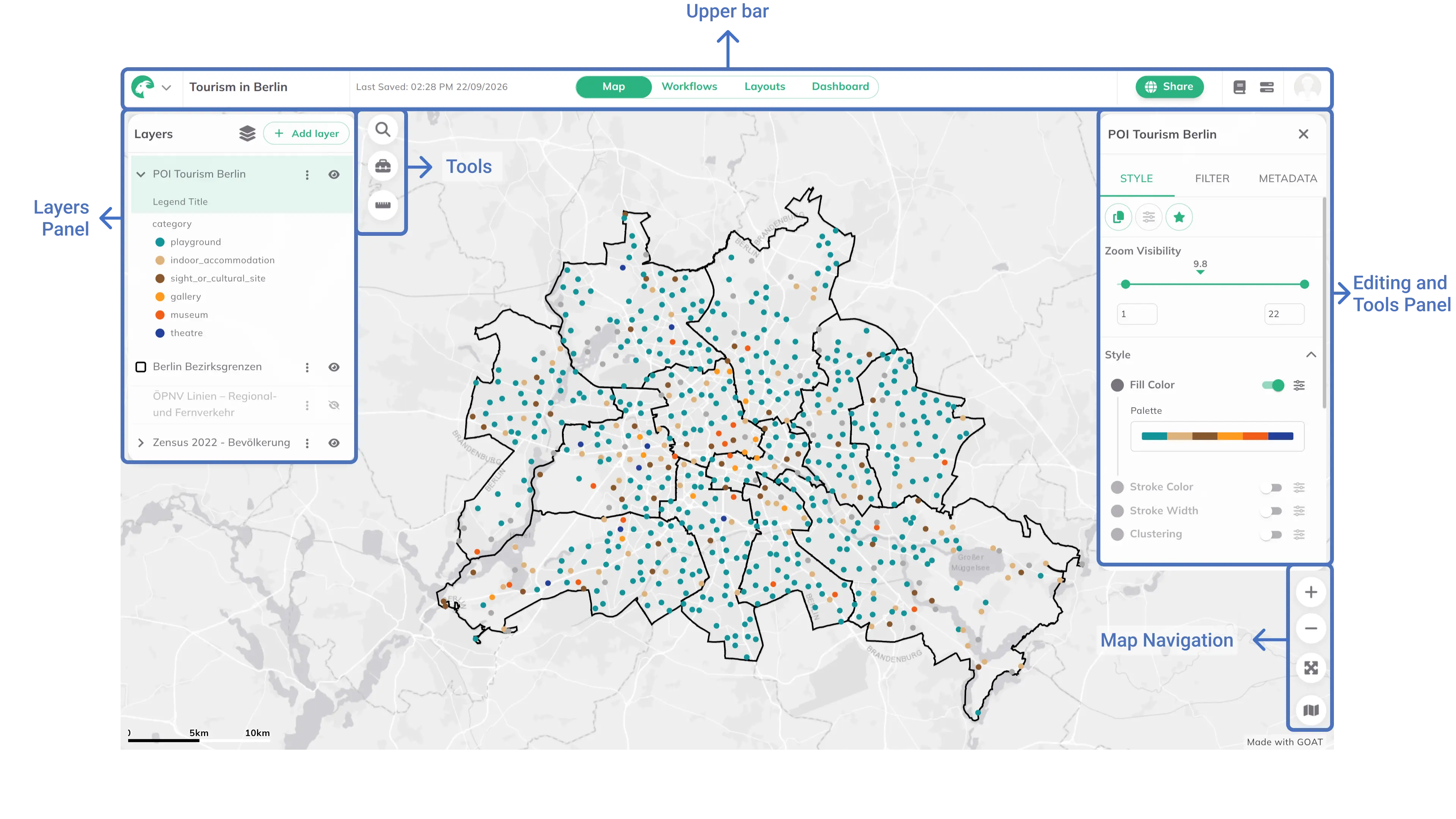
Upper Bar

Left Side
Project menu: Click to return to the home page, edit project metadata, delete the project, lock the map extent, report an issue, or read the privacy policy.Project Name: Double-click to edit the project name.Last Saved: Shows the timestamp of the last saved change.
Right Side
Project mode toggle: Switch between the Map, Workflows, Layouts and Dashboard interfaces.Share Project: Manage the sharing options.Documentation: Access the GOAT documentation.Job Status: View the status of ongoing and completed tasks.User profile: Access account settings and log out.
Panels & tools
Layers Panel
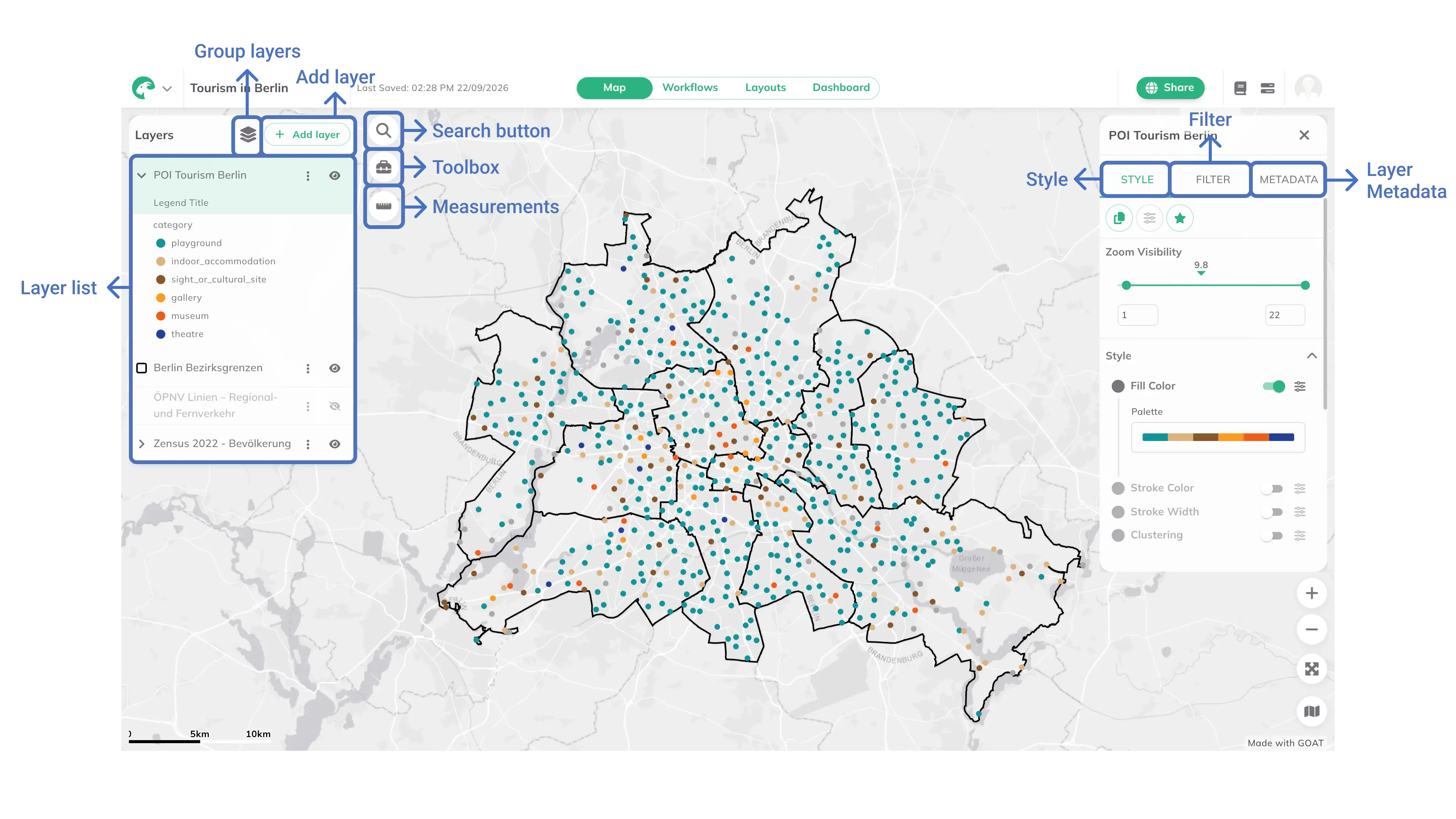
The Layers Panel on the left side of the map interface provides access to all project layers. From here, users can manage their data by adding new layers with + Add layer and organizing them using 
Group layers to create logical collections of related datasets.
Tools
The tools are located on the right side of the Layers Panel:
-

Search button: Search for addresses or coordinates to quickly navigate to a specific location on the map. -

Toolbox: Access to the Toolbox. Read more in Toolbox. -

Measurements: Users can measure distances and areas, such as routes, lines and polygons.
Editing and Tools Panel
When selecting a layer from the Layers Panel, the Editing Panel appears on the right side of the map interface. This panel provides access to various options:
-
Style: Customize the visual appearance of the selected layer by changing colors, opacity, and other styling options. Read more in Layer Styling. -
Filter: Apply filters to the selected layer to display only specific features based on attribute values. Read more in Layer Filtering. -
Metadata: View and edit metadata information for the selected layer.
Map Navigation
-

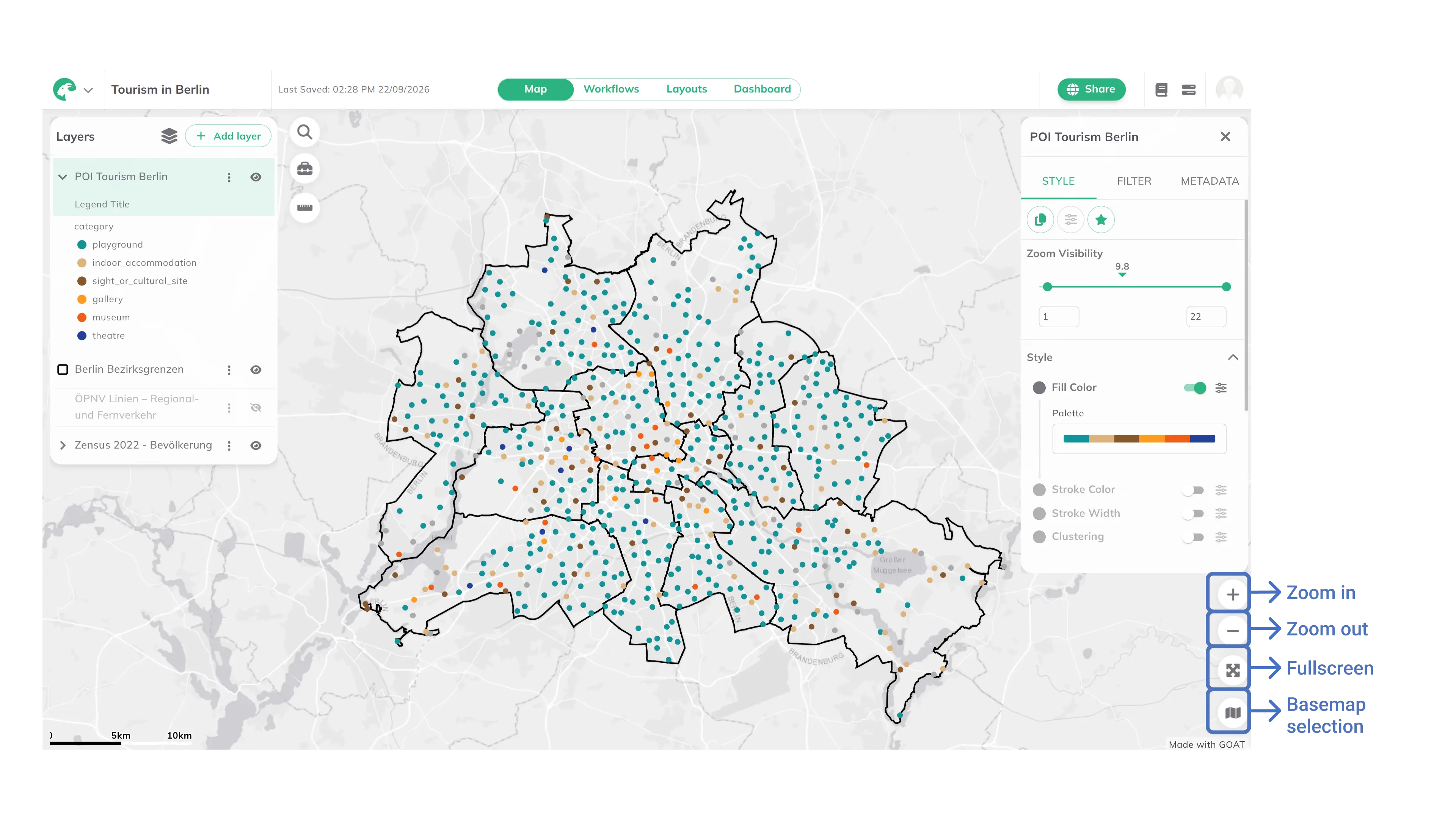
Zoom In -

Zoom Out -

Fullscreen -

Base map: Choose between the available base map options. Click+ Add a new basemapat the bottom of the panel to add a custom basemap. Under theBasemaptab, select the type (VectororRaster), enter the Basemap URL, a Title, and optionally a description and thumbnail URL. Alternatively, use theSingle Colortab to set a solid color as the map background. ClickAdd basemapto save.