Labels
Labels allow you to display text on your map features based on any attribute field. This makes your maps more informative and easier to interpret by showing key information directly on the features.
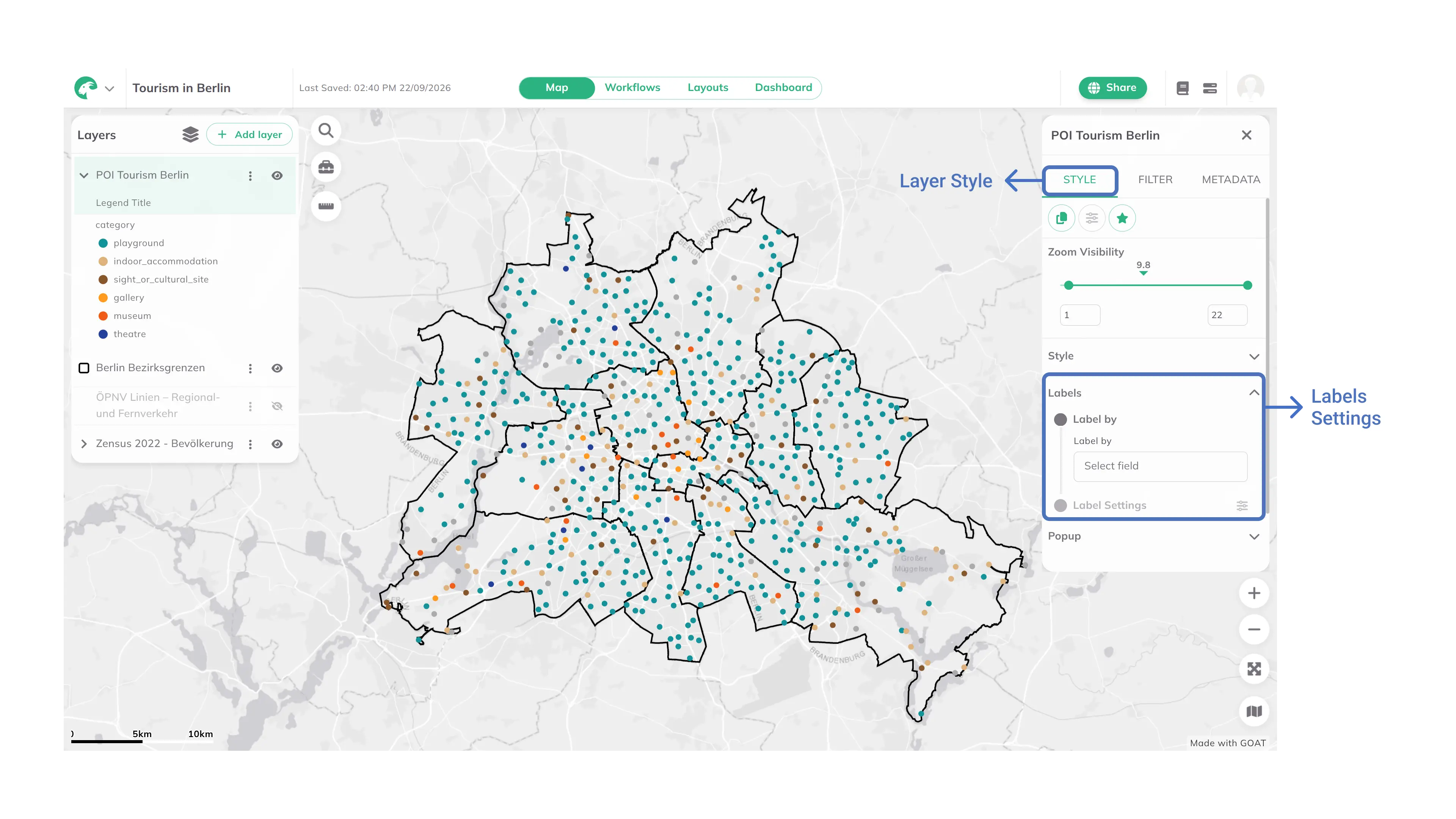
How to add and configure labels
General settings
1
In the
Layers panel, click your layer. Its settings panel opens on the right with the tabs Style, Filter and Metadata, and the Style tab selected. Open the Labels section of this tab.2
On
Label by choose the attribute field (text or number) whose values you want to display as labels. The Label Settings appear below once a field is selected.3
Under
Label Settings, on Size, set the label size using the slider (1-100) or enter the value manually4
On
Color choose a label color using the Color Picker or select from the Preset Colors5
Set the
Placement to define where labels appear relative to features (Center, Top, Bottom, Left, Right or the corner positions such as Top Left; for line layers Center, Above or Below)Advanced settings
6
Click the options icon  next to
next to Label Settings to show the Advanced Options7
Adjust
Offset X and Offset Y to fine-tune label position by moving horizontally or vertically8
Configure the
Allow overlap checkbox: Enable to show all labels (may cause visual clutter) or disable it to hide labels that would overlap others, especially at lower zoom levels (cleaner appearance)9
Add a
Halo color to create a colored outline around text for better readability on busy backgrounds10
Set the
Halo width to control outline thickness (maximum is one-quarter of font size)Best practices
- Use smaller fonts for dense layers to reduce visual clutter
- Add halos with contrasting colors (light halos on dark maps, dark halos on light maps) to improve text readability
- Keep overlap disabled by default for cleaner appearance, though some labels may be hidden in crowded areas
- Test your label settings at different zoom levels to ensure they remain readable and useful across all scales