Filter
Filter limits data visibility on your map using logical expressions (e.g., supermarkets with specific names) or spatial expressions (e.g., points within a bounding box). The filter allows you to focus on relevant information without altering original data. It works with point, line and polygon layers and with tables containing number, string, datetime, and boolean data types.
How to use the filter
Single Expression Filtering
Layers panel, click your layer. Its settings panel opens on the right with the tabs Style, Filter and Metadata. Select the Filter tab. For a table, the panel has only the tabs Filter and Metadata and opens on Filter.+ Add Expression to add a new filter expression.Logical Expression or Spatial Expression to define your filter type. For a table, a Logical Expression is added directly.- Logical expression
- Spatial expression
Select field, choose the attribute to filter by.Select operator, choose the operator. Available options vary by data type (number, string, datetime, and boolean).Expressions for number | Expressions for string |
|---|---|
| Is | Is |
| Is not | Is not |
| Includes | Includes |
| Excludes | Excludes |
| Is blank | Is blank |
| Is not blank | Is not blank |
| Is at least | Starts with |
| Is less than | Ends with |
| Is at most | Contains the text |
| Is greater than | Does not contain the text |
| Is between | Is empty string |
| Is not empty string |
Expressions for datetime | Expressions for boolean |
|---|---|
| Is on | Is true |
| Is not on | Is false |
| Is before | Is blank |
| Is after | Is not blank |
| In the last | |
| Not in the last | |
| Is between | |
| Is not between |
For datetime fields, choose a date from the date picker (Select date). "Is between" uses two dates (From and To), and "In the last" takes a Number of days. For boolean fields, the operator already sets the condition, so no value is needed.
For the expressions "Includes" and "Excludes", multiple values can be selected.
Select Value, Select values or Enter value, depending on the operator. As soon as the expression is complete, the map updates automatically and the layer shows a filter icon in the Layers panel.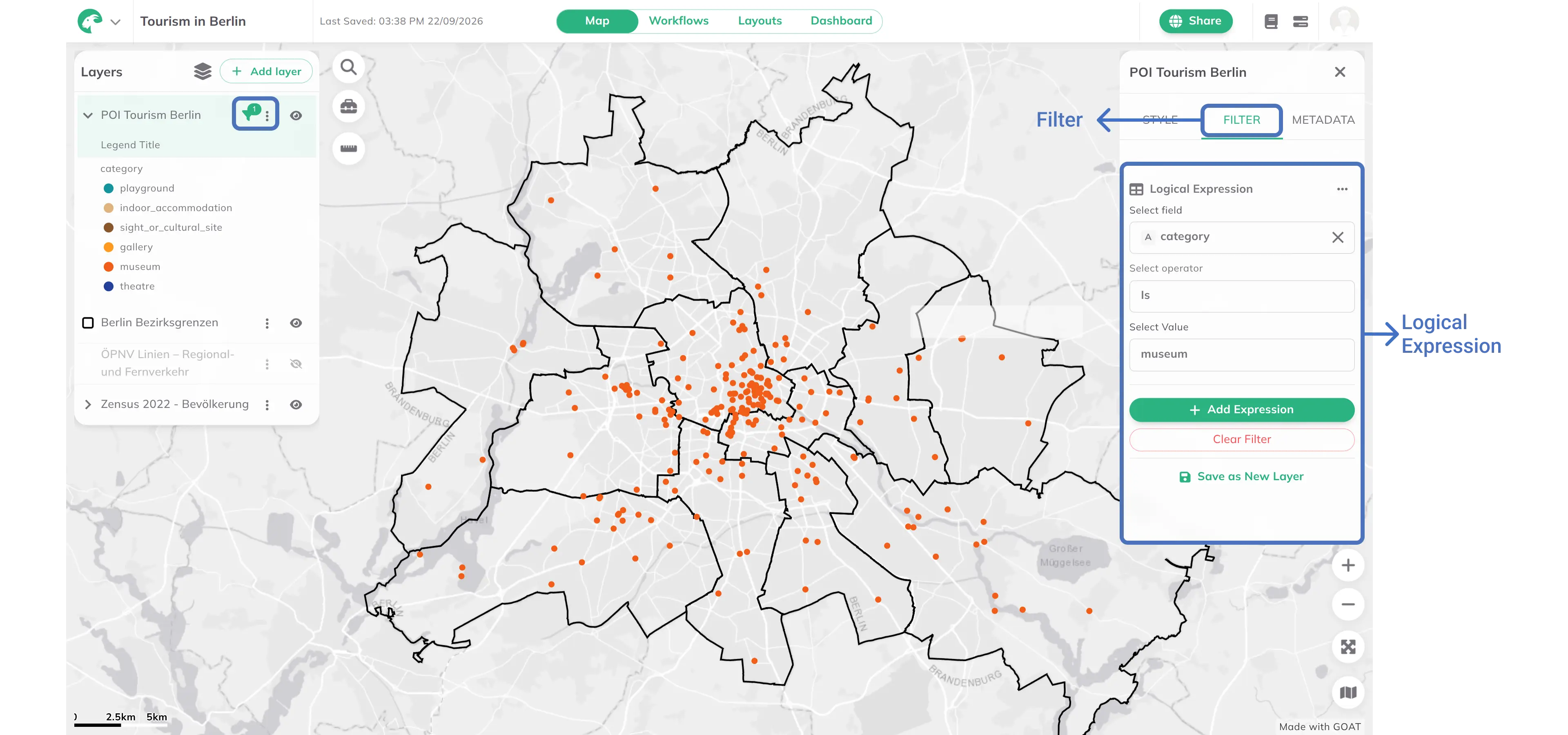
Select intersection method, choose the spatial boundary.- Map extent
- Boundary
With Map Extent, the layer automatically crops to the current map extent. To change the filter, zoom in/out and click the refresh icon (Use current map extent).
This feature is currently under development. 🧑🏻💻
Multiple Expressions Filtering
Combine multiple filters by repeating steps 2-6 for each expression. As soon as there are two or more expressions, Filter results appears above them. In Filter results, choose Match all filters (AND) or Match at least one filter (OR) to control how filters interact.

Delete Expressions and Filters
Remove single expressions: Click on the More Options  menu next to the expression, then click
 Delete to remove the expression.
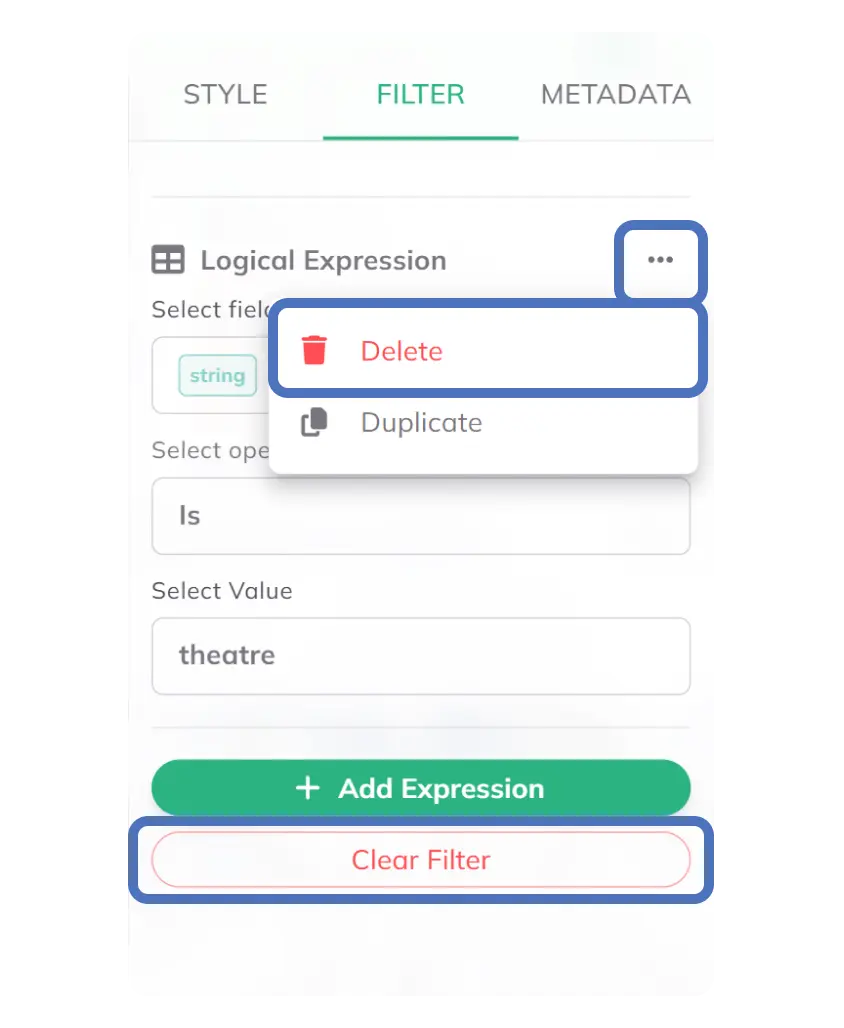
Remove whole filter: Click Clear Filter at the bottom of the Filter tab to remove all filters.
Save as new layer
Once the filter is applied, click Save as new layer at the bottom of the Filter tab to save the filtered result as a new dataset in your workspace. This allows you to work with the filtered data independently.