Settings
On the Settings page, you can view and modify your preferences and settings related to your account, teams, organization, and billing.
Account Settings
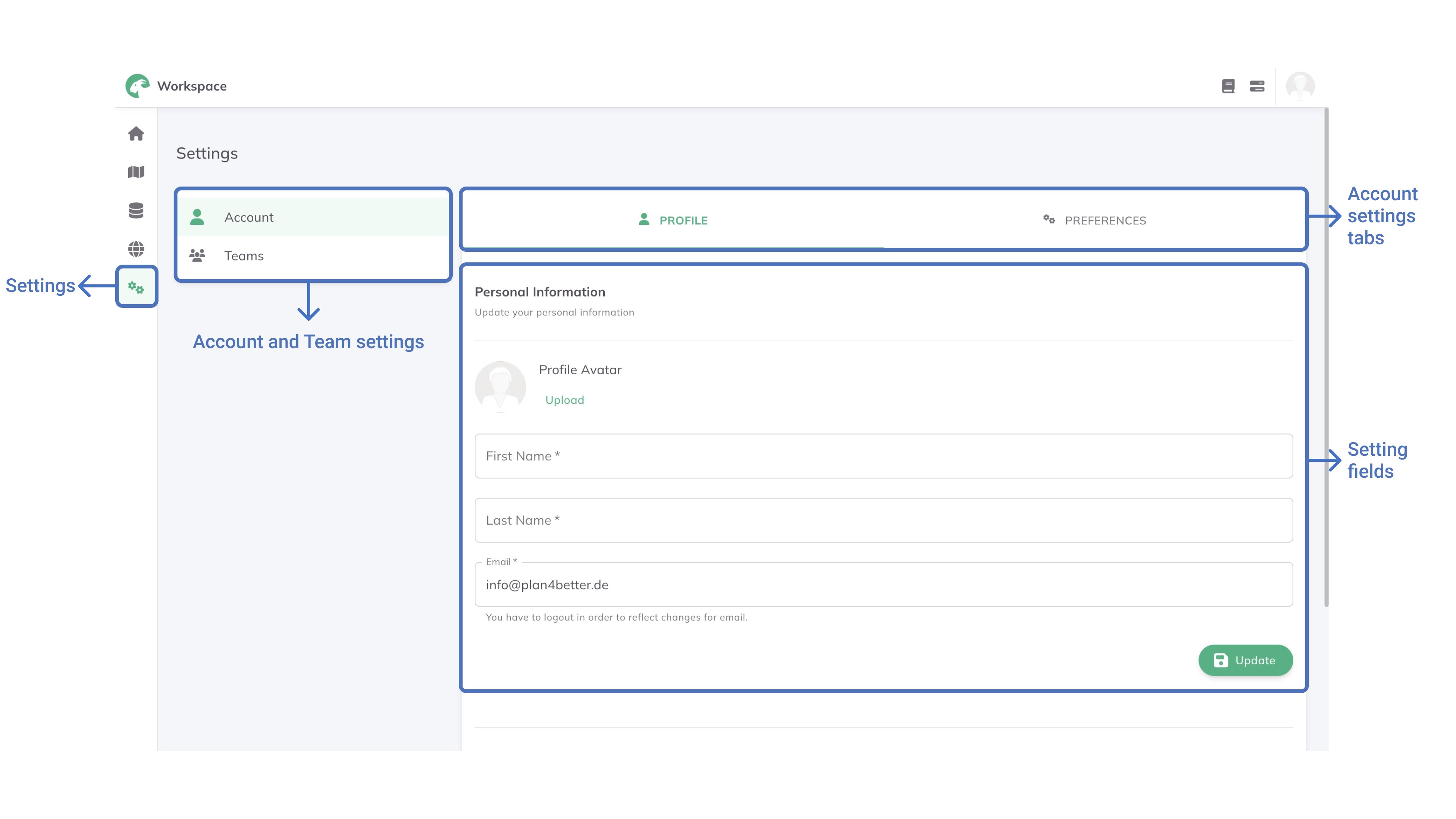
Under the Account Settings, you can adjust your profile and your preferences.
- In the
Profiletab, you can update your first name, last name, and email address and upload a profile picture. - In the
Preferencestab, you can choose your preferred language (English or German) and theme (light and dark mode).
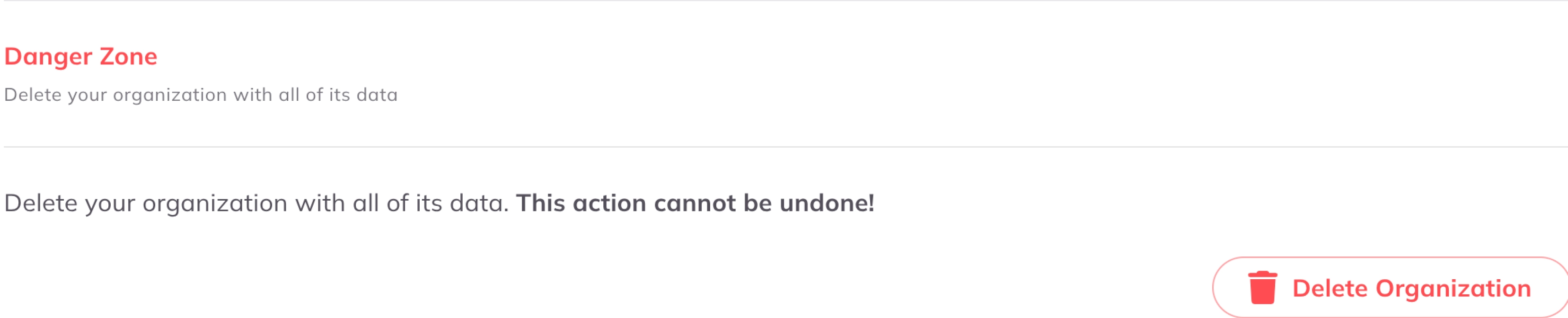
If you wish to delete your account, you can also do this in this section. Please only click on this button if you are certain about this step, as this cannot be undone.
Teams Settings
Simply clicking on a team, the Teams Settings will open. Here you can:
- Create a new team by clicking on the
+ New Teambutton - Enter an already created teams:
- In the
Profiletab, if you are the owner of the team, you can rename it, modify the description or upload a logo or picture. If you are a member of the team you can only view the team information. - In the
Memberstab, if you are the owner of the team, you can add or delete members. If you are a member of the team you can only view the members list.
- In the
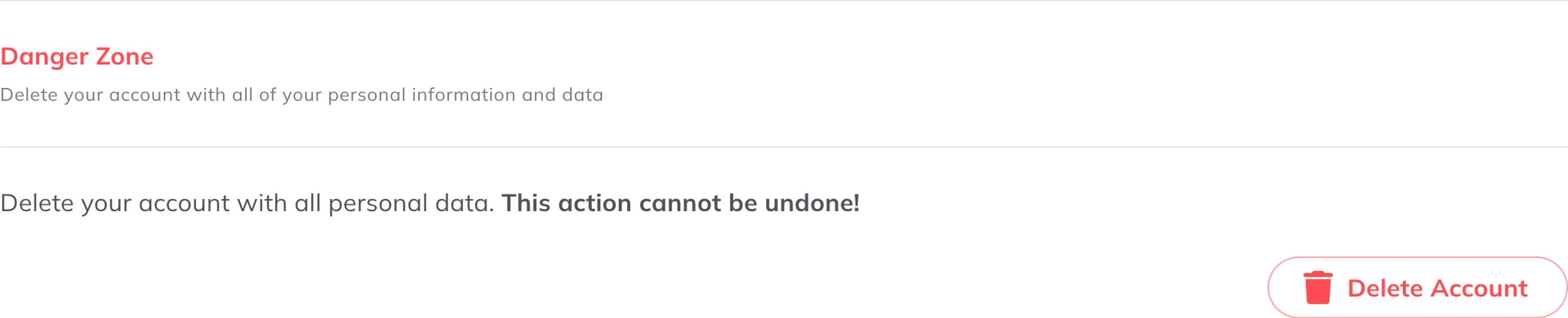
If you scroll down to the Danger zone on the Profile Tab, you also find an option to delete your team. Please only click on this button if you are certain about this step, as this cannot be undone.
Organization Settings
Under the Organization Settings, you can adjust the profile of your organization and manage the organization members:
- In the
Profiletab, you can change your organization's name and upload a logo or picture. - In the
Memberstab, you can view the members list of your organization. By clicking on the
more optionsbutton you can manage their roles and personal information. Furthermore, you can invite new members to join your organization by email.
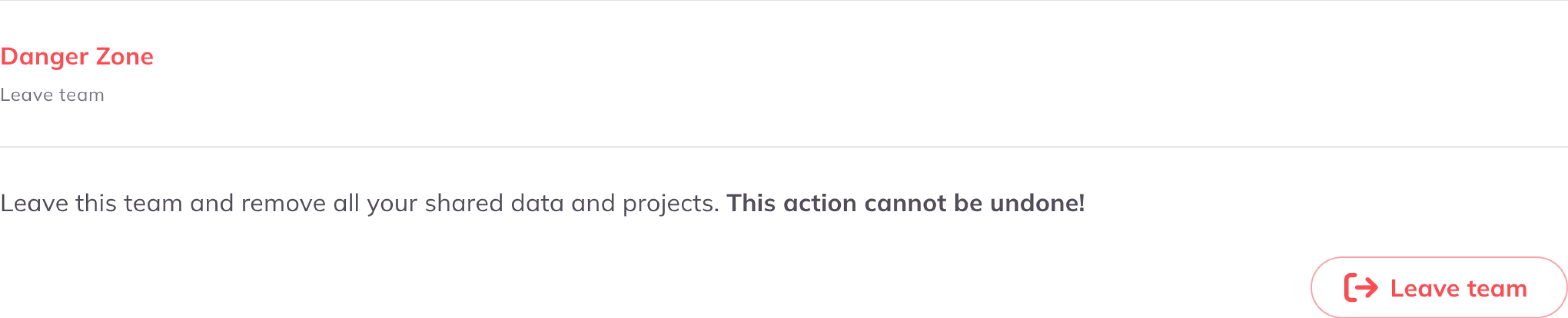
If you scroll down to the Danger zone, you also find an option to delete your organization. Please only click on this button if you are certain about this step, as this cannot be undone.
Billing
In the Billing menu, you can view your current plan and available plans. This allows you to stay informed about your plan status and make any necessary adjustments to better suit your requirements.
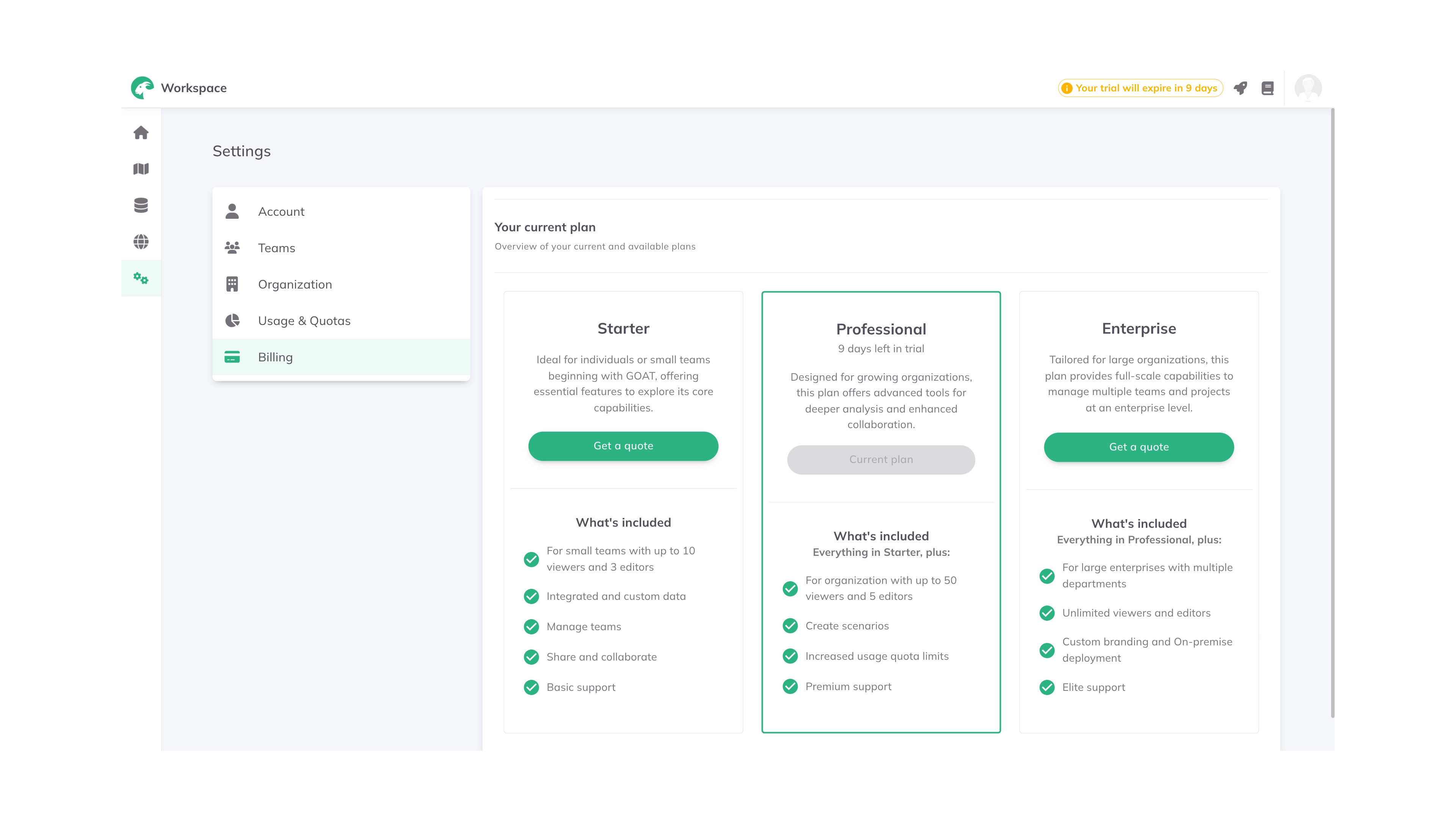
Please feel free to contact the Support anytime in case you have questions regarding your plan.
White Label
Under White Label, you can publish dashboards on your own domain and configure analytics tracking for published dashboards. White Label settings apply to the whole organization and are accessible to organization owners.
Custom Domains
Publish your dashboards on your own domain. Each domain serves one published project. To assign a domain to a project, choose it under Address on the Public tab of the project's Share dialog; see Public Sharing.
To add a custom domain:
+ Add your first domain (empty state) or + Add custom domain.Domain name: either a subdomain (e.g. dashboards.example.com) or an apex domain (e.g. example.com). Click Continue.The Configure DNS step opens, showing the exact record to create at your DNS provider. The record depends on your domain type:
Subdomain (e.g. maps.example.com):
| Type | Host | Target | TTL |
|---|---|---|---|
| CNAME | maps | cname.goat.plan4better.de | 3600 |
Apex domain (e.g. example.com):
| Type | Host | Target | TTL |
|---|---|---|---|
| A | @ | 46.225.38.48 | 3600 |
The dialog includes copy buttons for each value. GOAT checks DNS propagation every 30 seconds automatically. Click Recheck now to trigger an immediate check, or Done to close and wait in the background.
Domain statuses in the list:
| Status | Description | Available actions |
|---|---|---|
| Waiting for DNS | DNS record not yet detected | Show DNS, Recheck |
| Issuing | DNS verified, SSL certificate being issued | Details |
| Active | Domain is live and serving dashboards | Unassign (if assigned), Delete |
| Failed | DNS or certificate provisioning failed | Details, Retry, Delete |
To view DNS record details or troubleshoot a failed domain, click Details or Show DNS to open the domain detail drawer, which shows the current DNS and certificate status messages and a Recheck now button.
To remove a domain from a project without deleting it, use the project's Share dialog. The Unassign button in the domain list is only shown when the domain is active and assigned.
Analytics
Configure analytics tracking for your published dashboards. You can add multiple analytics instances, one per Matomo site. Tracking is opt-in per dashboard via the Share dialog.
GOAT currently supports Matomo as the analytics provider.
To add an analytics instance:
+ Add analytics.In the Add analytics dialog, fill in:
Name: a label to tell instances apart, e.g.Client XY Matomo.Provider: selectMatomo.Matomo URL: your Matomo instance URL including trailing slash (e.g.https://matomo.example.org/).Site ID: found in Matomo → Administration → Websites.
Save.Each instance in the list shows the Matomo URL, Site ID, and how many published dashboards use it. You can edit or remove an instance using the icons on the right, and use Manage dashboards to assign or unassign dashboards to that analytics instance.
Add each of your custom domains to your Matomo site's URL list, and configure Custom Dimension 1 as "Project ID" so per-dashboard breakdown works in Matomo.