Public Sharing
In GOAT you can make two kinds of content public: a project, so anyone can open its map without a GOAT account, and a dataset, so all signed-in GOAT users can use it. This page covers both.
Publishing a Project to the Web
You can publish a project so anyone can view its map without a GOAT account. This is ideal for showcasing spatial analysis, sharing insights, or embedding interactive maps on external platforms.
Publishing creates a snapshot of the project: the public page shows the project as it was when you published it, while the project itself stays where it is and keeps its access rights. Visitors see the project as it is laid out in the Dashboard.
Public sharing is view-only. If you want others to edit the map, share it on the People and Teams tabs of the Share dialog. See Teams & Members.
How to Share a Map Publicly?
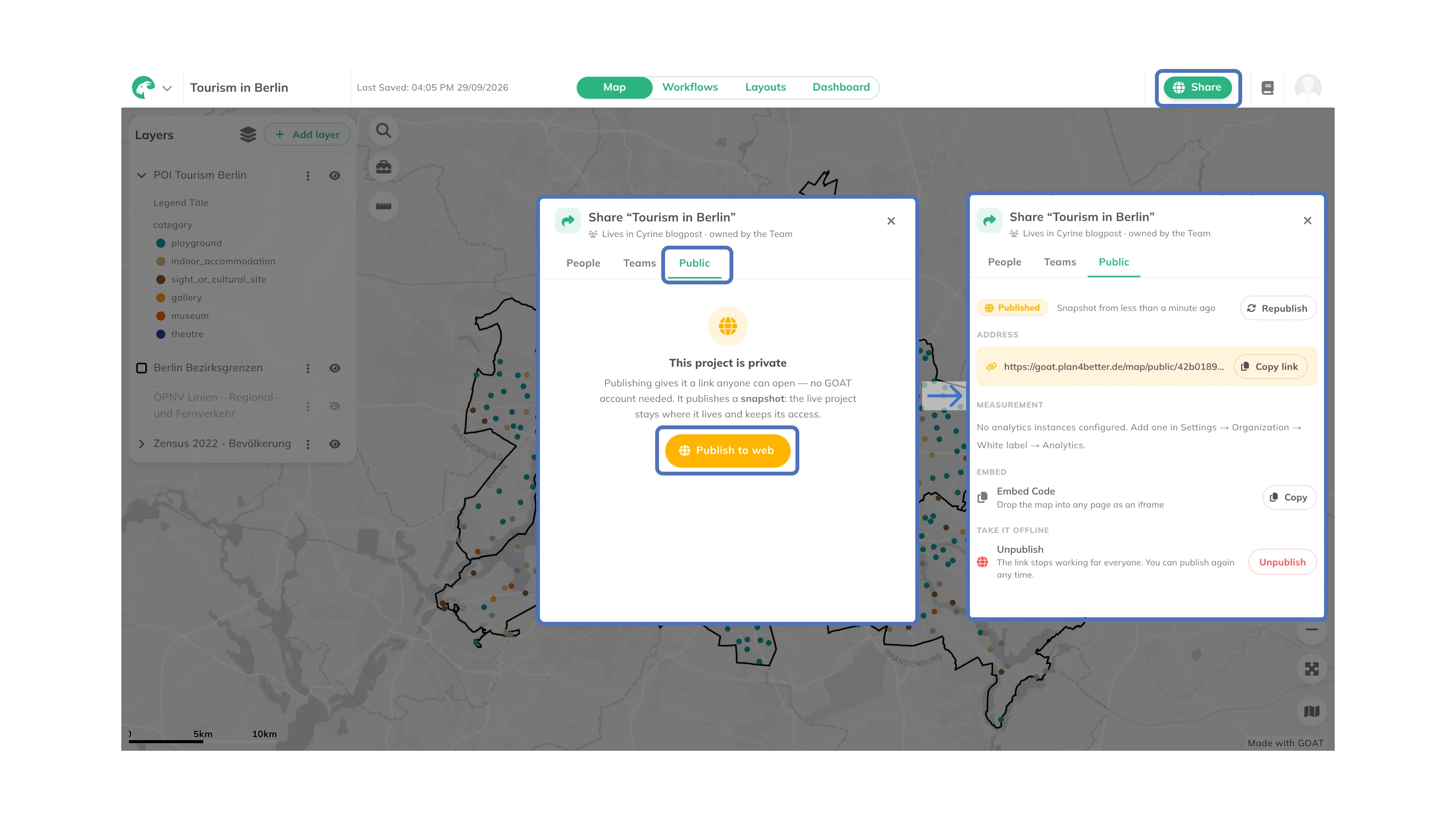
Share in the upper-right corner of the map.Public tab.Publish to web.Now you can:
-
Copy linkunderAddress: Share the direct link so others can open the map in their browser. -
Copynext toEmbed CodeunderEmbed: Embed the map as an iframe in websites or tools that support HTML and iframes.
Other Settings on the Public Tab
Once the project is published, the Public tab also offers these settings:
-
Address: If your organization has set up a custom domain, choose here whether the map is served from it or from theGOAT default domain. Without a custom domain, this section only shows the link. Custom domains are set up under Settings. -
Measurement: Here you decide whether visits to the public page are counted. What you see depends on your organization:- If it has no analytics instance yet, this section shows
No analytics instances configuredand where to add one. Setting one up is described under Analytics. - If it has one or more instances, pick one to count visits, or choose
No tracking. Once you pick an instance, theCookie consent bannerswitch below it can be used (withNo trackingit is greyed out and readsNot needed — nothing is tracked): leave it on to ask visitors before tracking starts. If you turn it off, GOAT shows a warning, because tracking people without their consent is not allowed under GDPR in Germany and most of the EU.
- If it has no analytics instance yet, this section shows
Adjusting Map Extent
To control how far users can pan and zoom out, you can lock the map extent.
Lock map extent. The map can no longer be panned or zoomed out beyond this area. To remove the limit, click Unlock map view in the same menu.To limit the zoom levels instead, use Zoom limits in the Dashboard Settings.
If your map is already published, you’ll need to republish it for the changes to take effect. The link will remain the same.
Updating a Public Map (Republish)
The public page does not follow later changes to the project. To update it with your latest changes:
Share in the upper-right corner.Public tab.Republish. The snapshot is replaced with the current state of the project; the link stays the same, so embedded maps show the new version as well.Unpublishing a Map
Share in the upper-right corner and open the Public tab.Take it offline, click Unpublish. The link stops working for everyone, including embedded maps. You can publish again at any time.Making a Dataset Public
As a dataset's owner, you can make it public to all GOAT users. This does not create a public link or a snapshot: it only opens the dataset to other signed-in GOAT users.
More Options  menu, choose
 Share, open the Public tab and turn on Public to all GOAT users.Once public, every signed-in GOAT user, in any organization, can view the dataset and add it to their projects. It is not listed anywhere; people reach it through the projects and templates that include it, and editing rights do not change. When a public dataset ships with a template, it is shown with a public badge.