Erase
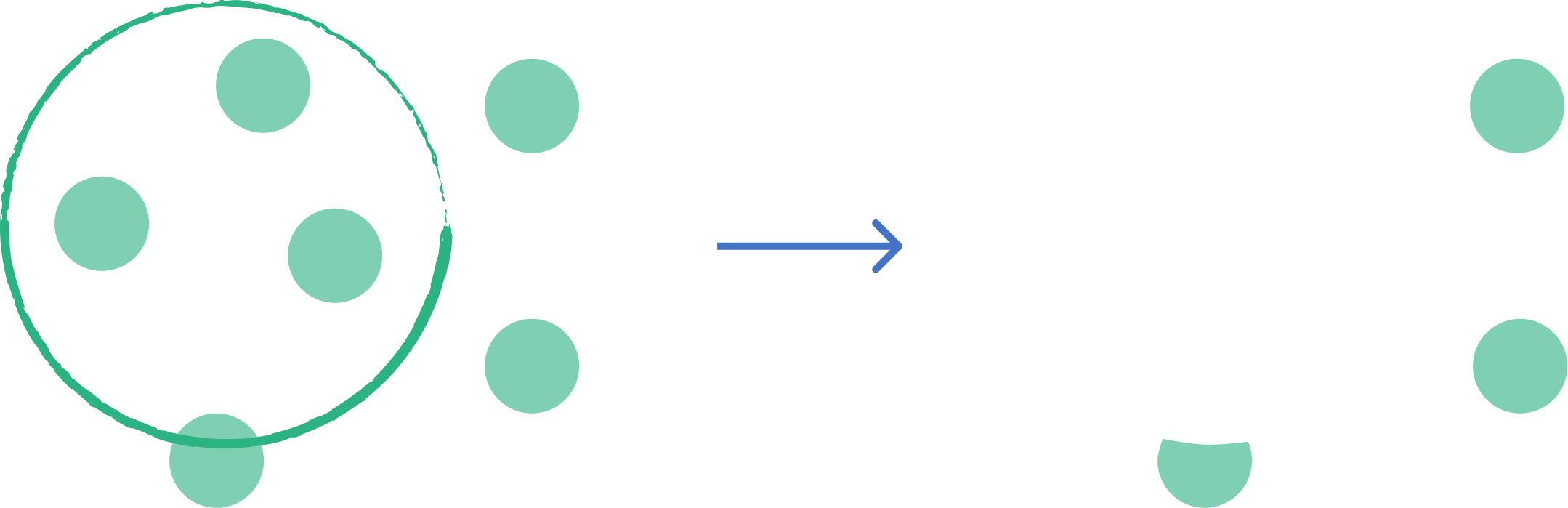
This tool allows you to remove portions of input features that overlap with erase geometry.
1. Explanation
The Erase tool removes portions of input features that overlap with the erase features. It is essentially the opposite of Clip. The output contains only the input features (or parts of them) that fall outside the extent of the erase layer.
2. Example use cases
- Remove water bodies from a land area map.
- Exclude protected areas from a map of potential development sites.
3. How to use the tool?
1
Click on  .
.
Toolbox . 2
Under the
Geoprocessing menu, click on Erase.3
Select the
Input layer.4
Select the
Overlay layer used as the erase mask.5
Click
Run to execute the erase operation. Result will be added to the map.