Projects
The Projects page is your central hub for creating, managing, and sharing projects in GOAT. Here you can organize all your work with a clear overview of your projects, categorized into Personal Projects, Team Projects, and Organization-wide Projects. Here you can:
- Organize projects into custom folders for better structure
- Filter and sort projects by name, creation date, or last update
- Edit project metadata including titles and descriptions
- Share projects with team members or your entire organization
- Export, import, and duplicate projects
- Delete projects when no longer needed
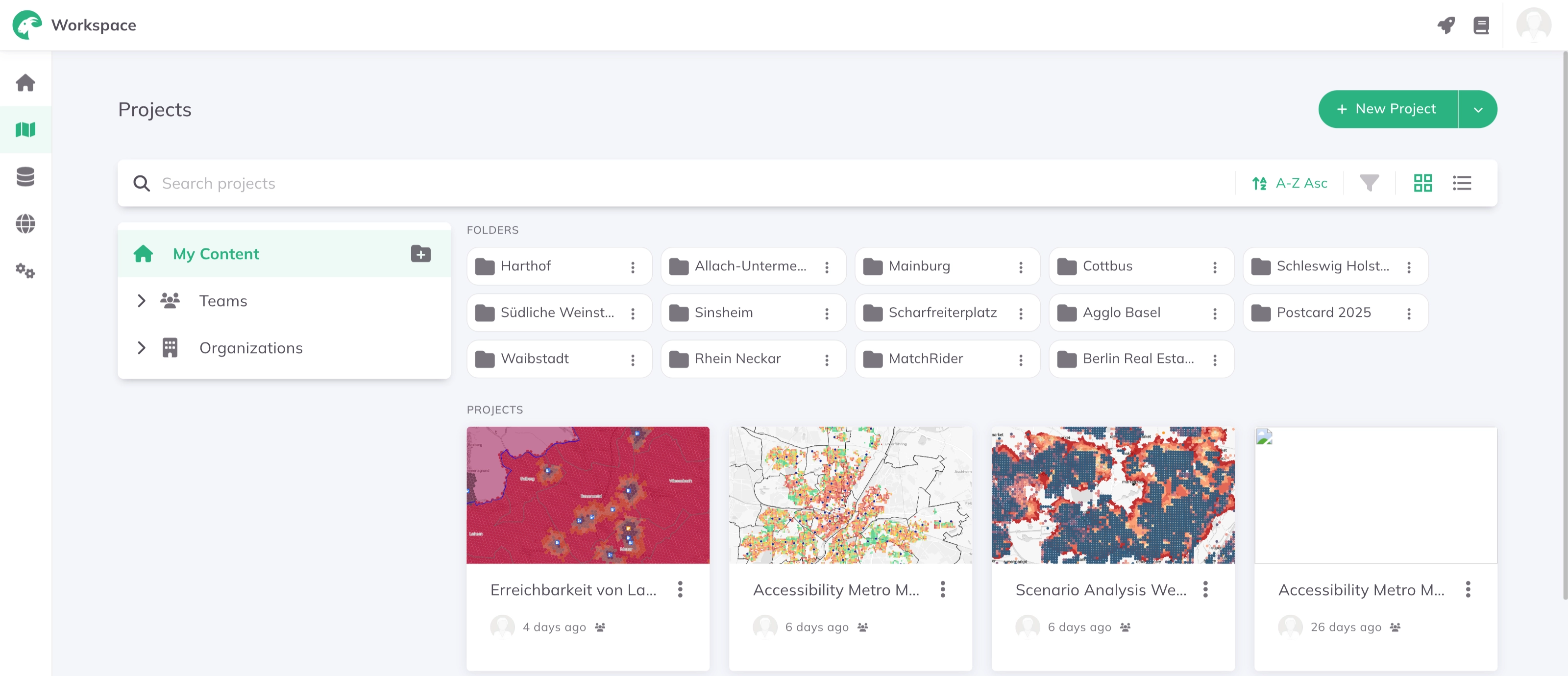
Creating a New Project
Follow these simple steps to create a new project:
1
Navigate to the
Projects page using the sidebar navigation.2
Click the
+ New Project button in the top-right corner.3
Fill in the required information:
- Project Title - Give your project a descriptive name
- Project Folder - Choose or create a folder to organize your project
- Description (optional) - Add details about your project's purpose
4
Review your information and click the
Create button to finalize your new project.Importing a Project
You can import a previously exported GOAT project file:
1
Click the
+ New Project button in the top-right corner.2
Select
Import to upload an existing project file.3
Choose a Project Folder and click
Import to finish.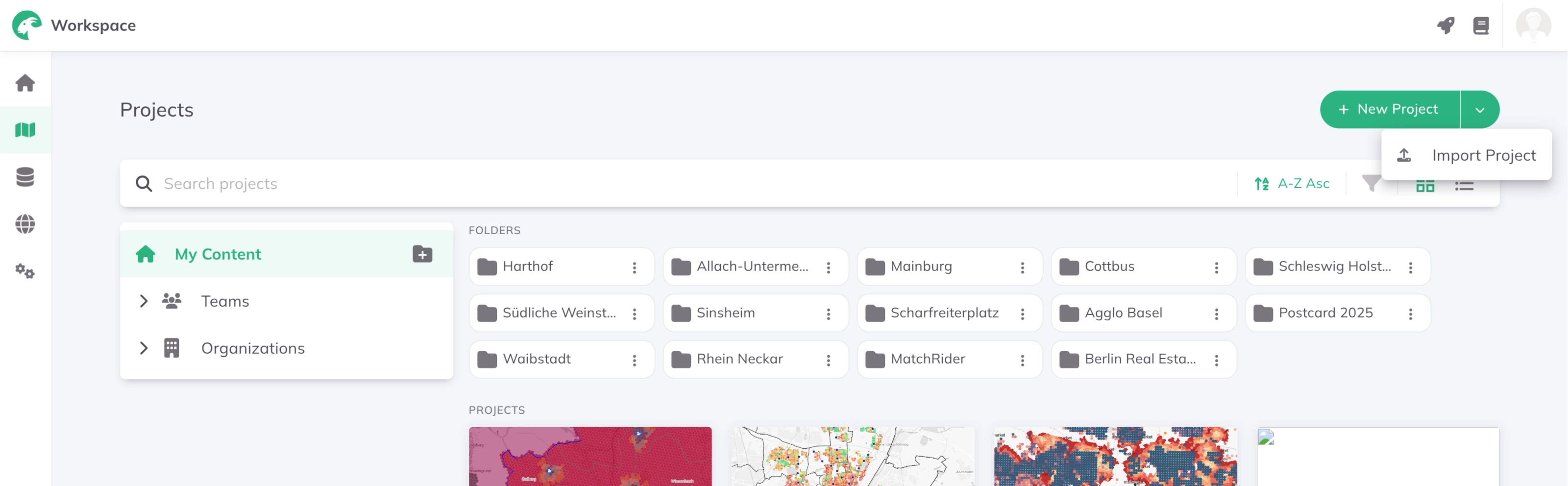
Managing Projects
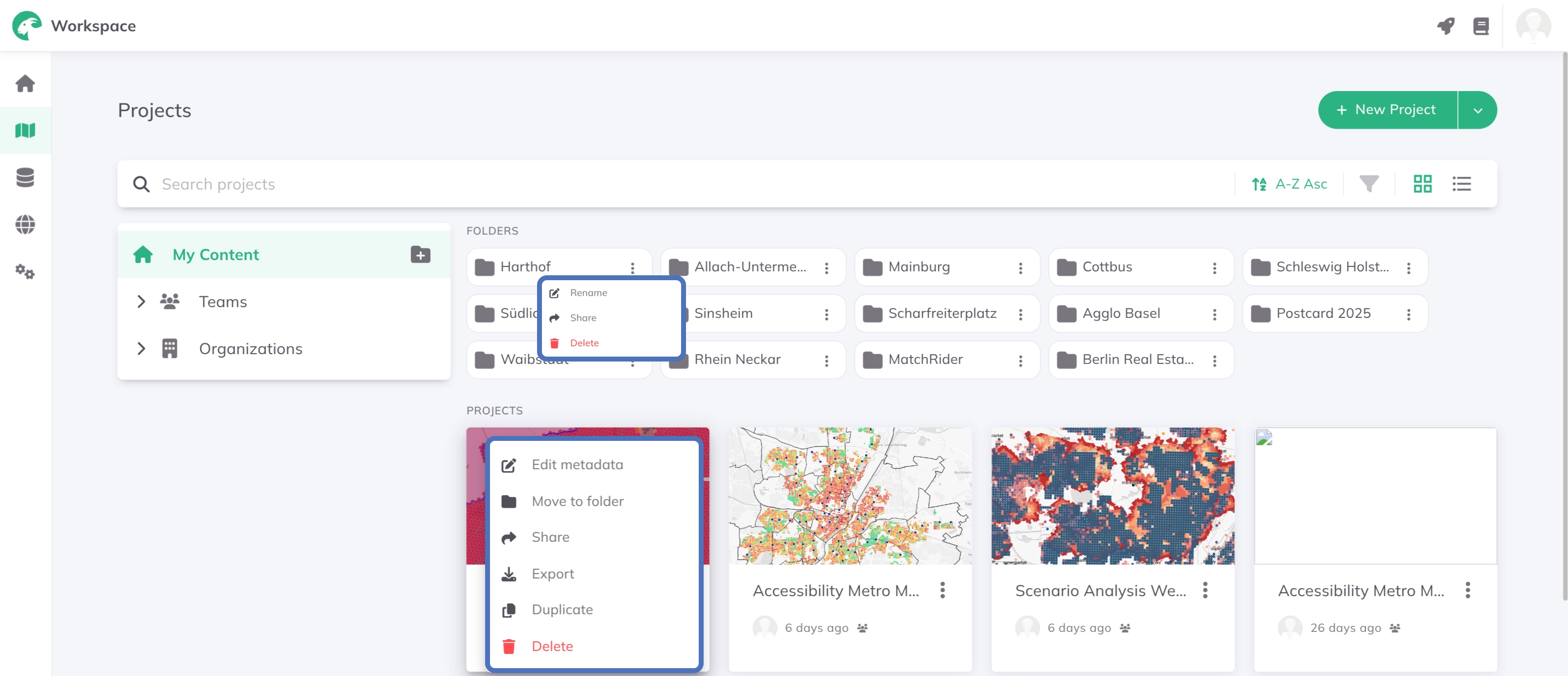
Access additional project options by clicking the 
More Options menu next to any project. You have the following options:
Edit metadata- Access and edit project metadataMove to folder- Reorganize your project locationShare- Collaborate by sharing projects with team members or your organizationExport- Export the project as a fileDuplicate- Create a copy of the projectDelete- Remove projects you no longer need
Managing Folders
Click the More Options icon next to any folder to manage it:
Rename— Change the folder nameShare— Share the folder with your Organization or individual Teams. Set the access level in the Manage access dialog and clickSave.Delete— Remove the folder