Aggregate Points
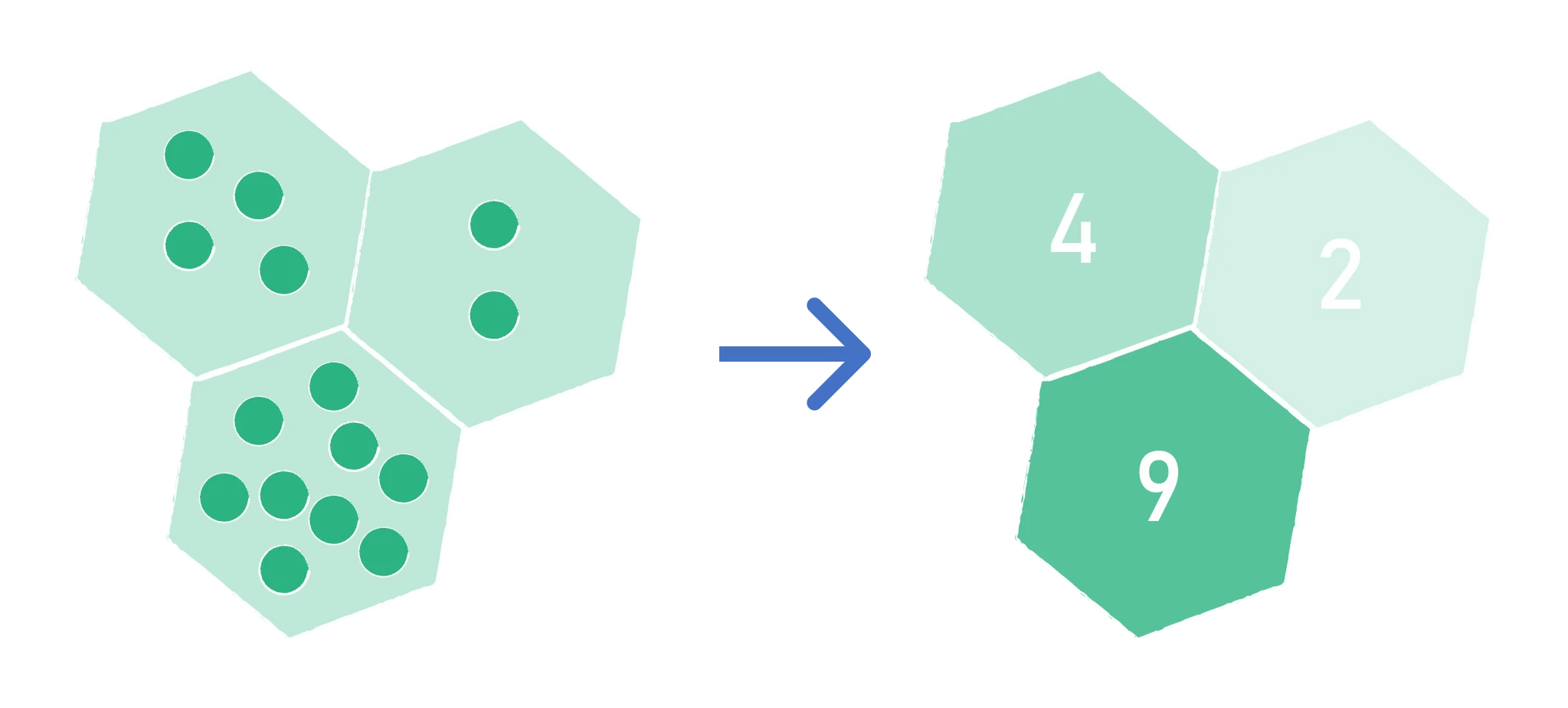
The Aggregate Points tool performs statistical analysis of points, e.g. count, sum, min, or max, and aggregates the information on polygons.
1. Explanation
The Aggregate Points tool can be used to analyze the characteristics of points within a given area. It aggregates the information of the points and therewith allows calculation of the point count, the sum of point attributes, or derive e.g. the maximum value of a certain point attribute within a polygon. As a polygon layer, either a feature layer (e.g. city districts) or a hexagonal grid can be used.
2. Example use cases
- Aggregating the population numbers on a hexagon grid.
- Deriving the sum of traffic accidents within a city district.
- Visualizing the average number of carsharing vehicles available per station on a district level.
3. How to use the tool?
Tools  .
. Geoanalysis menu, click on Aggregate Points.Layer to Aggregate
Input Point Layer, which contains the points you like to aggregate.Summary Areas
Area Type on which you like to aggregate the points. You can choose between Polygon or H3 Grid.- Polygon
- H3 Grid
Select the Area Layer which contains the polygons on which you like to aggregate your point data.
Select the H3 Resolution. You can choose resolutions between 3 (average edge length of 69km) and 10 (average edge length of 70m). Higher values create smaller hexagons.
To learn more about the H3 grid, you can visit the GlossaryGlossaryH3 gridA system that divides the earth's surface into hexagonal cells at several resolutions, used to compute and display values over an area.Read more ↗.
Statistics
Statistics Configuration, select the Operation. For all operations except Count, also select the Field of the point layer to calculate the statistic on. Only numeric fields can be selected.The following operations are available:
| Operation | Field | Description |
|---|---|---|
| Count | – | Counts the points in each area |
| Sum | number | Calculates the sum of the values of the selected field |
| Min | number | Yields the minimum value of the selected field |
| Max | number | Yields the maximum value of the selected field |
| Mean | number | Calculates the average (mean) value of the selected field |
| Standard Deviation | number | Calculates the standard deviation of the selected field |
Result Name for the result column. If you leave it empty, the column is called count for Count and <field>_<operation> otherwise (e.g. population_sum).Add Statistics Configuration and repeat steps 5 and 6. You can add up to 30 statistics; to remove one, click the trash icon above it. in the
 Statistics header and select up to three Group Fields of the point layer. The statistics are then additionally calculated per group (per combination of values of these fields).Results
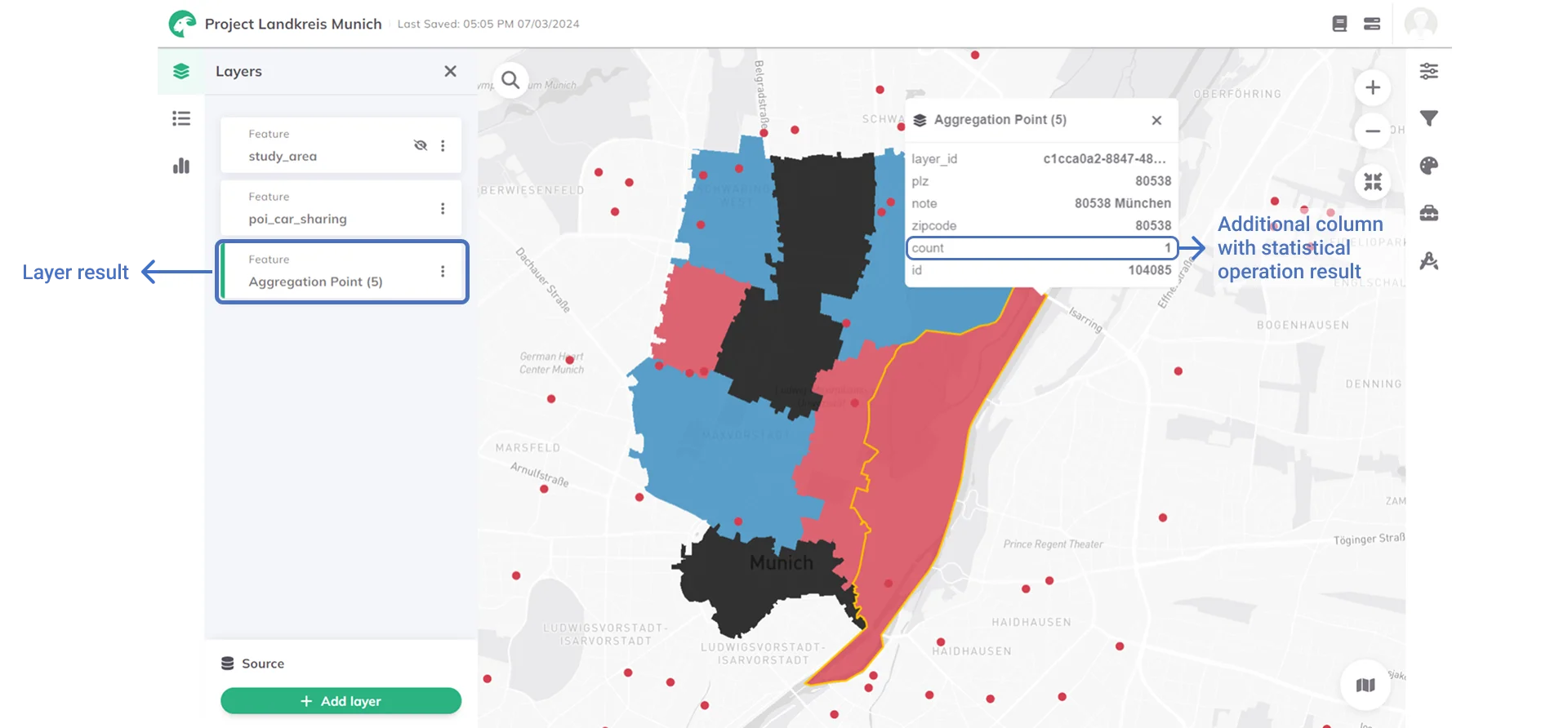
Result layer name (default: Aggregate Points).Run.As soon as the calculation process is finished, the resulting polygon layer is added to the map. It contains one additional column per statistic and is colored by the first statistic. You can see the values by clicking on a polygon on the map.
- With the area type Polygon, the result contains all polygons of the area layer with their attributes. Areas without points get the value 0.
- With the area type H3 Grid, the result contains the hexagons that contain at least one point. The column
h3_<resolution>(e.g.h3_8) holds the ID of the hexagon. - If you selected
Group Fields, an additional column<result column>_groupedholds the value of each group.
Want to style your result layer and create nice-looking maps? See Styling.