Aggregate Polygons
The Aggregate Polygons tool performs statistical analysis of polygons, e.g. count, sum, min, or max, and aggregates the information on polygons.
1. Explanation
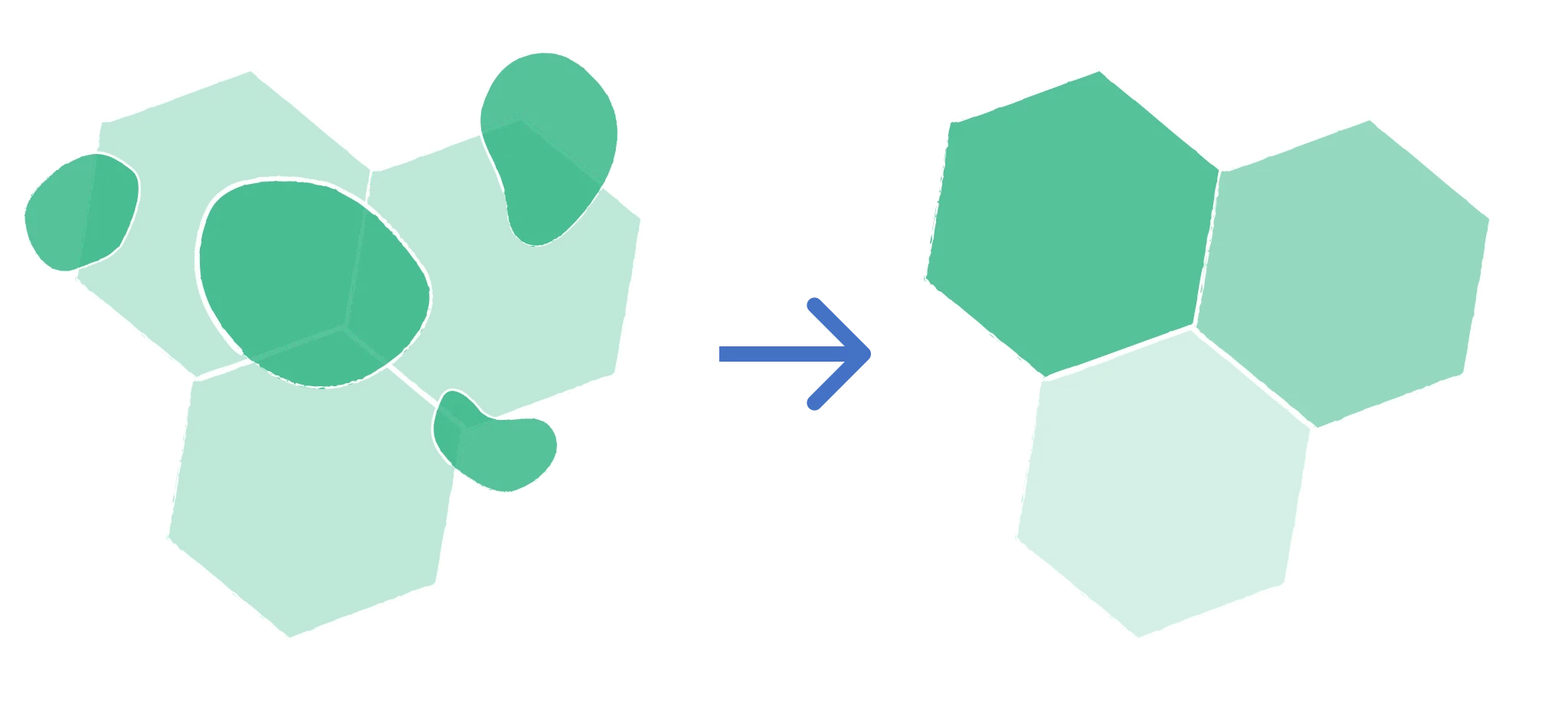
The Aggregate Polygons tool can be used to analyze the characteristics of polygons within a given area. It aggregates the information of the polygons and allows calculation of the polygon count, the sum of polygon attributes, or derive e.g. the maximum value of a certain polygon attribute within an aggregation area.
In the example below, the polygons of the layer to aggregate are summarized onto hexagons: the result keeps the geometry of the summary areas and receives the statistics calculated from the polygons that intersect them.
2. Example use cases
- Visualizing the number of parks per city district.
- Calculating the mean building size in an area.
- Aggregating population numbers on a hexagonal grid and calculating population densities.
3. How to use the tool?
Tools  .
. Geoanalysis menu, click on Aggregate Polygons.Layer to Aggregate
Input Polygon Layer, which contains the polygons you like to aggregate.Summary Areas
Area Type on which you like to aggregate the polygons. You can choose between Polygon or H3 Grid.- Polygon
- H3 Grid
Select the Area Layer which contains the polygons on which you like to aggregate your polygon data. Each polygon of the input layer is included in every area it intersects.
Select the H3 Resolution. You can choose resolutions between 3 (average edge length of 69km) and 10 (average edge length of 70m). Higher values create smaller hexagons. Each polygon of the input layer is assigned to the hexagon that contains its centroid.
To learn more about the H3 grid, you can visit the GlossaryGlossaryH3 gridA system that divides the earth's surface into hexagonal cells at several resolutions, used to compute and display values over an area.Read more ↗.
Statistics
Statistics Configuration, select the Operation. For all operations except Count, also select the Field of the polygon layer to calculate the statistic on. Only numeric fields can be selected.The following operations are available:
| Operation | Field | Description |
|---|---|---|
| Count | – | Counts the polygons in each area |
| Sum | number | Calculates the sum of the values of the selected field |
| Min | number | Yields the minimum value of the selected field |
| Max | number | Yields the maximum value of the selected field |
| Mean | number | Calculates the average (mean) value of the selected field |
| Standard Deviation | number | Calculates the standard deviation of the selected field |
Result Name for the result column. If you leave it empty, the column is called count for Count and <operation>_<field> otherwise (e.g. sum_population).Add Statistics Configuration and repeat steps 5 and 6. You can add up to 30 statistics; to remove one, click the trash icon above it.Weight by Intersection Area. Therewith, values are weighted by the share of each input polygon that lies inside the summary area. The weighting applies to Sum and Mean with the area type Polygon; Count, Min, Max, Standard Deviation and the area type H3 Grid are not weighted. in the
 Statistics header and select up to three Group Fields of the polygon layer. The statistics are then additionally calculated per group (per combination of values of these fields).Results
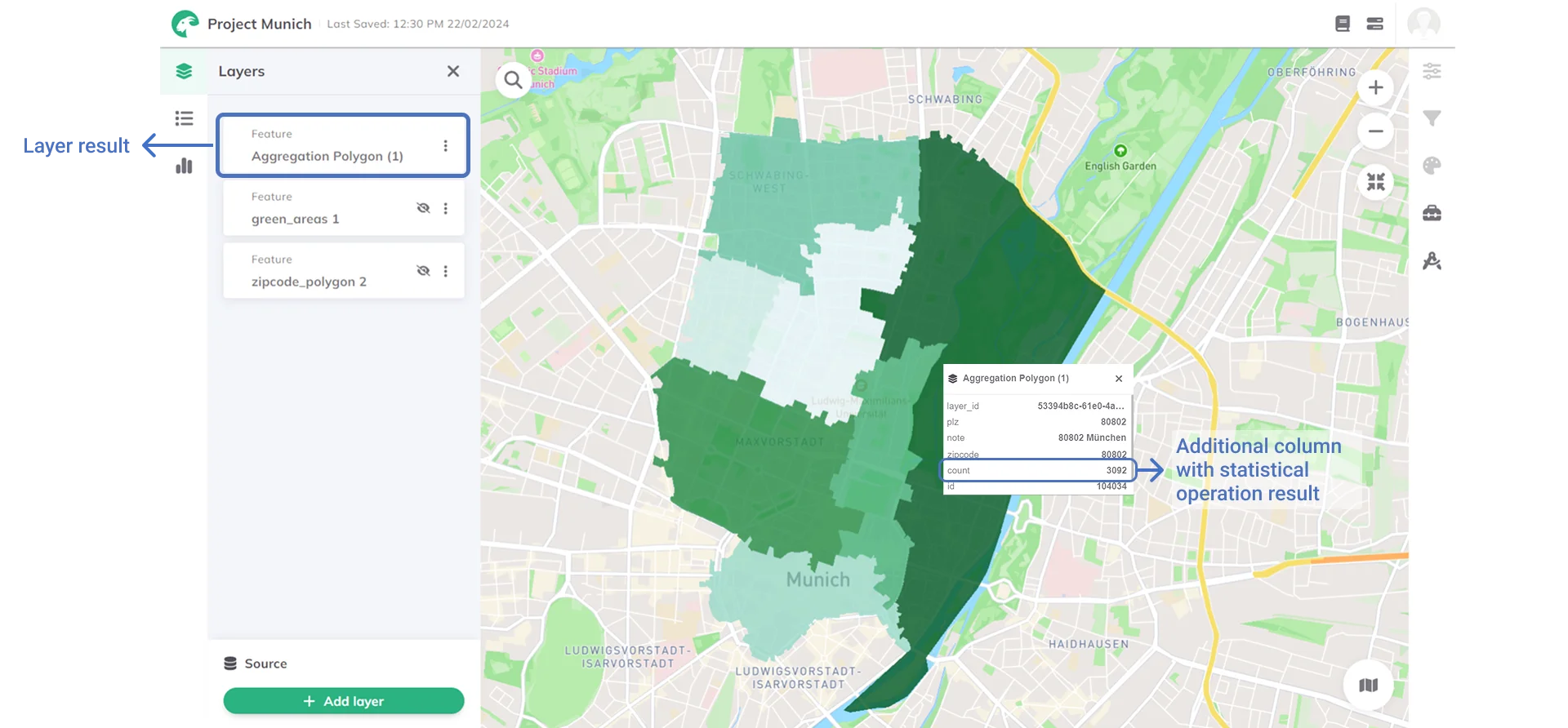
Result layer name (default: Aggregate Polygons).Run.As soon as the calculation process is finished, the resulting polygon layer is added to the map. It contains one additional column per statistic and is colored by the first statistic. You can see the values by clicking on a polygon on the map.
- With the area type Polygon, the result contains all polygons of the area layer with their attributes. Areas without intersecting polygons get the value 0.
- With the area type H3 Grid, the result contains the hexagons that contain the centroid of at least one polygon. The column
h3_<resolution>(e.g.h3_8) holds the ID of the hexagon. - If you selected
Group Fields, an additional column<result column>_groupedholds the value of each group.
Want to style your result layer and create nice-looking maps? See Styling.