Teams & Members
Sharing datasets and projects allows for a more efficient workflow because granting access to other members enables them to simultaneously edit and/or view your datasets or projects.
Sharing does not duplicate your data, only grants access to it.
Managing Teams and Members
Settings section.Team and view the list of Teams you are part of. Teams can represent departments or groups within your organization.Members tab to see the members and their roles.If you are the Owner of the Organization, you can:
- Click
+ New Memberto add a new member. - Click the
More Options menu and then on
 Deleteto remove a member
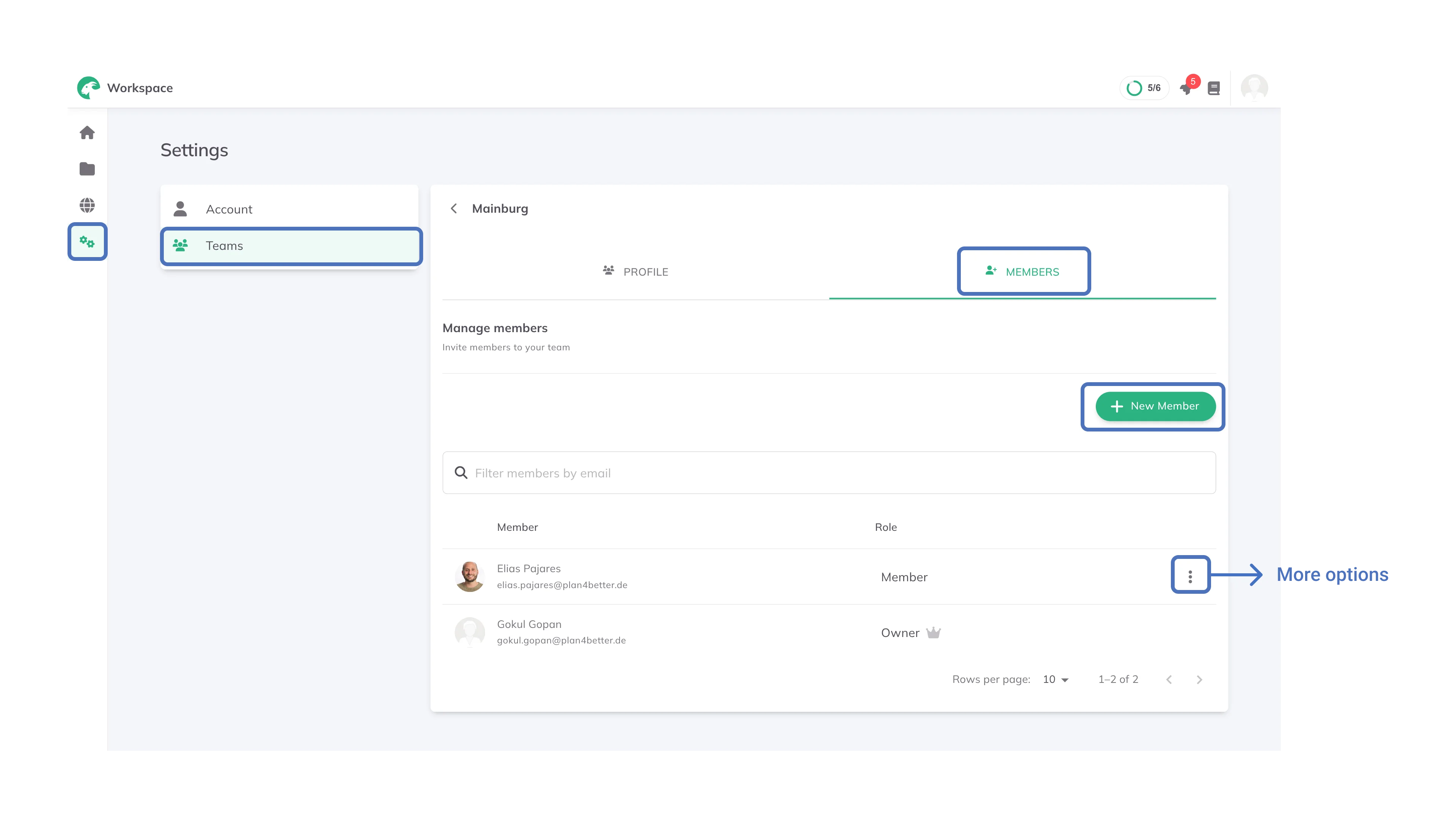
When you share a dataset/project with a Team/Organization, all members will have access to it.
Managing access to a Dataset, Project, or Folder
Open the item's More Options menu and select Share. The dialog has these tabs:
- People: share a dataset, project or template with an individual person from your organization. Search for them; the item appears in their
Shared with meand stays where it lives. Folders and bundles can only be shared with teams and the organization. - Teams: share with a whole Team or Organization. Grant its members
ViewerorEditoraccess, orNo Accessto withdraw it. - Public (datasets and projects only): for a dataset, make it public to all GOAT users; for a project, publish a public web snapshot that anyone can open without a GOAT account. Both are covered in Public Sharing.
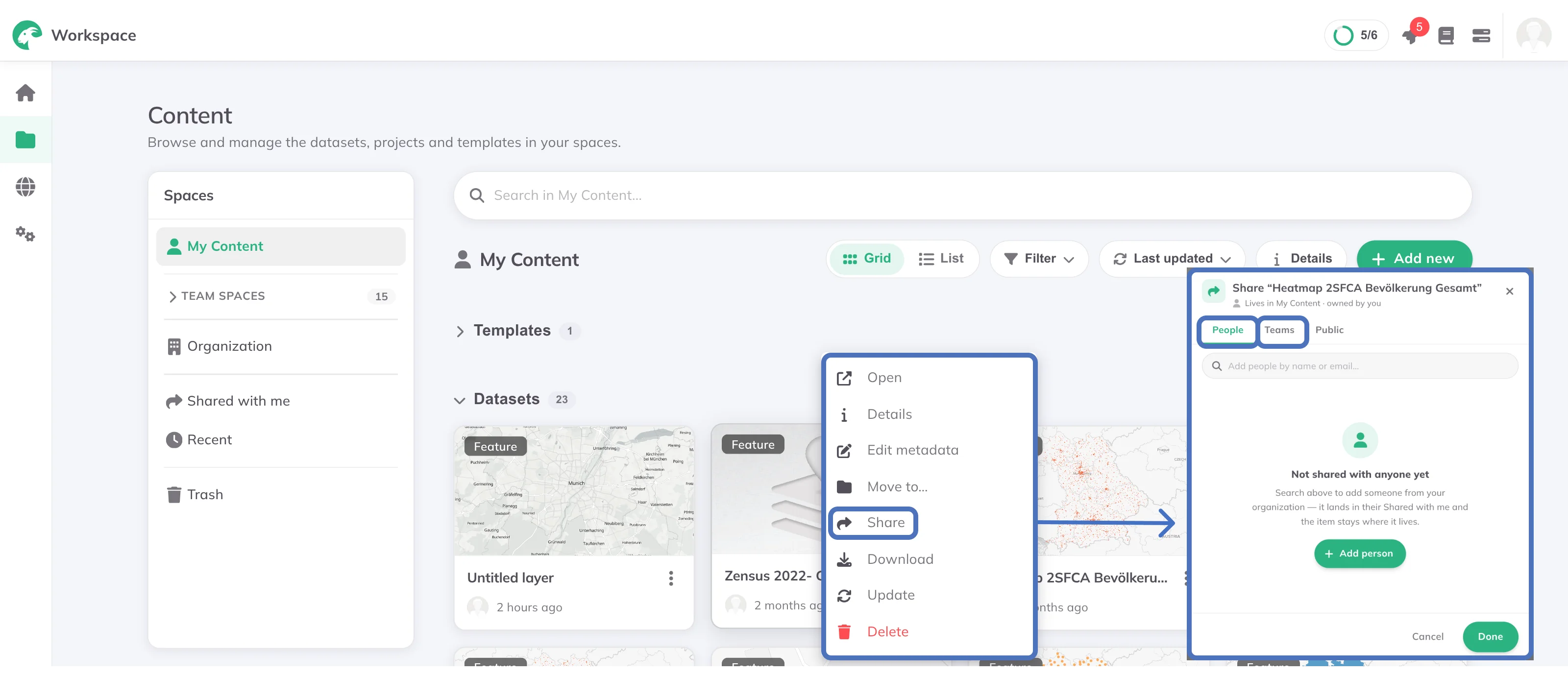
To withdraw access, open the Share dialog again and set the role back to No Access.
Sharing a Folder
You can also share an entire folder at once. Sharing a folder grants access to all datasets and projects inside it, so you don't have to share each item individually.
More Options menu on a folder you own and select Share.Organization or Team and grant Viewer or Editor access as needed.A folder can be shared with several teams and the organization at the same time. Items inside a shared folder inherit the folder's access, so sharing them individually is not needed.
Accessing Shared Items
Everything shared with you, personally or through a team or the organization, appears under Shared with me in the Spaces panel of Content.
Transferring ownership
You can hand an item over to a team or organization so that it no longer belongs to you personally. This works for datasets, projects, folders, bundles and templates that you own in your My Content; for items in a team or organization space, the option does not appear. Content explains how this differs from sharing.
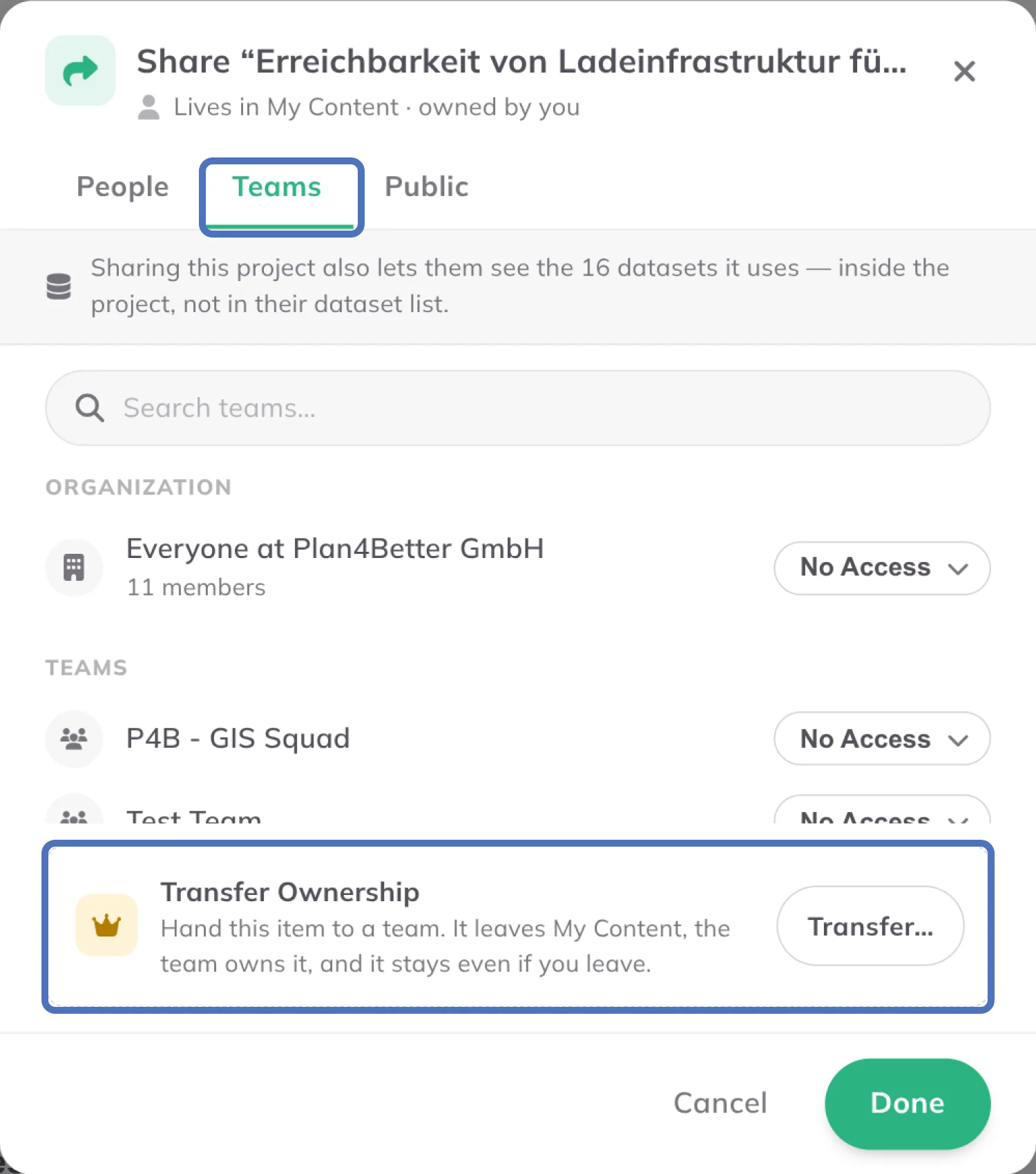
More Options menu, choose Share and open the Teams tab. In the Transfer Ownership row, click Transfer….To, pick the team or organization that should own the item.Leave a shortcut in the old location is on by default, so the item stays reachable from where it was. Turn it off if you don't want one, then confirm the transfer.After a transfer:
- The item leaves your My Content and the team (or organization) owns it. It stays with the team even if you later leave it.
- Everyone in that team or organization gets access. Personal shares with individual people are removed, since space membership takes over.
- Datasets still used by projects elsewhere keep read access, so those projects keep working.
Transferring ownership changes who the item belongs to and replaces its personal shares. If you only want to give others access without handing it over, use Share instead.
Trash
Deleted items are not removed immediately. They go to the Trash first.
Each space has its own Trash. In Content, select a space in the Spaces panel on the left; if you own that space, its Trash appears at the bottom of the panel. Only a space's owner can open its Trash and restore items, so in a team space, ask the team's owner.
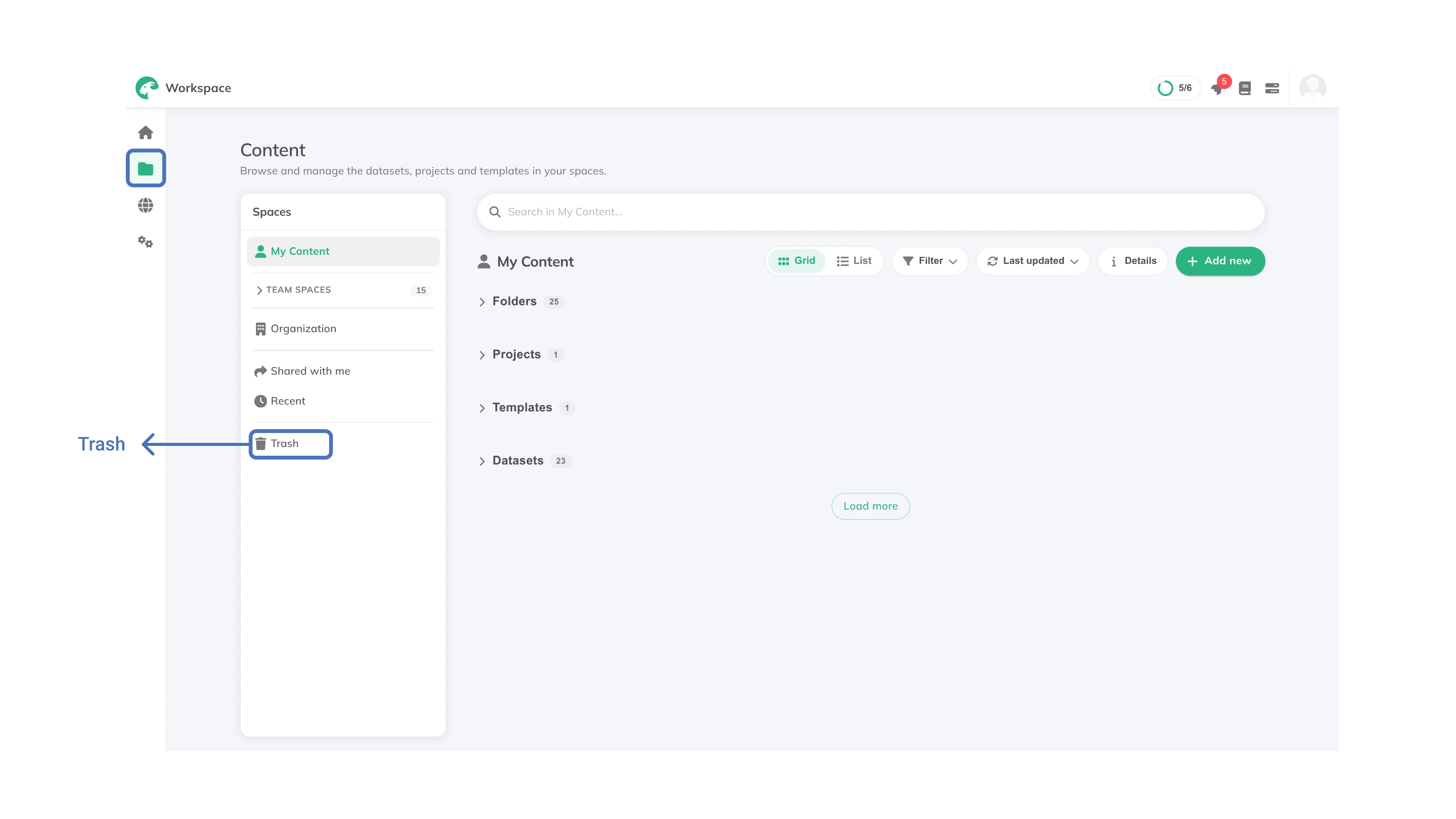
- Deleting an item moves it to the Trash, where it can be restored for 30 days.
- Open the Trash to
Restorean item, or leave it: items are removed for good 30 days after deletion.
When you transfer ownership of a folder, any trashed items inside it move along and stay in the trash.
Roles
See the table below to learn what each user can do within an Organization/Team and in a shared Dataset/Project:
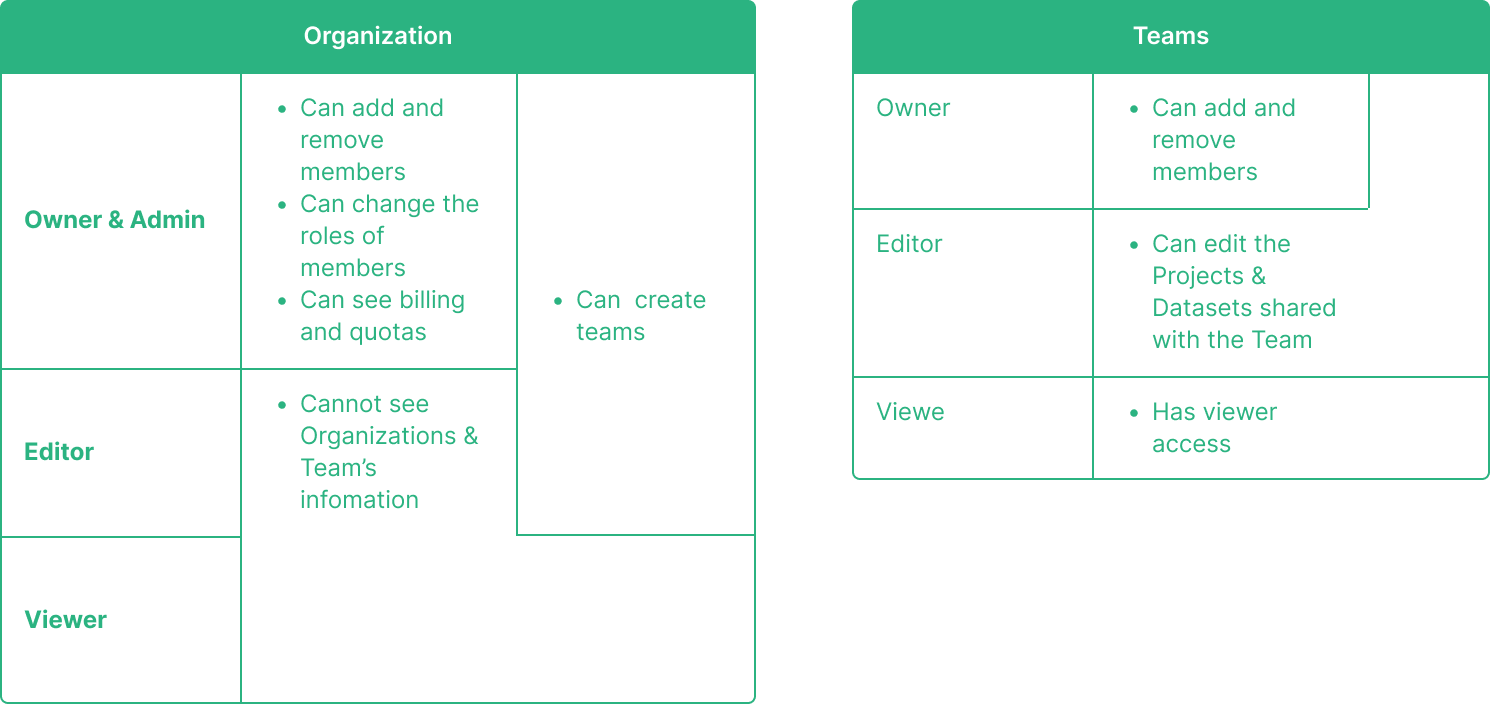
Deleting a dataset from a shared project that you own removes it for other users as well. It goes to your Trash, so you can still restore it within 30 days. As an editor if you delete a dataset or (layer from the) project, the owner will still have it in their personal dataset.