Data
This section contains widgets that help you interact with and analyze your data: Filter and Numbers.
Filter
This widget is an interactive element, which allows the user to filter the data on the configured layer based on the selected attribute field. Viewers can use this as a cropping tool on the maps.
1
Drag and drop the
Filter widget on a panel.2
Select your
layer and choose the field you want to filter by.3
Optionally add a
Placeholder text which appears before the filtering is applied.4
Enable or disable
Cross filter to make this widget interact with other data widgets. When enabled, filtering data in one widget will automatically update all other connected widgets on your dashboard.5
Enable or disable the option
Zoom to selection, which will automatically pan the map view to the filtered data.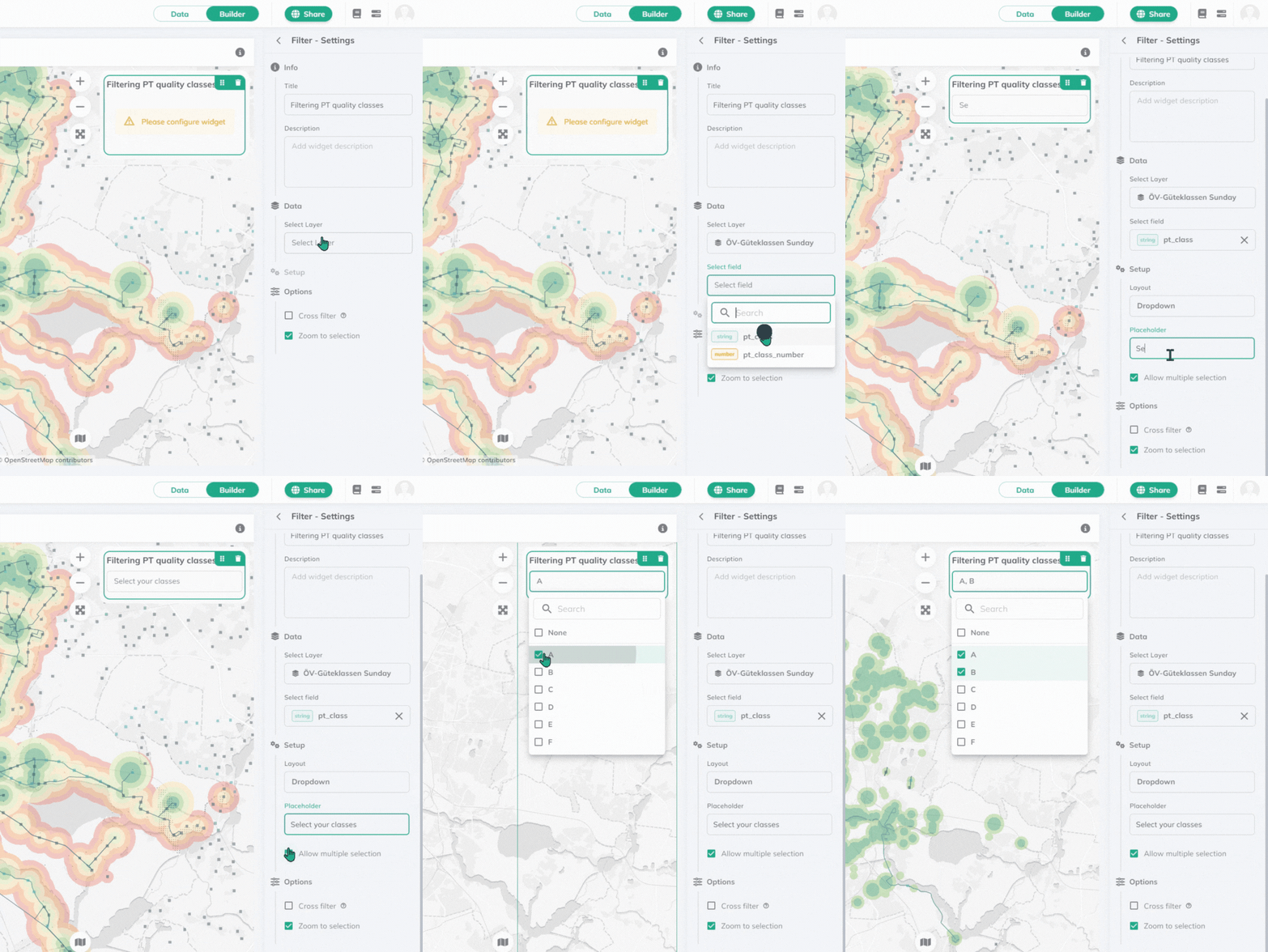
Numbers
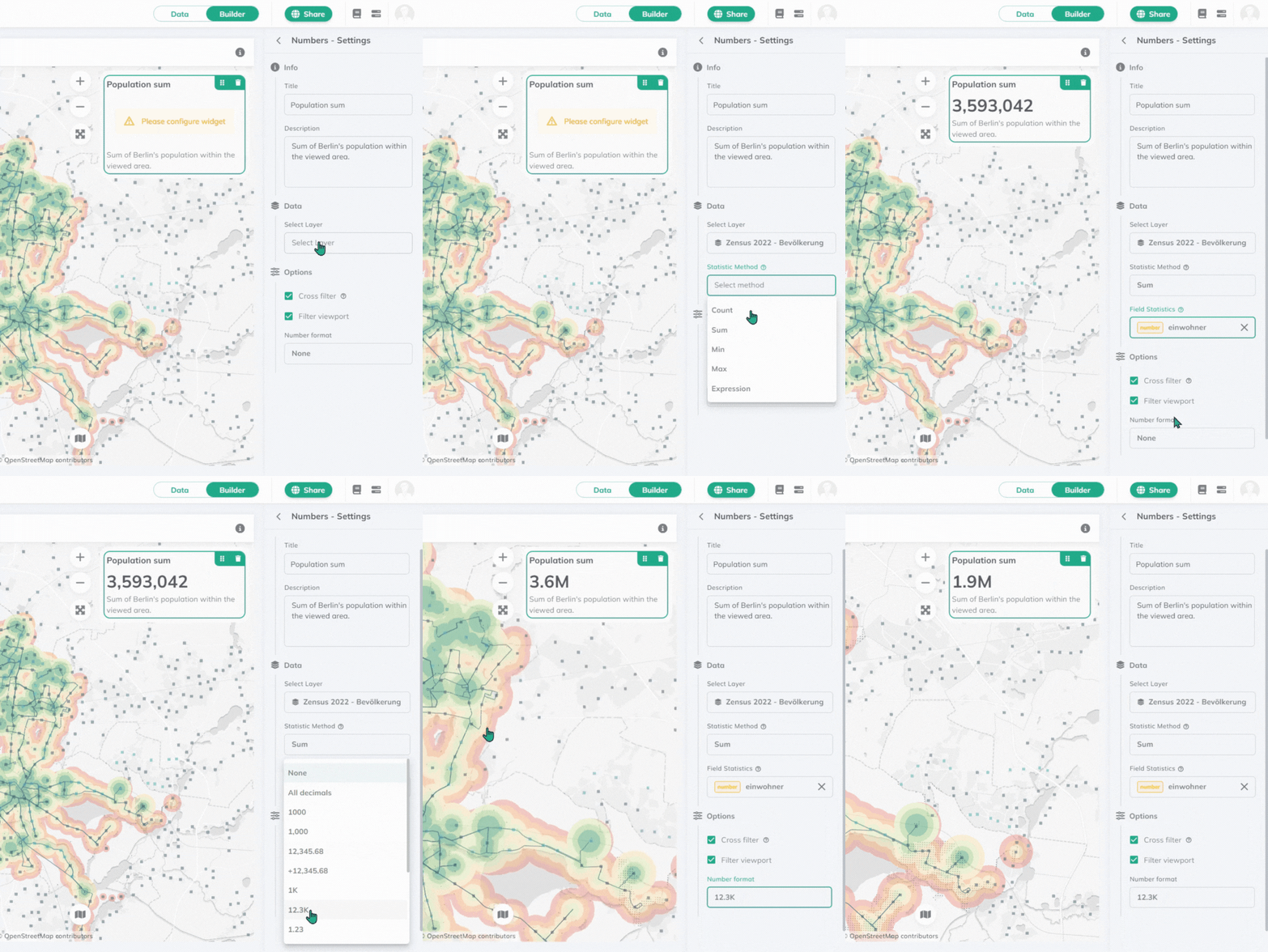
Choose from different statistic methods to be computed on a layer.
1
Drag and drop the
Numbers widget on a panel.2
Select your
layer. 3
Choose the
statistic method you want to apply. It can be Count, Sum, Min, Max, or add your own [Expression](../expressions). 4
Choose the
field onto which the statistics should be applied. Sum, min, and max can only be applied to numeric fields.5
Enable or disable
Cross filter to make this widget update depending on all other connected widgets on your dashboard.6
Enable or disable the option to
Filter viewport, which makes only the data within the current map view visible.7
Set the
number format from the dropdown list. The default number format is dynamic based on the language of the interface.