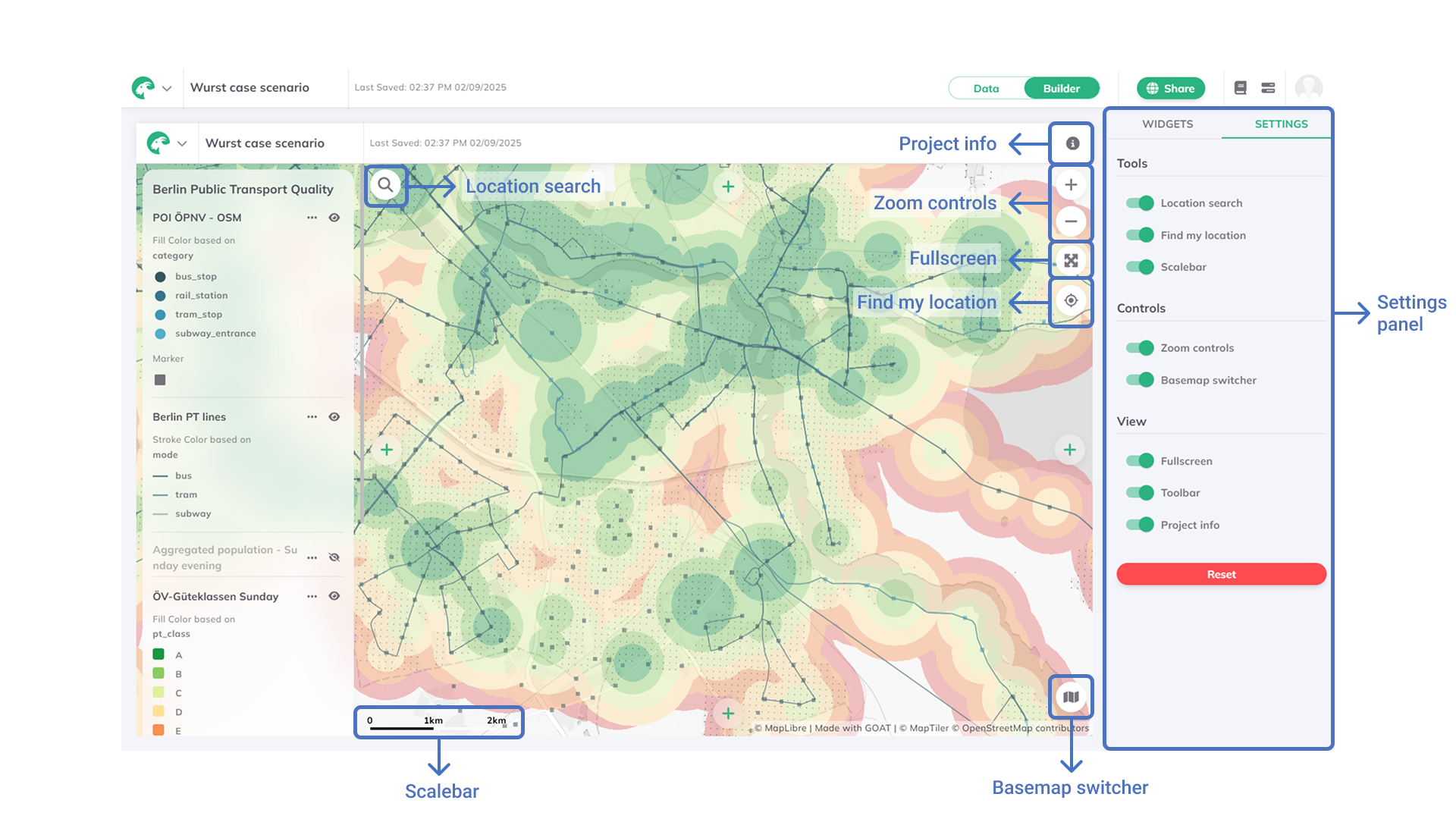
Dashboard Interface
Switching to Dashboard mode opens the Dashboard Interface, where you can design dashboards by arranging panels and widgets, and customize your workspace layout.
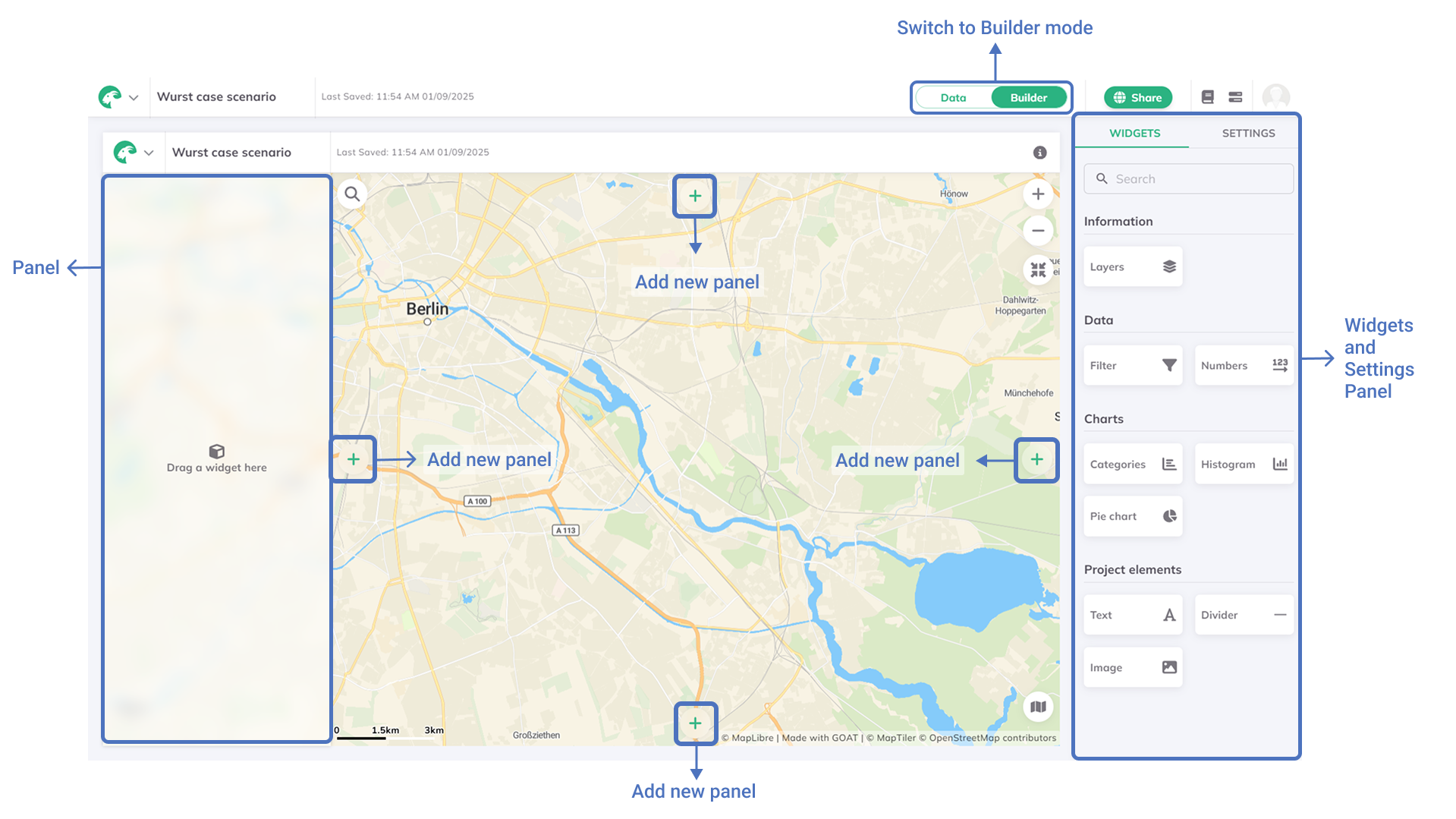
Panels
Panels are the main areas where you organize your widgets. You can add, arrange, and style panels to create your dashboard layout.
+ button, to add a new panel to any side of the map.panel to open settings and edit its appearance.arrow on the side of a panel to expand it to full height/width.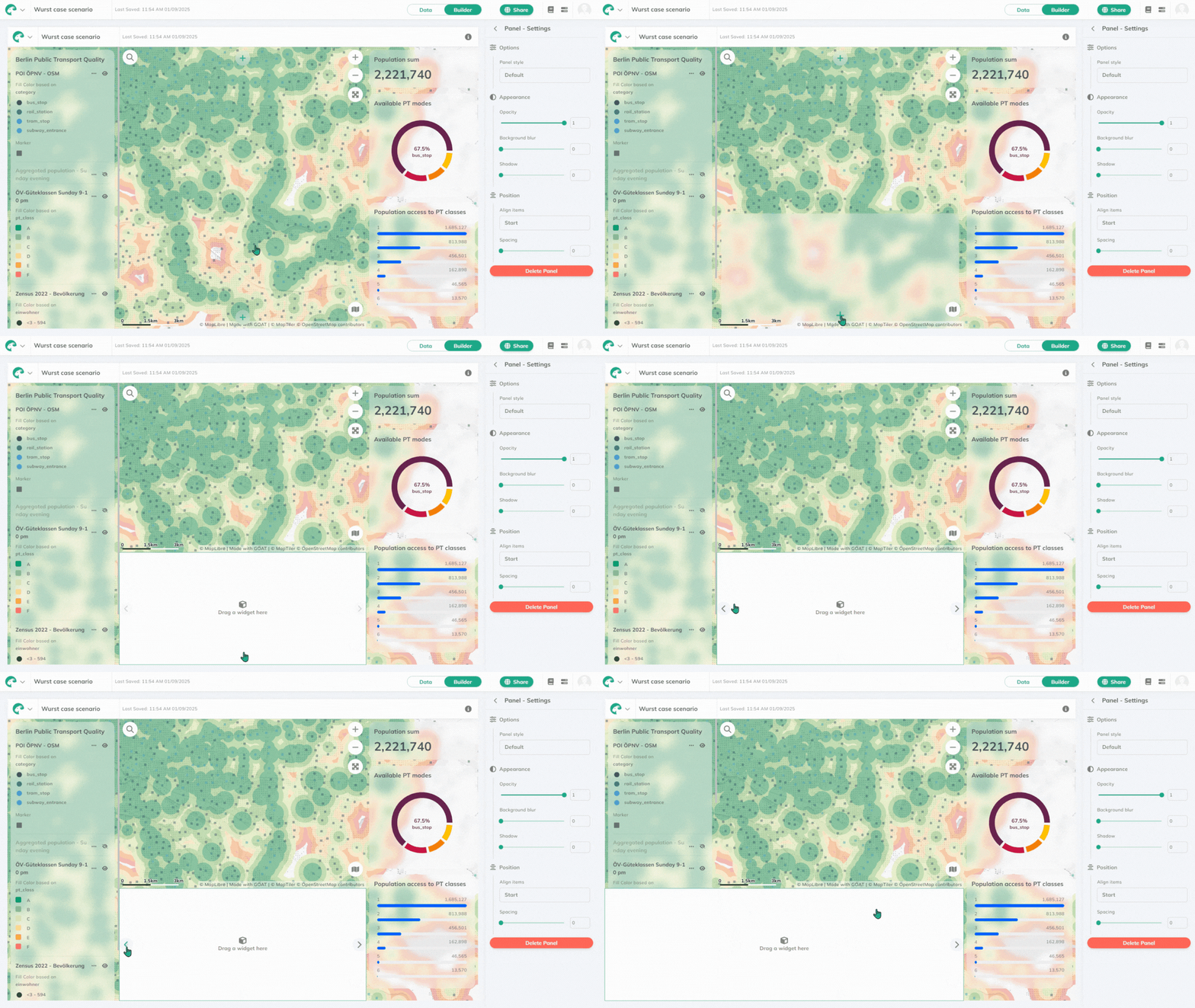
You can set the panel style as:
Default: widgets fill the panel with a continuous backgroundRounded: widgets have rounded corners and space at the borderFloating: widgets are separate with rounded corners
At Appearance you can change:
Opacity(0 = transparent, 1 = white)Background blur(1–20)Shadow(0–10)
At Position you can set:
Alignment: Start, Center, EndSpacing: 0–10 (distance between widgets)
To delete a panel, click Delete at the bottom of the settings.
Widgets
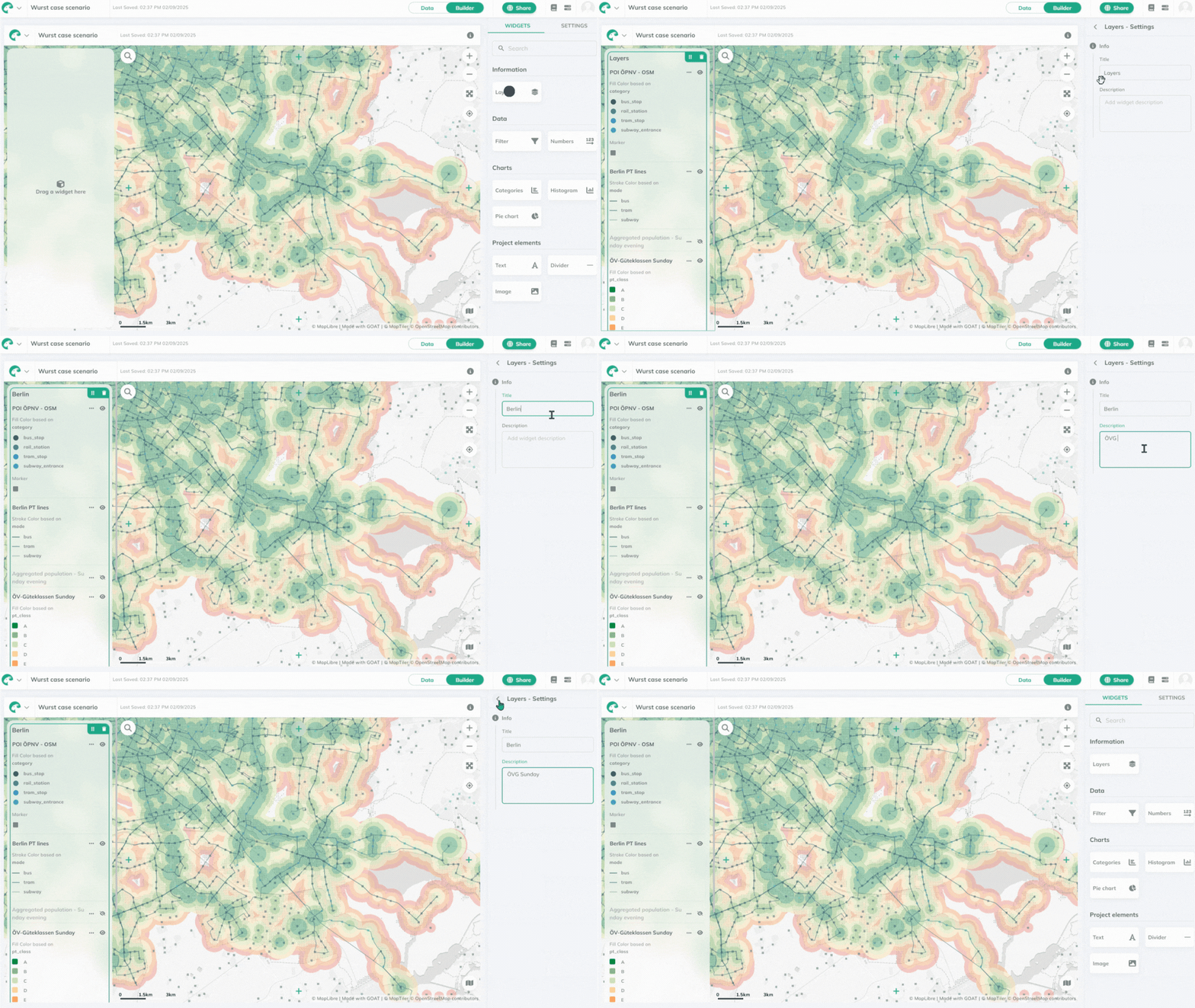
Widgets are the building blocks of your dashboard. They let you display data, statistics, charts, and project elements—like text or images. Each widget is highly customizable: you can adjust its content, appearance, and behavior to fit your needs, whether you want to highlight key numbers, visualize trends, or add context with text and graphics.
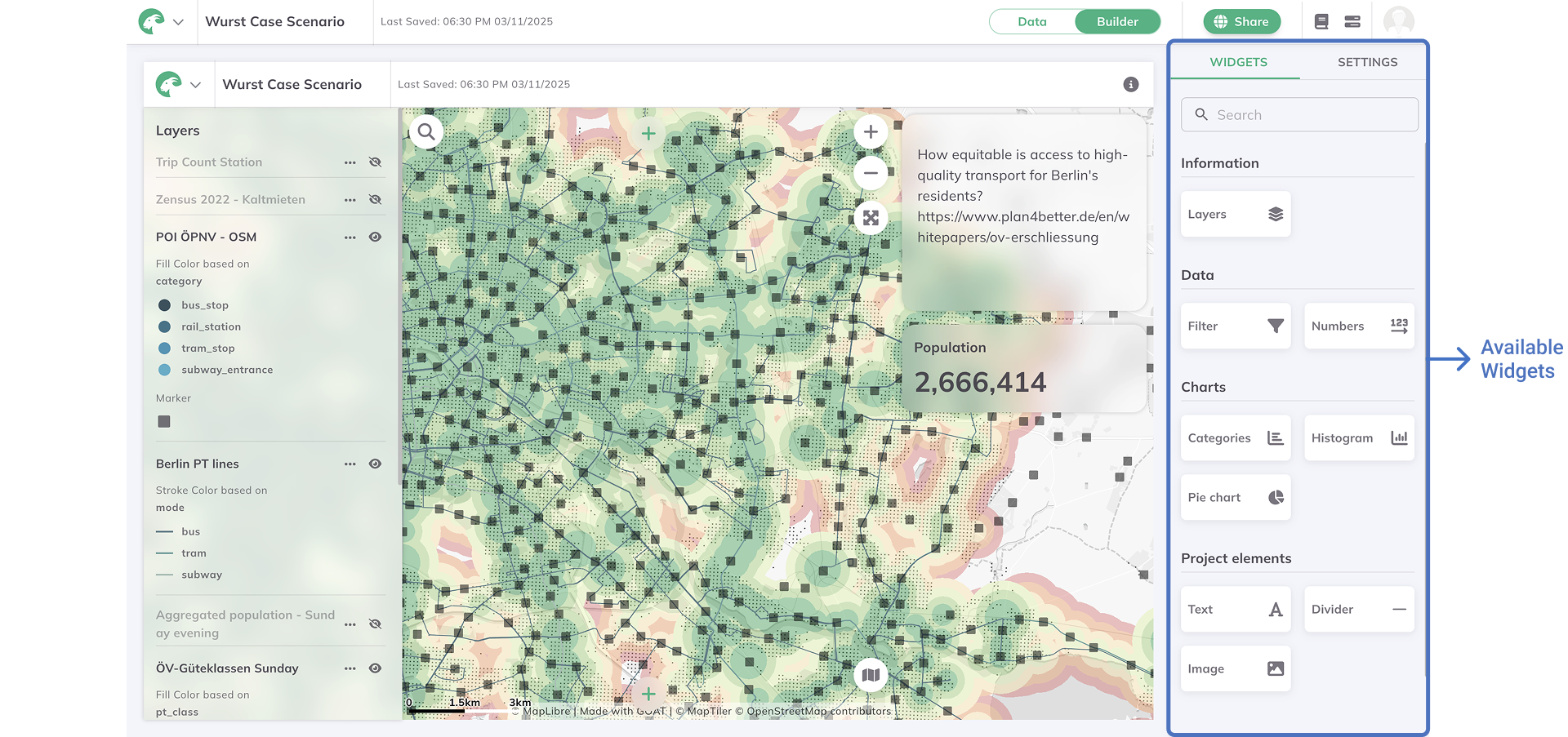
widgets from the right sidebar to any panel on your dashboard.widget to customize its settings.dotted icon.delete icon to remove the widget from your dashboard.Title, which will appear on the top of the widget, and the Description, which will appear on the bottom of the widget.For more details, see Widgets.
Settings
In the settings you can enable or disable Tools, Controls and View options for your dashboard. See Settings for more details.