GOAT AI
GOAT AI is the AI assistant built into GOAT. Ask it in your own words to find projects and datasets, explain what a layer contains, compute statistics, or build and run an analysis as a workflow. It works with your own GOAT permissions, so it only sees and changes what you could.
1. Explanation
The assistant opens in a panel next to the page you are working on, the dock. You write a message, and the assistant answers in text, with cards for what it found and suggestions you can apply. To answer, it uses GOAT's own tools: it searches your workspace and the data catalog, reads the layers of a project and builds workflows from the tools of the Toolbox. Everything it says about your data, such as names, counts and values, comes from these tools. General questions, for example about planning terms or places, it answers from its own knowledge.
- It works with your permissions. Every step runs with your sign-in: the assistant only finds what you can open and only changes what you may edit. In a project you can only view, it answers questions but creates and changes nothing.
- It knows the page you are on. Each message tells the assistant which page, project and view it was sent from, and what is selected there. In a project it answers about that project's layers; on the Catalog page about the catalog.
- Your organization decides how it works. Organization admins switch AI on or off, choose the model connection, and set a data policy for what reaches the model (see AI settings). Where your organization uses GOAT AI (included), answers use AI credits.
The assistant is in beta, and AI answers can be wrong. Check results before you use them. If an answer is wrong or misses something, tell us with the feedback buttons below it (see Answers).
2. Open the assistant
Click Ask AI in the upper bar. It is missing when AI is switched off for your organization or not set up on your GOAT instance. Click the button again to close the dock.
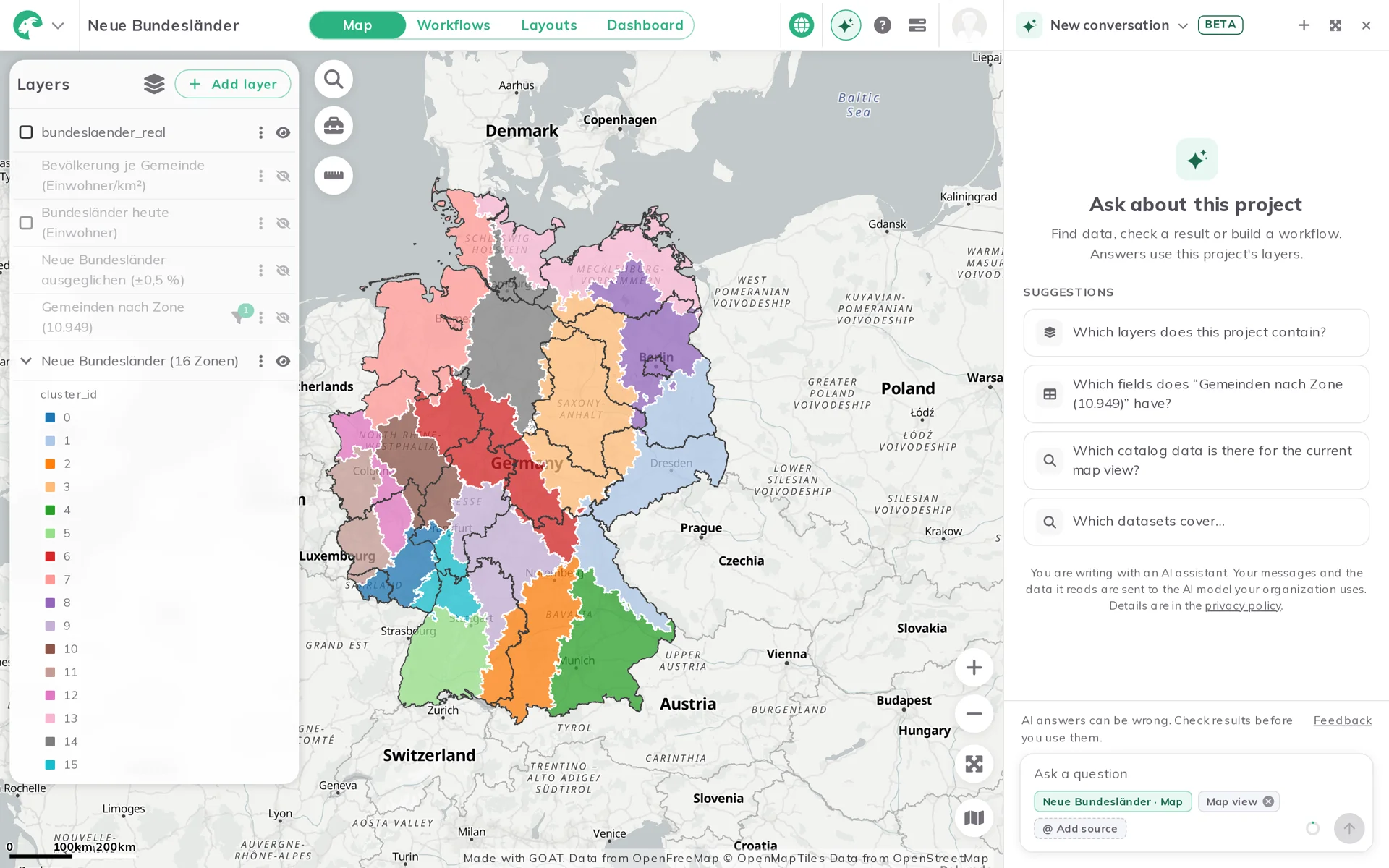
The AI dock opens on the right, next to the project. An empty conversation shows suggestions for the page you are on.
3. Ask a question
Type your question into Ask a question and press Enter or click Send. Shift+Enter starts a new line.
- Context. Below the text, small chips show what the message tells the assistant about the page, for example the project and view,
Selected layer,Map view,Selected workflowor, on the Catalog page, the search and filters. Remove a chip if the assistant should not use it. - Other projects as sources. Click
@ Add source, or type@, and pick another project you can open. The assistant may then read that project too, for example to compare it with the open one. A message can use up to 10 sources. - While an answer runs.
Stopends the answer. You can also write your next message while the assistant is still answering: it waits above the message field asQueuedand goes out once the answer ends.Send nowstops the running answer and sends it at once;Removeputs its text back into the message field. - Data files. If you drop a data file onto the dock, GOAT opens the usual upload dialog. Files are never attached to a message.
The assistant answers in the language you write in.
Answers
While the assistant works, the answer shows the steps it takes, such as a search in the catalog or a count of features, each with what it found. Then comes the answer's text, followed by cards for what it points to and, where it suggests a change, a suggestion card (see What GOAT AI can do).
Below the newest answer, and below older ones when you point at them, you find:
Undo, when the answer changed workflows (see Change a workflow with the AI assistant).Copy answer, to copy the answer's text.Answer details: for an answer of GOAT AI, the AI credits it used (where your organization's AI credits are counted), itsStepsand, where it is known, where the model runs, for exampleRuns on a model hosted in the EU.For an answer from your organization's own connection, theModel, theProviderand the token counts.Good answerandBad answer, to rate the answer. AfterBad answeryou can say what could be better. Click the chosen button again to remove your rating.
If you close the dock or open another conversation while an answer runs, the answer goes on. A message tells you when it is ready.
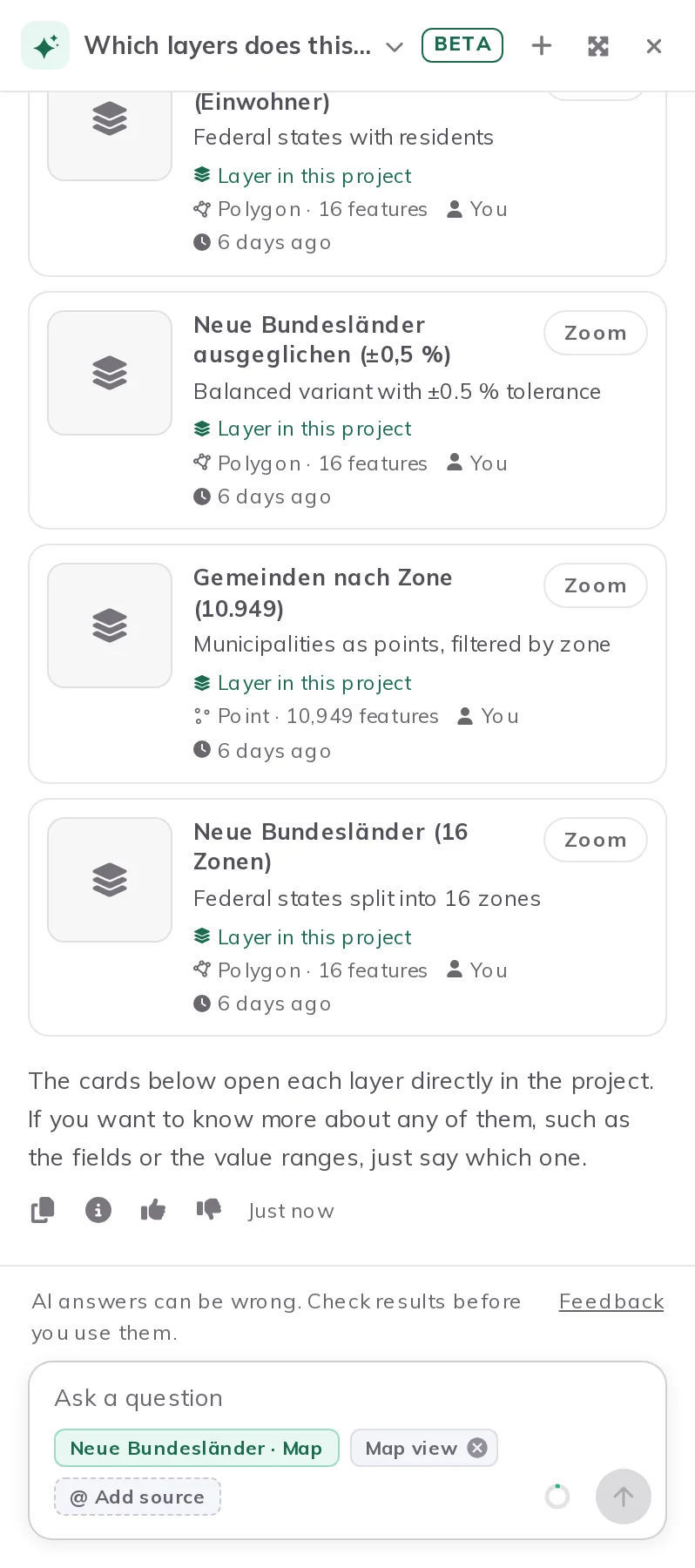
The answer to Which layers does this project contain?: a card for each layer, with Zoom, and the feedback buttons below the text.
4. What GOAT AI can do
Find your projects, datasets, workflows and layouts
Ask for content by name, topic, folder or owner, for example Which of my projects use cycling data? The assistant searches everything you can open: your own content and what is shared with you, your teams and your organization, shared folders included. It also finds the workflows and layouts inside projects, the layers that projects contain, and matching templates.
What it recommends appears as cards with a short note on why it matters. Each card has at most one button, which GOAT chooses from the kind of item and the page you are on:
Openopens a project, or a workflow or layout in its project. When you are in a project, another project opens in a new tab, so the open one stays open.Zoomselects a layer of the open project and zooms the map to it, in theMapview.Addadds a dataset to the open project, if you may edit it. A notice confirms it, withUndoto remove it again. Outside such a project,Add…first asks which project to add it to.- The eye icon shows a
Previewof a dataset;All detailsopens its full information.
When you ask for data about a topic or a place, the assistant looks in your organization's datasets and in the catalog at the same time, and shows your organization's datasets first.
Search the data catalog
Ask what data exists, for example Which datasets are there about population? or Which of these datasets may be used commercially? The assistant searches the GOAT data catalog, narrows a place down to its region, and reads a dataset's full record: description, license, publisher, years, extent and, for a bundle, its layers and fields. The datasets it recommends appear as cards marked From the GOAT catalog, with Add and a preview.
To see the results on the Catalog page itself, ask for it: the assistant suggests the search and filters in a card (see Suggestions you apply).
Answer questions about a project's data
In a project, the assistant reads the project's layers and answers questions about them, for example Which fields does "Schools" have? or How many bus stops lie in the district of Pasing? It can:
- list the project's layers and groups, with their types, filters, extents and which layer is selected;
- list a layer's fields and their types;
- count features, all of them or only those that match a filter;
- describe a field: minimum, maximum, mean, standard deviation and class breaks for numbers, or the most frequent values for text;
- compute areas of polygons, also per group;
- compute a statistic per group, such as the sum, mean or count of features per district, and shares against another layer, for example the residents within reach as a share of all residents per district;
- look at a few features of a layer to see what the data looks like;
- list the project's workflows and layouts and explain what they do.
The numbers come from GOAT, not from the model: statistics, shares and totals are computed by GOAT before the assistant writes about them. The assistant cannot read the data of a locked layer.
Outside a project, you can ask about any project you can open, or add it as a source with @ Add source.
Suggestions you apply
Some answers suggest a change to the page in a suggestion card. Nothing changes until you apply it.
- Map view: in the
Mapview, the assistant can suggest a view, such as the extent of a layer or of the features it found.Apply to mapmoves the map there. - Catalog filters: the assistant can suggest a search and filters for the catalog. On the Catalog page,
Apply to pagesets them; elsewhere,Open in catalogopens the catalog with them.
After you apply a suggestion, Undo on the card takes it back. Discard dismisses it. A suggestion for another project offers Open in project to review instead.
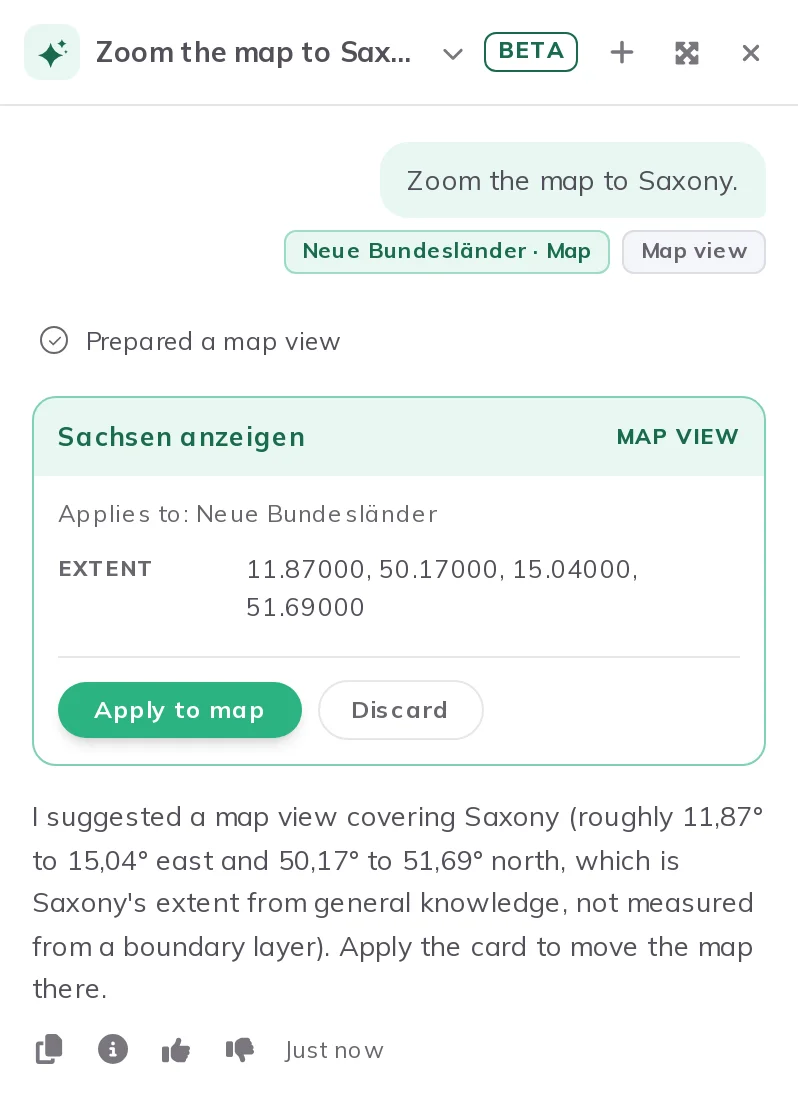
A suggestion card for a map view: Apply to map moves the map there, Discard dismisses it.
Build, change and run workflows
In the Map and Workflows views of a project you can edit, the assistant builds analyses as workflows:
- Build: describe the analysis, and the assistant uses a fitting workflow template or builds the workflow from the tools of your Toolbox, checks it like the editor does and creates it in the project.
- Change: ask it to change a workflow, for example a setting, a step or a note. It changes only what you asked for, and every answer that changed something can be undone.
- Run: ask for a result, and the assistant runs the workflow, waits for it and reports the result with the layers the run saved. A workflow it did not create in this conversation runs only after you agree.
The workflow pages describe each of these in detail: Build a workflow with the AI assistant, Change a workflow with the AI assistant and Run a workflow with the AI assistant.
Ask you when there is a choice
When only you can decide, for example which of several datasets to use, the assistant asks you in a card with up to four questions, each with a few options. The option it suggests is marked Recommended. Pick an option or Type your own answer, then Send answer; with several questions, Next and Review lead you through them. To answer in the message field instead, click Reply in text instead.
The assistant adds a dataset to your project only when you pick it in such a card, never because it read about it somewhere.
5. Conversations
Every conversation is saved, and only you can see your conversations. Click the title in the dock's header (or look beside the conversation in full screen) to see them, grouped into Today and Earlier:
Search conversationsfinds a conversation by its title or its first message.- In a project,
This projectshows the conversations of that project andAllall of them. - The menu behind a conversation's three dots lets you
RenameorDeleteit. Deleting removes its answers too and cannot be undone.
A conversation started in a project belongs to that project and can only be continued there. Opened elsewhere, it says so, with Open in project to go there or New conversation here to start a new one.
6. Permissions and data
- Your permissions. The assistant uses your sign-in for every step. It finds only content you can open, never reads a locked layer, and creates or changes workflows and adds datasets only in a project you may edit. It never deletes a project, dataset or workflow.
- What reaches the model. Your messages and the data the assistant reads are sent to the AI model your organization uses. The organization's data policy sets how much: under
Standard, everything a member can see, including sample rows and query results; underRestricted, only field names, types, counts and statistics, never single rows, features or geometries. Admins set it under AI settings. - Which model.
GOAT AI (included)is GOAT's own model connection. An organization can instead use a connection of its own, with its own provider and key; requests to it are covered by the organization's agreement with that provider. If that provider fails and the organization allows it, an answer can fall back to GOAT AI, and the answer then says so.
7. AI credits
Answers of GOAT AI are paid from your organization's pool of AI credits. AI credits are separate from the credits that tool and workflow runs, downloads and exports use.
How much an answer costs. An answer costs AI credits by the number of steps it took, that is, the tool calls the assistant made for it, never by the model behind it. With GOAT's standard terms:
| Steps of the answer | AI credits |
|---|---|
| up to 10 | 1 |
| 11 to 20 | 2 |
| more than 20 | 3 |
The AI credits window in the dock (see below) shows the rule that applies to your organization.
What is counted. An answer is counted when it is complete, when it reaches the assistant's limit for one answer, and when it runs out of time or you stop it after it has taken at least one step. It is free when the model's provider or GOAT fails, when the answer is interrupted, and when it ends before its first step. Each answer is counted once.
How many AI credits there are. With GOAT's standard terms, a subscription gets 200 AI credits per editor seat each month, and a trial gets 100 AI credits for the whole trial. A subscription's pool is refilled each month together with the credits; a trial's lasts until the trial ends.
Where you see them. Next to Send, a small ring shows how much of the pool is used. It turns orange and shows how many are left when less than a tenth is left, and red when they are used up. Click it to see AI credits · your organization: the share used this month (or in your trial), the date the pool is refilled, how many AI credits are left and how an answer is counted. Owners and admins find See usage → there, which opens the Usage page with the AI credits each member used.
When they are used up, the message field gives way to a line such as This month's AI credits are used up. Resets on … The conversations stay readable. An admin of your organization can ask for more.
AI credits only count where GOAT AI answers and GOAT runs with billing. Answers from your organization's own connection never use AI credits, and self-hosted GOAT has no limit (see AI assistant in the self-hosting docs).
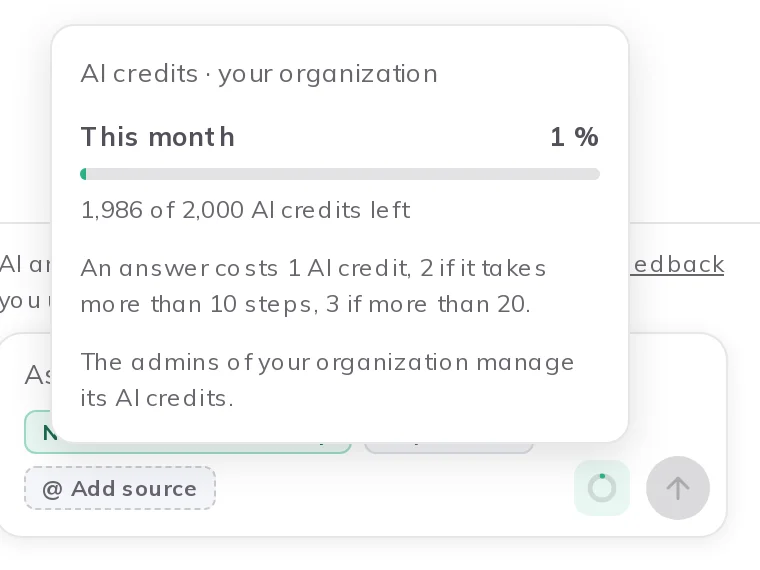
The AI credits window, opened from the ring next to Send: the share used this month, the AI credits left and how an answer is counted.
8. Use GOAT from your own AI tools
External AI agents can connect to GOAT through its MCP endpoint (Model Context Protocol), served by the assistant. They act with the permissions of the person who connects them. At the moment the endpoint offers the catalog tools: search the data catalog, list its filters, look up regions and read a dataset's record. The endpoint's address and settings are in the self-hosting docs under AI assistant.