Support
Ask the GOAT team a question, report a problem or suggest an idea without leaving GOAT. Every request becomes a support ticket: you follow the replies in GOAT, and they are also sent to you by email.
The Support menu
Click the Support icon in the upper bar, on the right. On a phone, the same entries are in the account menu.
Support tickets: opens the list of your tickets. A count next to it shows how many tickets wait for your answer or have replies you haven't read yet.Report a problem: opens the form for a new ticket.Documentation: opens this documentation in a new tab.
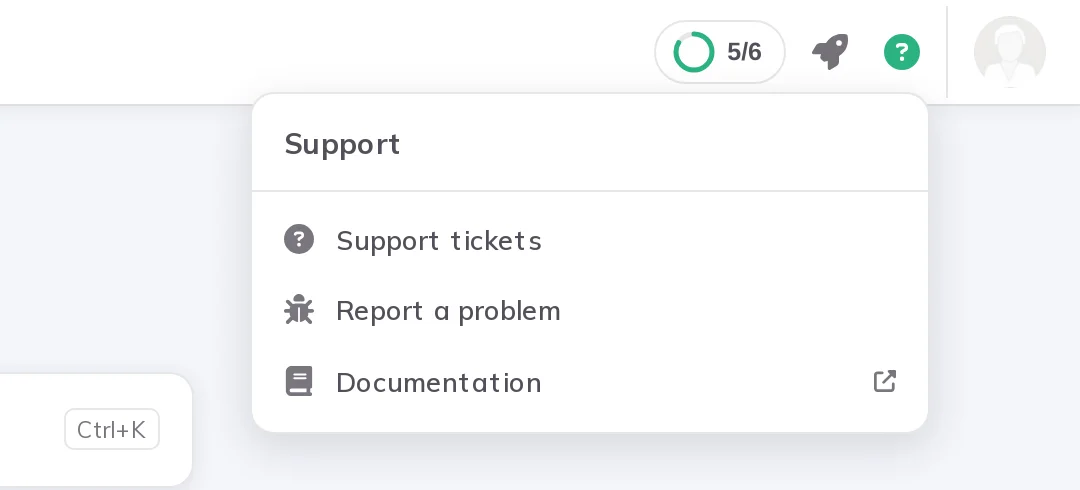
Tickets that need your attention are listed at the top of the menu, so you can open them directly.
On installations without support tickets, Report a problem opens an email to the support team instead, and there is no ticket list.
Create a ticket
Support menu, click Report a problem. You can also click New ticket on the Support page.What do you need help with?, choose a category: Bug, How-to, Data issue, Feature request, Account & billing or Other.Subject and a Description. For a bug, describe what you did, what you expected to happen and what happened instead.How much is this blocking you?, choose Just a question, Slowing me down or Blocking my work. This helps the team decide what to look at first. Feature requests skip this question.Optionally, add more context:
Related project: the project the ticket is about. Not asked for account and billing tickets.Attachments: screenshots, exported layers or logs. Up to 10 files, 10 MB each and 50 MB in total.Keep colleagues in the loop: people from your organization who can read and reply, and get updates by email too.Attach technical details: the page you came from, your browser and screen size. This is ticked by default.
Submit ticket. The ticket opens, and you get a confirmation by email.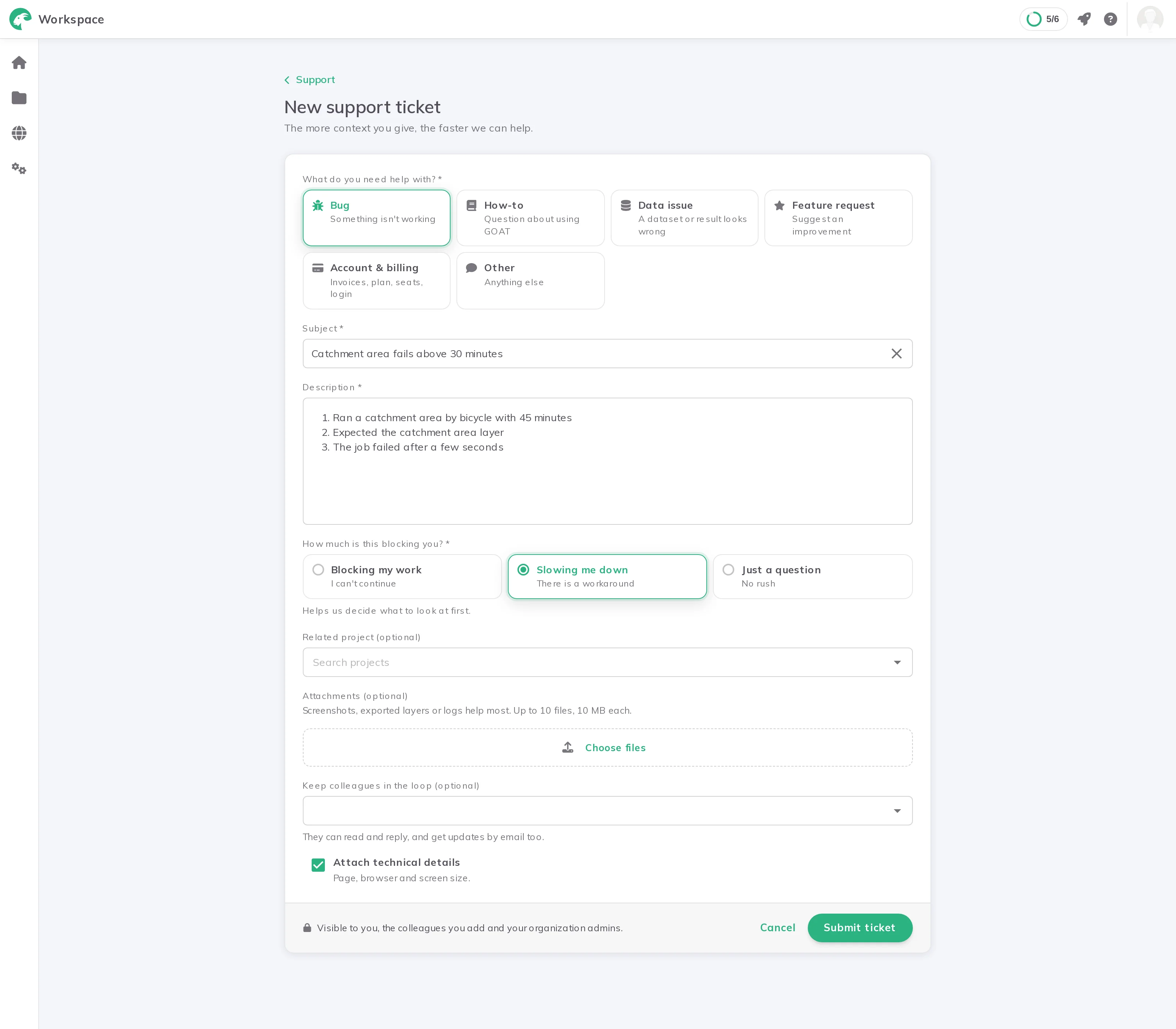
A ticket is visible to you, the colleagues you add and your organization admins.
Follow your tickets
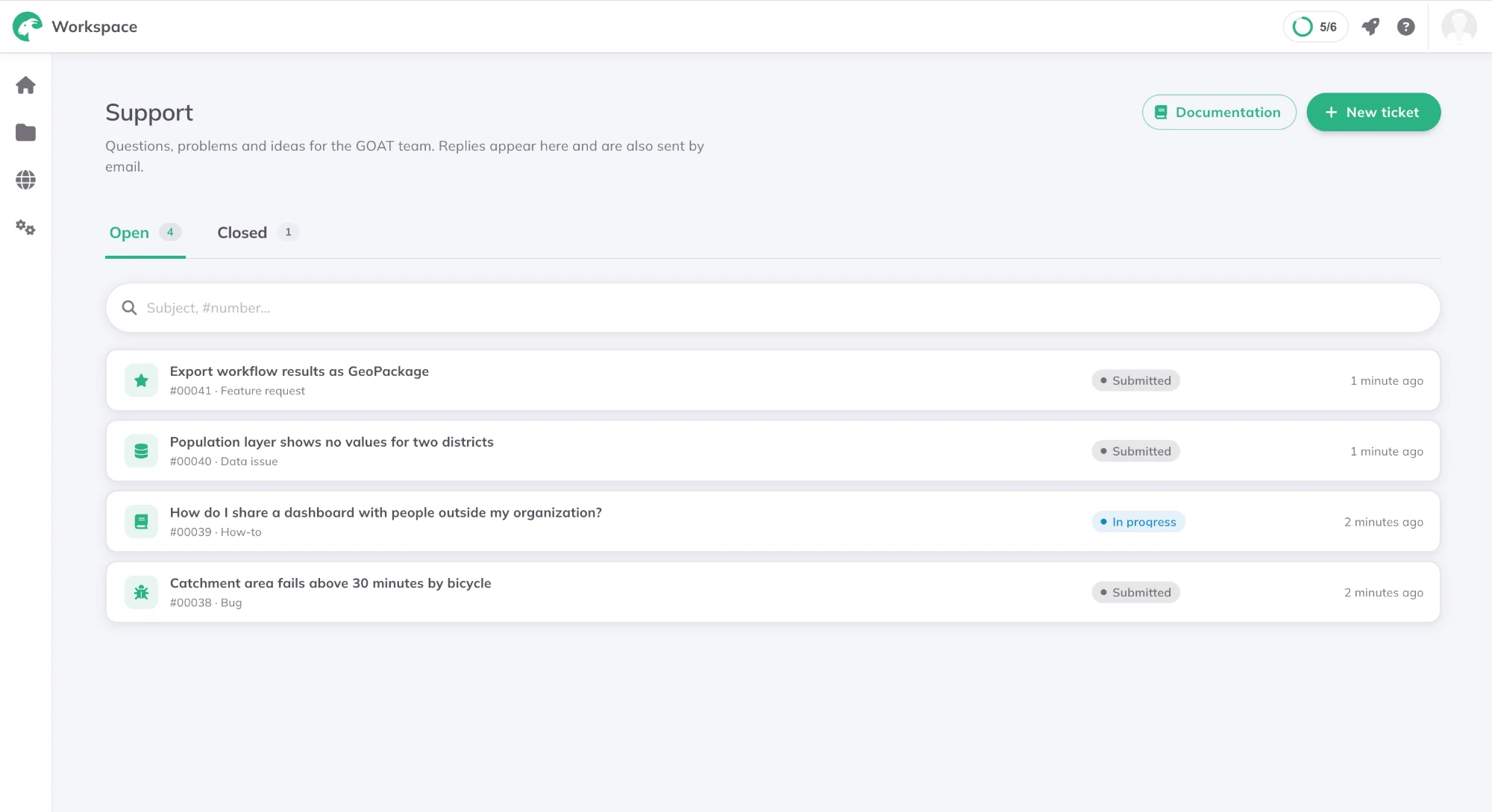
The Support page lists your tickets under Open and Closed. Search by subject or ticket number. Each ticket shows its status:
| Status | Meaning |
|---|---|
Submitted | The ticket has arrived and waits for the team. |
In progress | Someone from the GOAT team is working on it. |
Needs your reply | The team has asked you something. |
Resolved | The team has solved it. |
Closed | The ticket is closed. |
Open a ticket to read the conversation and reply. You can attach files to a reply, and you can also answer from your email. On the right you see who handles the ticket, the People on this ticket and its details. If you may manage the people on the ticket, you can add colleagues there, and you can always remove yourself.
When your problem is solved, click Mark as resolved. If it comes back, click Reopen or simply reply. Once a ticket is resolved, you can rate how the team did.
Organization admins see every ticket of their organization. On the Support page they can switch between My tickets and Organization. Members only see tickets they opened or were added to.