Map Interface
Opening a project will take you to the Map Interface. Here, you can create, organize, and style layers, visualize spatial data, and harness all of GOAT's powerful spatial analysis capabilities.
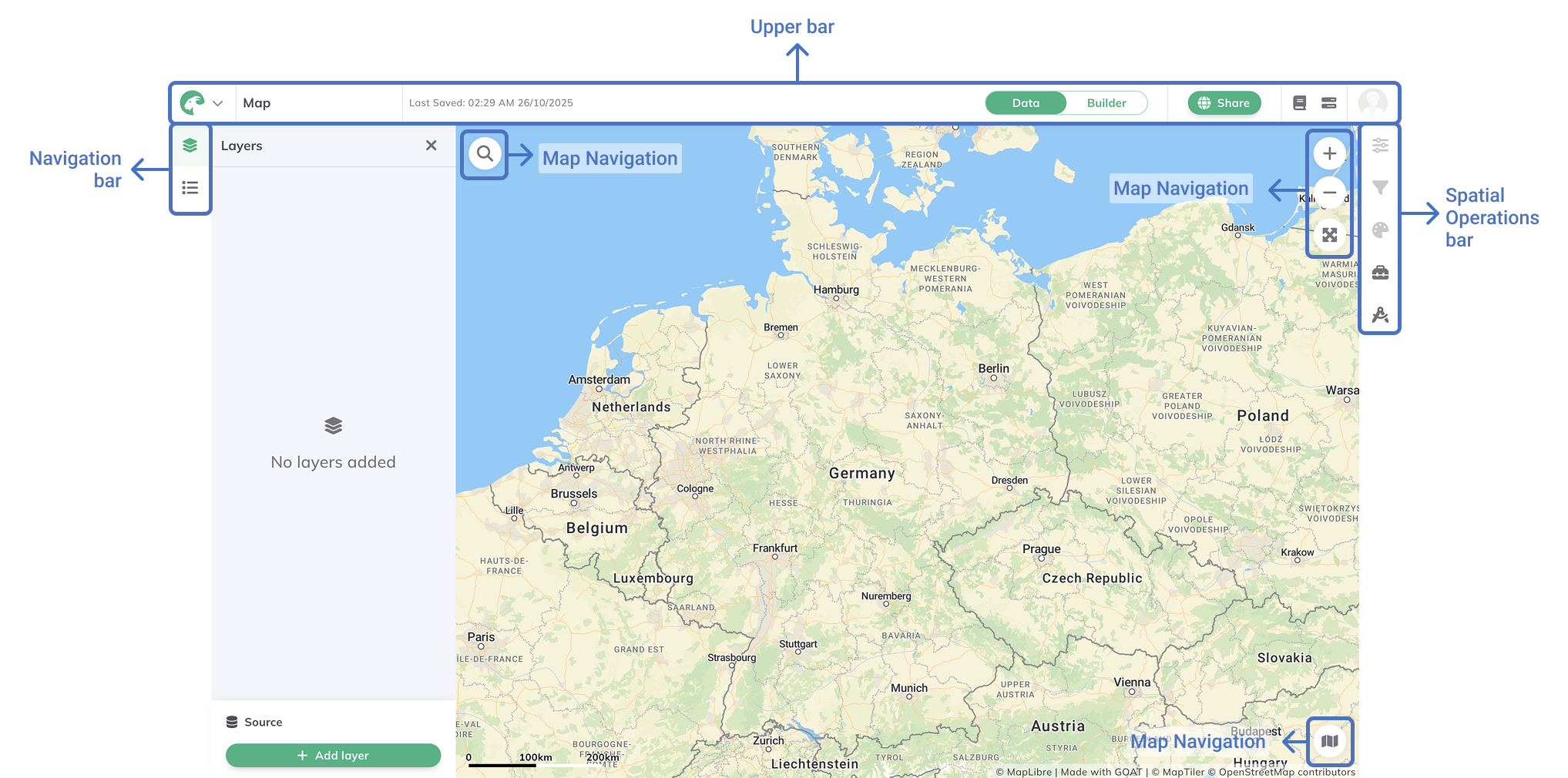
Upper Bar

Left Side
Project menu: Click to return to the home page, edit project metadata, delete the project, lock the map extent, report an issue, or read the privacy policy.Project Name: Double-click to edit the project name.Last Saved: Shows the timestamp of the last saved change.
Right Side
Data/Dashboard toggle: Switch between the Map and Dashboard Builder interfaces.Share Project: Manage the sharing options.Documentation: Access the GOAT documentation.Job Status: View the status of ongoing and completed tasks.User profile: Access account settings and log out.
Navigation Bar
The navigation bar on the left side of the map interface provides access to Layers and Legend.

Layers: Add and manage your assets in the form of layers within your GOAT project.
Legend: Visualize the legend of the layers.
Spatial Operations Bar
The spatial operations toolbar on the right side of the map interface provides access to various tools for managing and analyzing your layers:

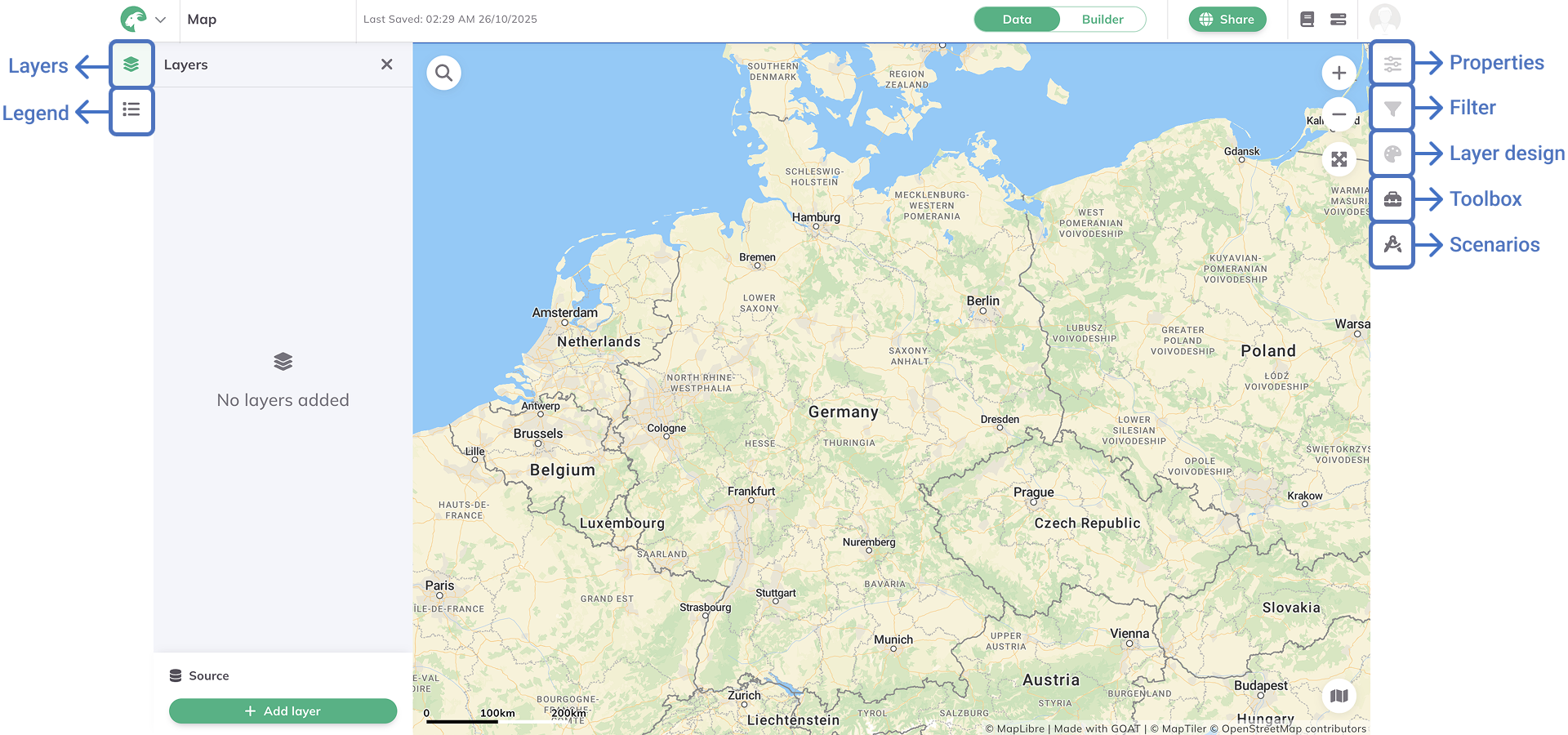
Properties: View layer info, symbology, and visibility settings for the selected layer.
Filter: Filter your layer. Read more in [Filter](../map/filter).
Layer Design: Design the style of your layers. Read more in [Layer Styling](../category/style).
Toolbox: Read more in [Toolbox](../category/toolbox).
Scenarios: Read more in [Scenarios](../Scenarios).
Map Navigation
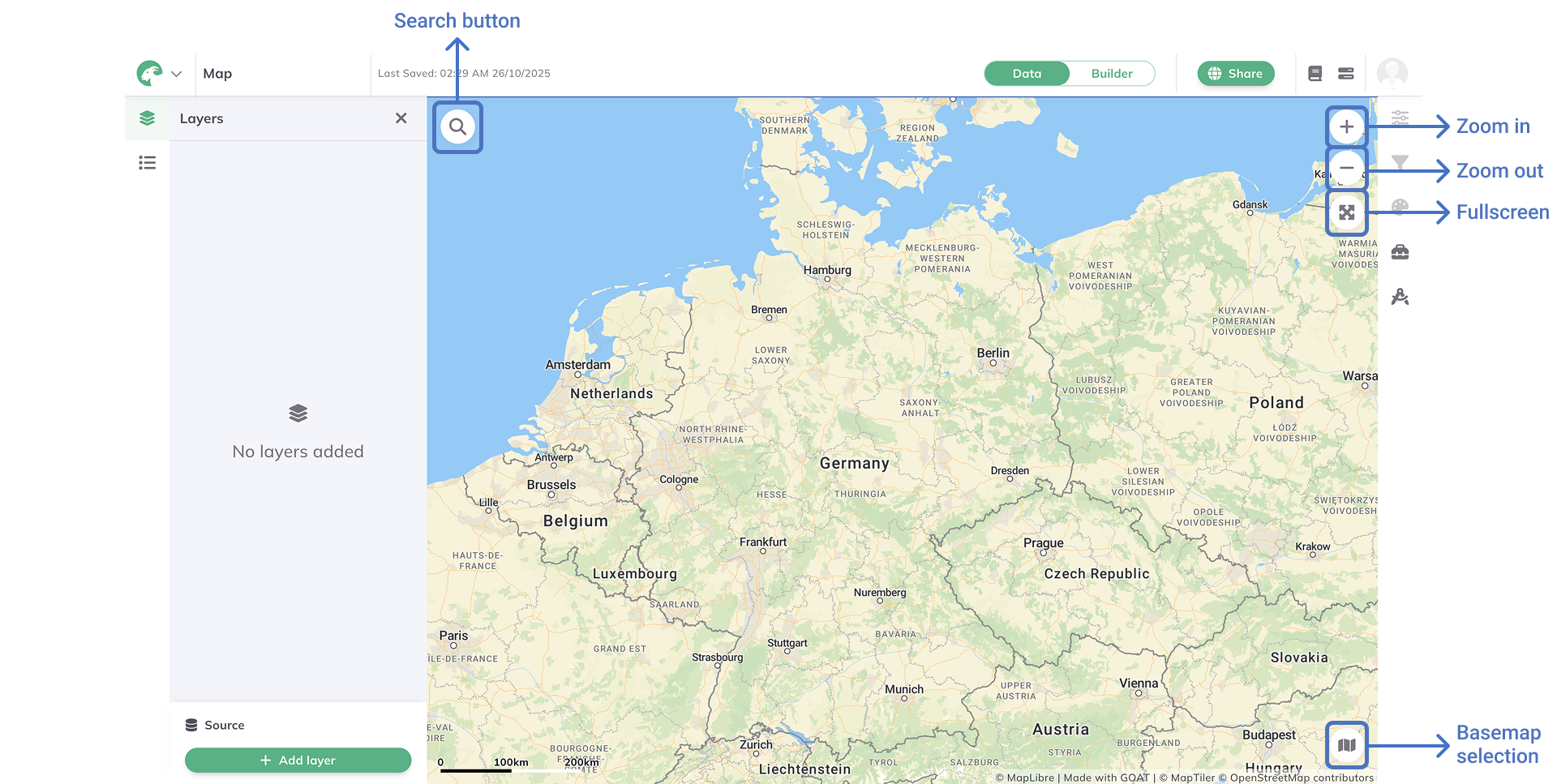

Search button: Search for addresses or coordinates to quickly navigate to a specific location on the map.
Zoom In
Zoom Out
Fullscreen
Base map: Choose between the available base map options.