Buffer
This tool allows you to create zones around points, lines, or polygons with a specified distance.
1. Explanation
A buffer is a tool used to delineate the catchment area around a specific point, line, or polygon illustrating the extent of influence or reach from that feature. Users can define the distance of the buffer, thereby customizing the radius of the area covered.
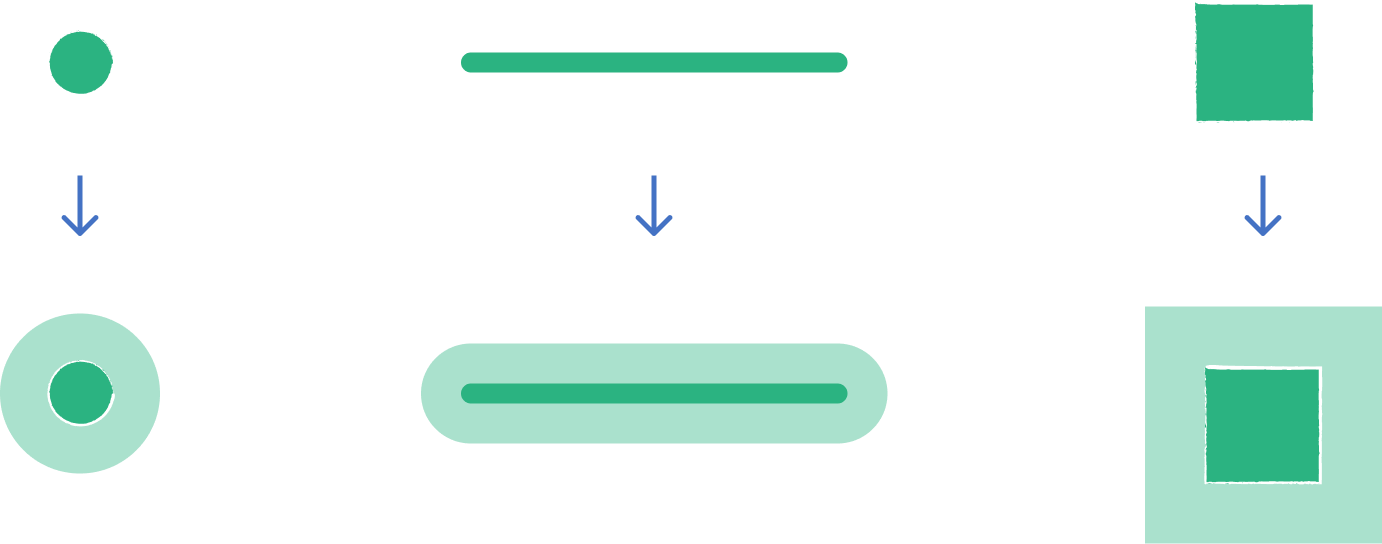
2. Example use cases
- Analyze population within 500m of train stations
- Count shops accessible within 1000m of bus stops
3. How to use the tool?
Tools  .
. Geoprocessing menu, click on Buffer.Input
Input layer around whose features you want to create the buffers. Point, line and polygon layers can be used.Configuration
The Configuration section becomes available as soon as an input layer is selected.
Choose the Distance Source:
- Constant (default): the same distances are used for all features. Enter them in
Buffer Distances, separated by commas (e.g.100, 200, 300). GOAT creates one buffer per feature and per distance. - Field: every feature gets its own distance. Select the numeric
Distance Fieldof the input layer that contains the distance. Features with an empty value or a value of 0 are skipped.
Distance Units of the distances: Meters (default), Kilometers, Feet, Miles, Nautical Miles or Yards.Configure Merge overlapping buffers:
- Disabled (default): GOAT creates a separate buffer around each input feature. The buffers keep the attributes of their input feature.
- Enabled: GOAT merges all buffers of the same distance into one polygon. The result contains one polygon per distance; the attributes of the input features are not kept. This is useful if you want to see the total area covered at each distance.
Polygon Difference switch appears. When you enable it, GOAT subtracts each smaller distance from the next larger one, so the result consists of rings that do not overlap. This only has an effect with the Constant distance source and at least two buffer distances.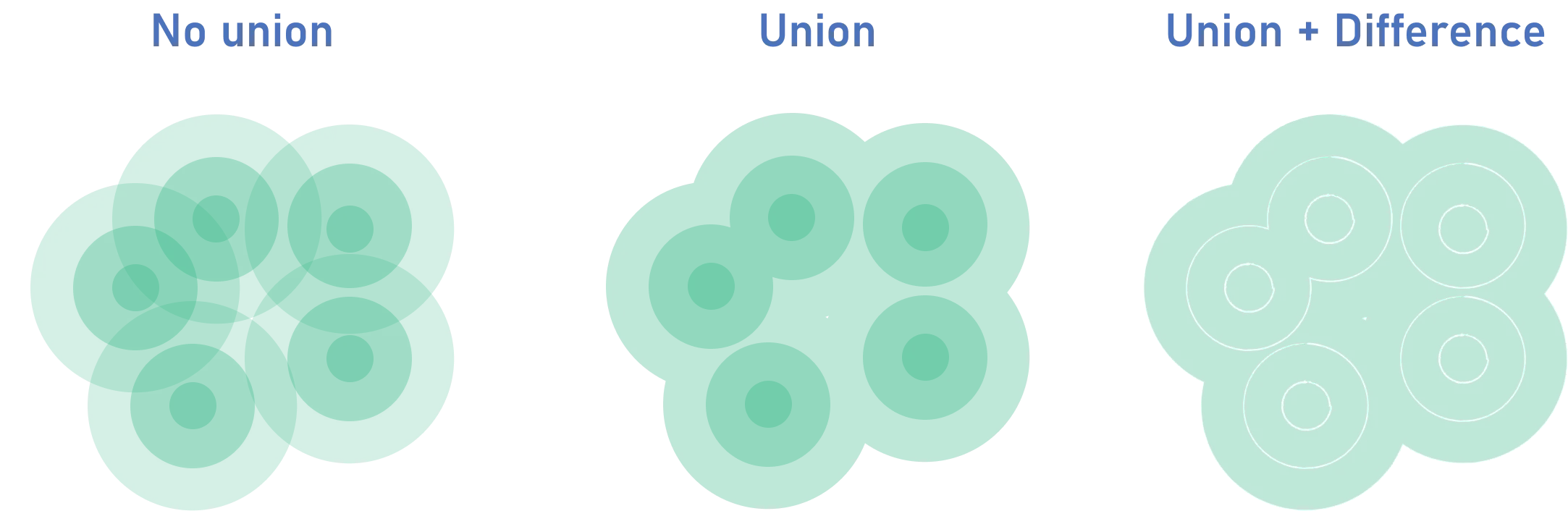
Optionally, click the options icon  in the
 Configuration header to show further settings for the buffer shape:
Curve Smoothness: number of segments used to approximate a quarter circle (default 8). Higher values give smoother edges but take longer to calculate.Cap Style: shape of the buffer at the ends of lines: CAP ROUND (default), CAP FLAT or CAP SQUARE.Join Style: shape of the buffer at corners: JOIN ROUND (default), JOIN MITRE or JOIN BEVEL.Mitre Limit: only shown for JOIN MITRE; limits how far pointed corners extend (default 1).
Results
Result layer name (default: Buffer).Run. This starts the calculation of the buffer. As soon as it is finished, the resulting polygon layer is added to your map.The result layer contains the column buffer_distance. With the Constant distance source, it holds the distance in meters, and the buffers are colored by distance. With the Field distance source, it holds the value of the distance field.
Want to style your buffers and create nice-looking maps? See Styling.