Join Features
This tool allows you to combine data from two layers based on attribute matching or spatial relationships. The result is a new layer containing the Target Layer's geometry and attributes, enriched with attributes from the Join Layer.
1. Explanation
Joining is the process of attaching fields from one layer (Join Layer) to another layer (Target Layer).
GOAT supports three join methods:
- Attribute: match features based on a common field (e.g., matching a zip code in both layers).
- Spatial: match features based on their geometric relationship (e.g., features that intersect).
- Spatial and Attribute: requires both a spatial overlap and a matching attribute.
- Attribute Join
- Spatial Join
- Spatial and Attribute Join
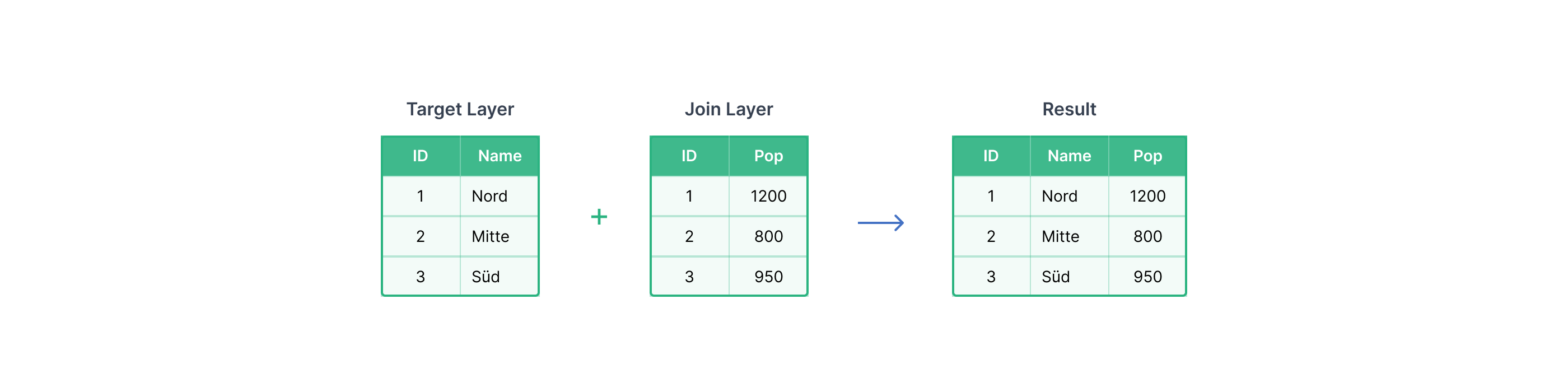
An Attribute Join links two layers by comparing values in a shared field. Every feature in the Target Layer is matched against features in the Join Layer where the field values are equal.
Join Type
The Join Type controls which features appear in the output:
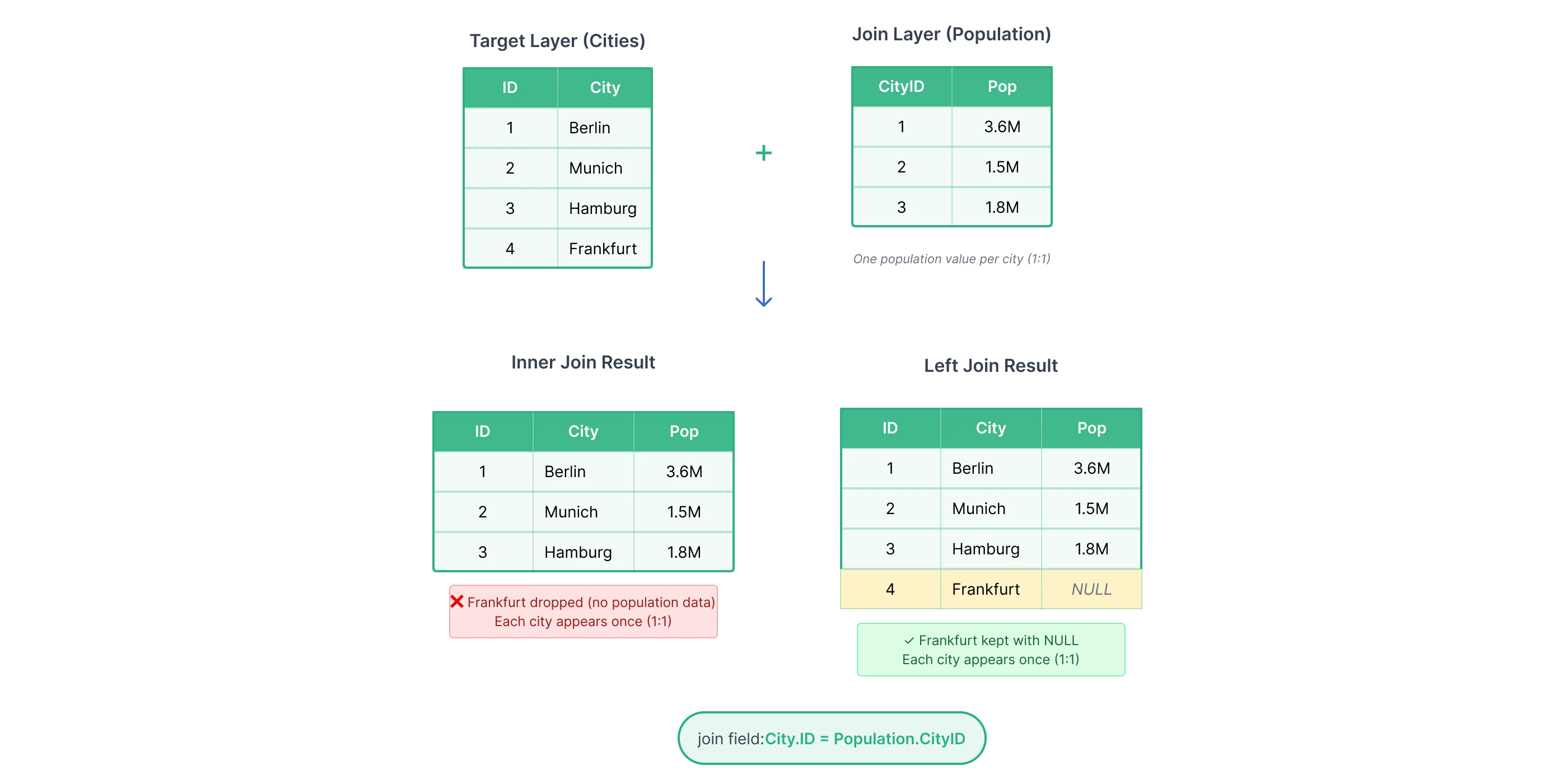
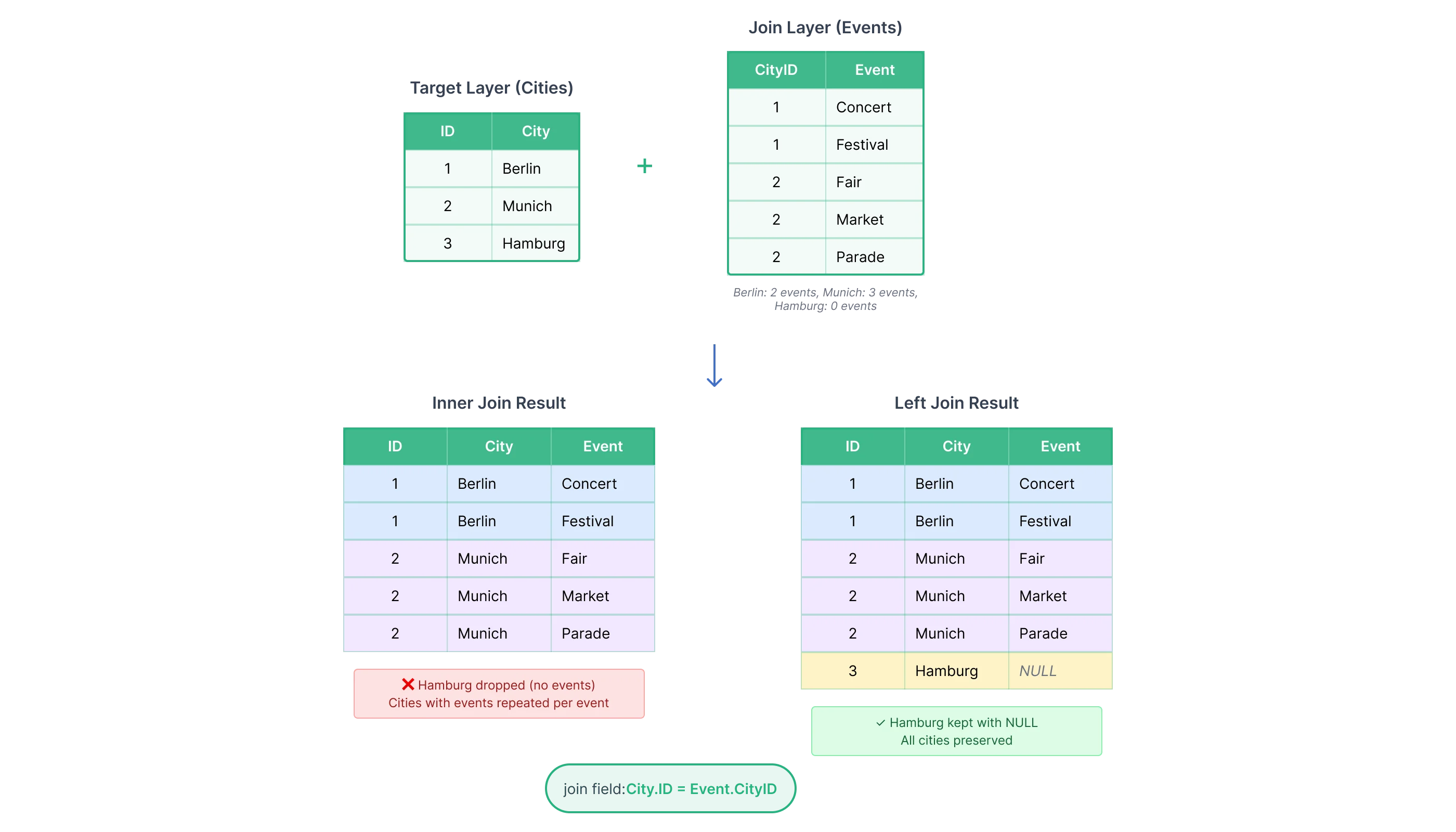
- Inner Join: only features with a match in both layers are kept. Features without a match are dropped.
- Left Join: all features from the Target Layer are kept. Features without a match receive
NULLfor the joined fields.
One-to-One
When each target feature matches at most one feature in the Join Layer, the result has the same number of rows as the Target Layer.
One-to-Many
When one target feature matches multiple features in the Join Layer, the result contains one row per match: the target geometry is repeated for each matching record.
A Spatial Join links features based on their geometric relationship, so no shared field is needed. Each feature in the Target Layer is matched to features in the Join Layer that satisfy the selected spatial relationship.
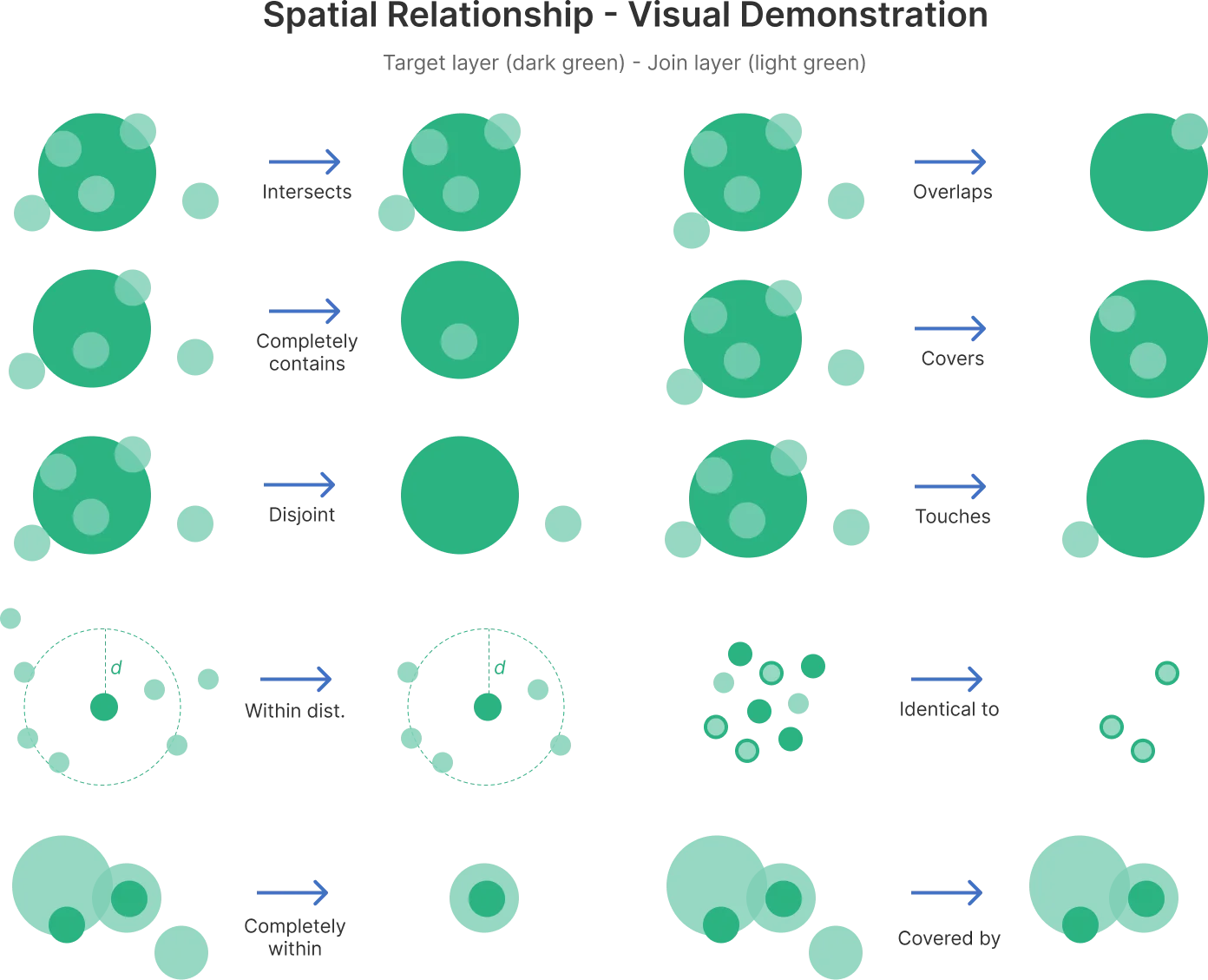
Available spatial relationships:
| Relationship | Description |
|---|---|
Intersects | Target and join features share any geometry (point, line, or area). |
Overlaps | Features partially overlap but neither is fully inside the other. |
Completely Contains | Target feature fully contains the join feature. |
Covers | Target feature fully contains the join feature. |
Disjoint | Features have no spatial relationship: they do not touch or overlap. |
Touches | Features share a boundary but do not overlap. |
Within Distance | Features are within a specified distance of each other. |
Identical To | Features have exactly the same geometry. |
Completely Within | Target feature is fully inside the join feature. |
Covered By | Target feature is covered by the join feature. |
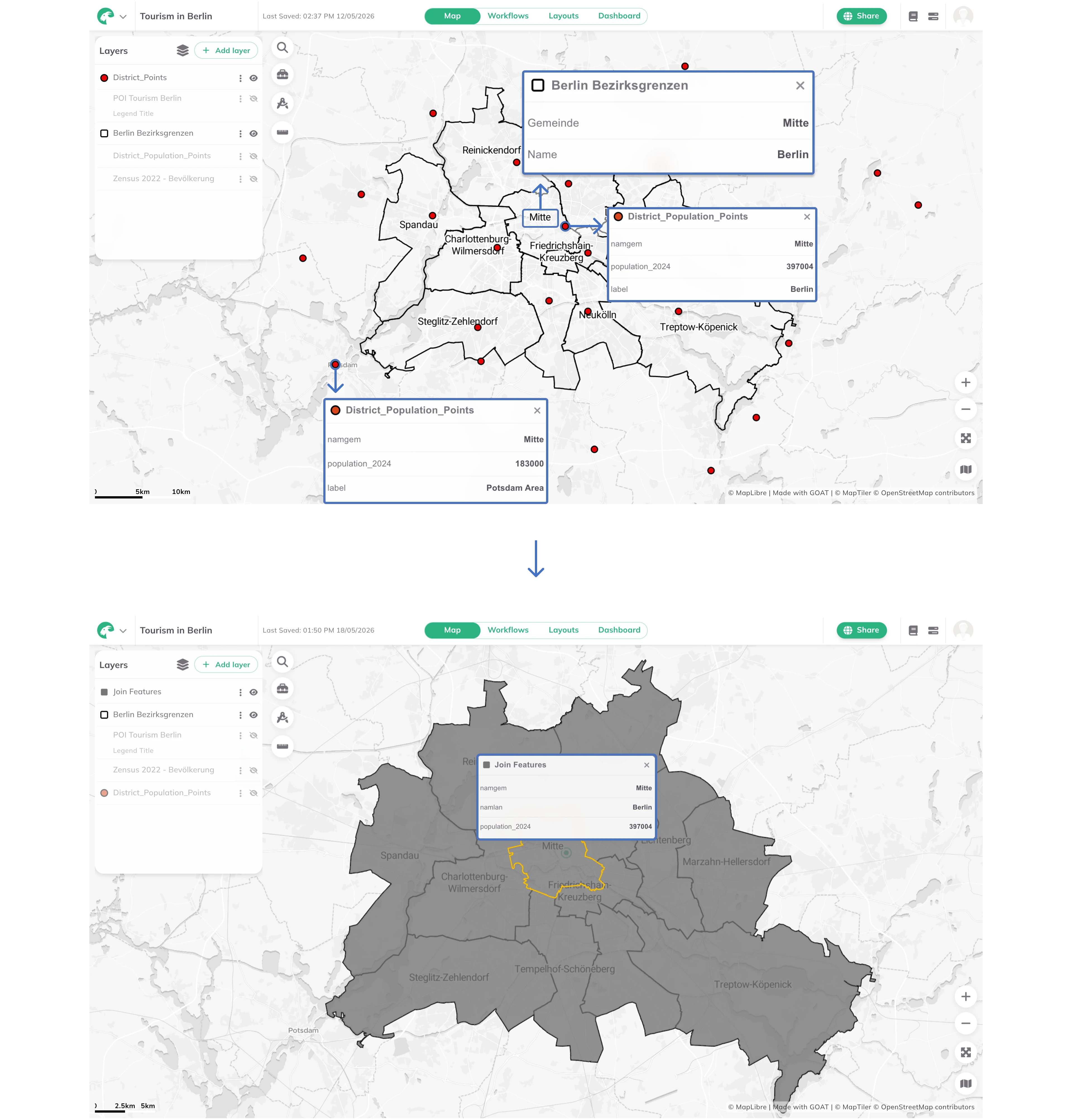
This method requires both a spatial relationship and a matching attribute value to be satisfied. A feature is only joined if it meets both conditions simultaneously. Use this when location alone is not enough, for example when matching buildings that are within a district and share the same land-use classification.
In this example, population data is joined to Berlin districts using both conditions. Matching on the namgem attribute alone could incorrectly assign population values from a city like Potsdam if the name matches. Adding a spatial condition (Intersects) ensures only points that lie inside the correct district and share the same namgem value are joined.
2. Example use cases
Attribute Join
- Add population data to district areas (matching on district ID).
- Combine survey results with census boundaries (matching on tract ID).
Spatial Join
- Count the number of schools within each city district.
- Find which municipality each point of interest belongs to.
- Sum the total length of roads within a park boundary.
Spatial and Attribute Join
- Match buildings within a flood zone that also share the same building type.
3. How to use the tool?
Toolbox  . Under
 Data Management, click on Join Features.Select Layers
Target Layer: the main layer whose geometry you want to keep.Join Layer: the layer containing the fields you want to add.Match Method
Match Method, enable Attribute Match, Spatial Match, or both.- Attribute
- Spatial
- Spatial and Attribute
Under Attribute Relationship, click + Add Match Field, then select the Target Field and the Join Field: the shared field used to match features between the two layers.
Under Spatial Match, select the Spatial Relationship. If selecting Within Distance, specify the distance and unit.
Configure both Spatial Match (select the spatial relationship) and Attribute Relationship (click + Add Match Field, then select the matching fields). Both conditions must be met for a feature to be joined.
Join Options
Join Type: Inner Join (keep only matched features) or Left Join (keep all target features, unmatched get NULL).Match Handling: One to One or One to Many.Optionally, enable Add Join Fields to select which fields from the Join Layer to include in the output, and/or enable Calculate Statistics to compute aggregated values when multiple Join Layer records match a single Target Layer feature. When Calculate Statistics is enabled, configure the statistic:
Select operation:Count,Sum,Min,Max,Mean, orStandard Deviation.Select field: choose the numeric field from the Join Layer to aggregate (hidden when operation isCount).Result column name(optional): name for the output column. Leave empty to use the default name (e.g.countorfieldname_operation).
Run to execute the join. The result layer will be added to the map.