Field Types
Every column in a feature dataset or table has a field type, which tells GOAT how to store the values, how to display them, and which tools can use the column. This page explains the field types GOAT supports.
Spatial Data Storage
GOAT keeps a dataset's metadata separate from the data itself:
- Metadata: the dataset's name, description, field definitions, styling and sharing settings. This is held in a PostgreSQL database.
- Data: the geometries and attribute values. These are stored in DuckLake, an analytical store built on Parquet files in object storage. This is what lets GOAT query and analyse large datasets quickly.
All geometries are stored in the EPSG:4326 coordinate reference system (longitude and latitude in degrees). Measurements are not taken in degrees, though: Area, Perimeter and Length columns are calculated on the earth's curved surface, so their values are true meters and stay accurate across large areas.
For a fuller picture of how the platform fits together, see Architecture.
Supported Field Types
| Field type | What it holds | Examples |
|---|---|---|
| Text | Any text | Street names, categories, descriptions |
| Number | Whole numbers or decimals | 1, -5, 3.14, 45.67 |
| Boolean | True or false values | true, false |
| Date | A point in time | 2024-01-15 14:30:00 |
| Serial | A running number GOAT assigns to every feature | 1, 2, 3 |
| UUID | A unique identifier GOAT assigns to every feature | 0625b5a7-50e1-4cfa-8392-7b0852e0d980 |
| Area | The surface area of a polygon | 1.25 ha, 340 m² |
| Perimeter | The outline length of a polygon | 820 m |
| Length | The length of a line | 1.4 km |
| Formula | A value calculated from other columns | population / area |
Columns you fill in yourself
Text, Number, Boolean and Date hold the values you enter or import. You can add them to a dataset at any time, and they are the types available when you create a new dataset from scratch.
A Number column can be formatted for display. Formatting changes only how the value looks in GOAT. The stored value is untouched, and tools keep using the full number.
| Setting | Effect on 1234567.891 |
|---|---|
| Decimals | 2 rounds the display to 1234567.89; auto lets GOAT decide |
| Show thousands separator | 1,234,567.891 |
| Abbreviate large numbers | 1.2M |
| Always show sign | +1234567.891, so positive values are as clearly marked as negative ones |
The same settings are available on Area, Perimeter and Length columns, which additionally let you pick the Unit the value is shown in: m², ha or km² for Area, and m or km for Perimeter and Length. Leave it on auto and GOAT picks a unit that suits the value.
GOAT shows a live preview as you change these, so you can see the result before saving.
Columns GOAT numbers for you
Serial and UUID columns are filled in by GOAT: every feature gets its value when it is created, whether you draw it on the map, add a row in the data table or upload it through the API. You cannot type or change the value. While you create a feature, the field shows Assigned automatically; the value appears once the feature is saved. Both types are available when you create a new dataset and when you edit the fields of an existing one.
- A Serial column counts up: each new feature gets the next number after the highest one assigned so far. Set where it begins with
Start at(default1), for example1000for project numbers. Numbers are never assigned twice, not even after a feature is deleted: deleting a feature leaves a gap, the numbers of the other features never change, and the next new feature always gets a number that has not been used before, even if the deleted feature had the highest one. - A UUID column gives each feature a random identifier that is unique across datasets, which is useful when the data is exchanged with other systems.
When you add one of these columns to a dataset that already has features, GOAT fills it for all of them at once: a Serial column numbers them from Start at in the order the features were created. A copy made with Save as new layer keeps the values and carries on after the highest number ever assigned in the original. A dataset that arrives with an imported project carries on from its own highest number.
For filters, styling and pop-ups, a Serial column is a number and a UUID column is text.
Turning an existing Number column into a Serial
If you have been typing numbers into a Number column by hand, GOAT can take over the numbering without renaming the column, so workflows, filters and dashboards that use it keep working.
Edit fields and select the Number column.Field type to Serial. Optionally set Start at: it is used for features that have no number yet, if it is higher than the existing numbers.Save and confirm with Change type.Existing values stay as they are, and features without a number get one. New features get the next number after the highest one; gaps are not filled. GOAT refuses the change, and tells you why, if a number appears more than once or a value is not a whole number: fix those values first. You can change a Serial column back to Number the same way; its values stay. A UUID column cannot be made from an existing column.
Columns GOAT calculates
Area, Perimeter, Length and Formula are computed: GOAT derives their values and keeps them up to date, so they cannot be edited by hand. They are offered when you edit the fields of an existing dataset. A new dataset has no data for them to be calculated from yet.
Formula can be added to any dataset. The measurement types depend on your dataset's geometry, since not every shape can be measured the same way:
- Polygons: Area and Perimeter
- Lines: Length
- Points: neither, as a point has no extent
- Tables (no geometry): neither
A Formula column is defined by an expression you write in the Formula builder, and GOAT recalculates it whenever the data it depends on changes.
Restricting what a column accepts
Text and Number columns can carry a list of Allowed values. Everyone editing the dataset then picks from that list instead of typing freely, which keeps categories consistent. No more bus stop, Bus Stop and bus_stop in the same column.
Edit fields and select it from the list, or click the  menu on its column header and choose
 Edit field.Allowed values, type a value and press Enter. Repeat for each value you want to allow.Allow other values switch appears. Turn it on to treat the list as a suggestion rather than a rule.Save.Leaving the list empty accepts any value, which is how every column starts.
Some names are used internally by GOAT and cannot be given to a column, among them id, geometry and geom. If you type one, GOAT flags the field straight away and will not let you save until you change it.
How to view field types
GOAT marks each column with a small field type chip: A for Text, 123 for Number, # for Serial, ID for UUID, and an icon for the other types. Hover over the chip to see the field type's name.
The chip appears wherever columns are listed: the data table, the field list in layer settings, column filters, and the field pickers in tools and the Formula builder.
To see it in the data table:
More Options button on your layerView data from the menu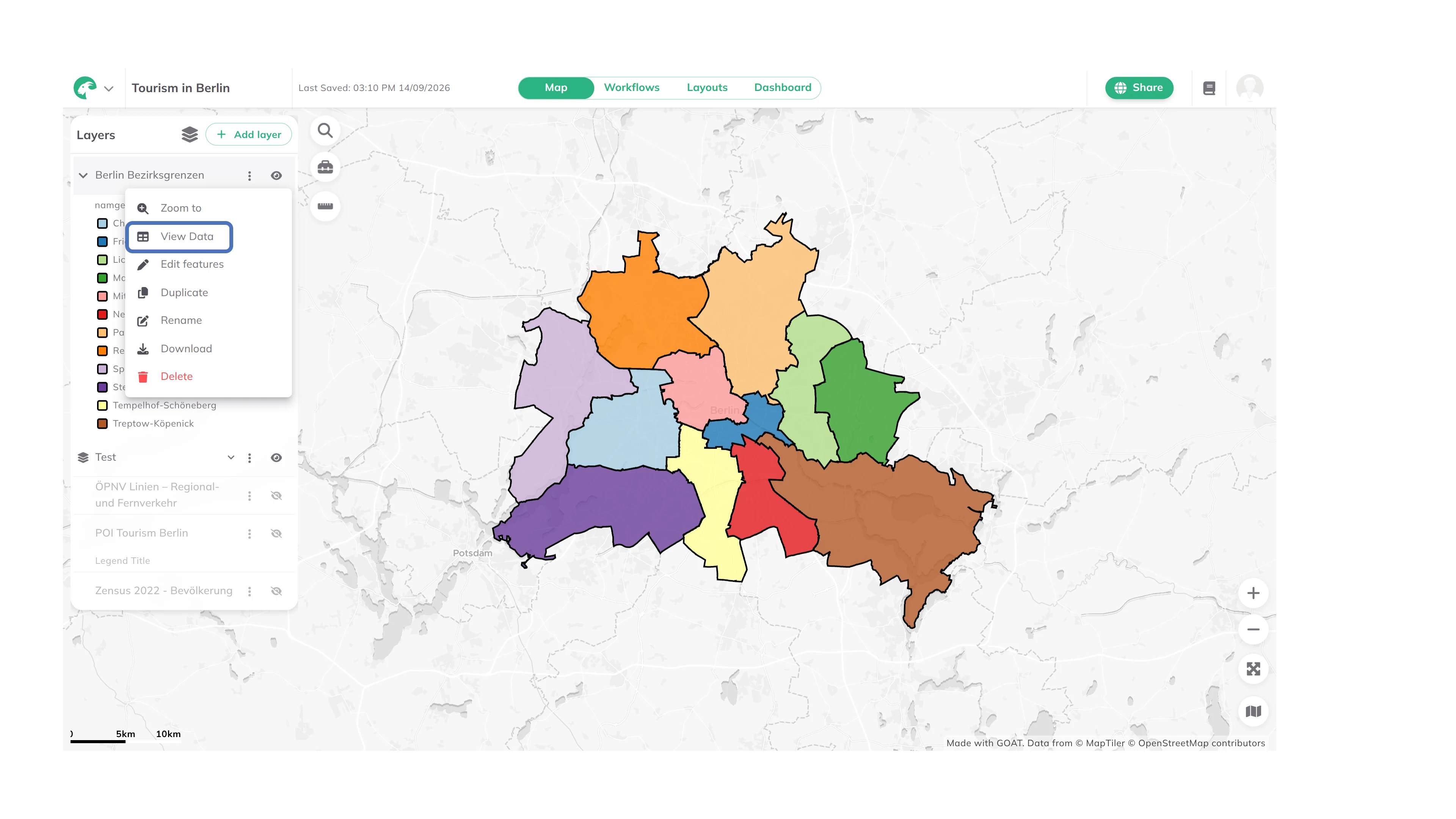
Accessing the View Data option
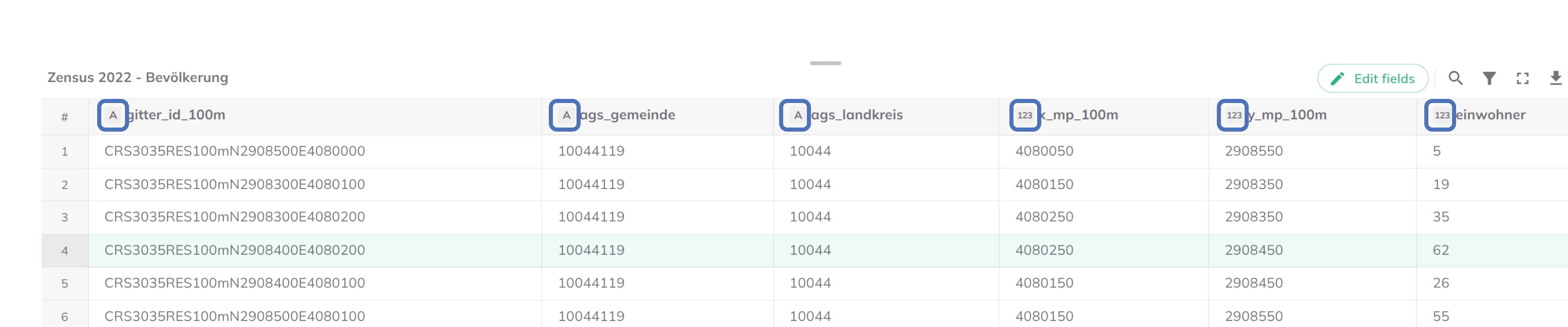
Field type chips shown beside each column name