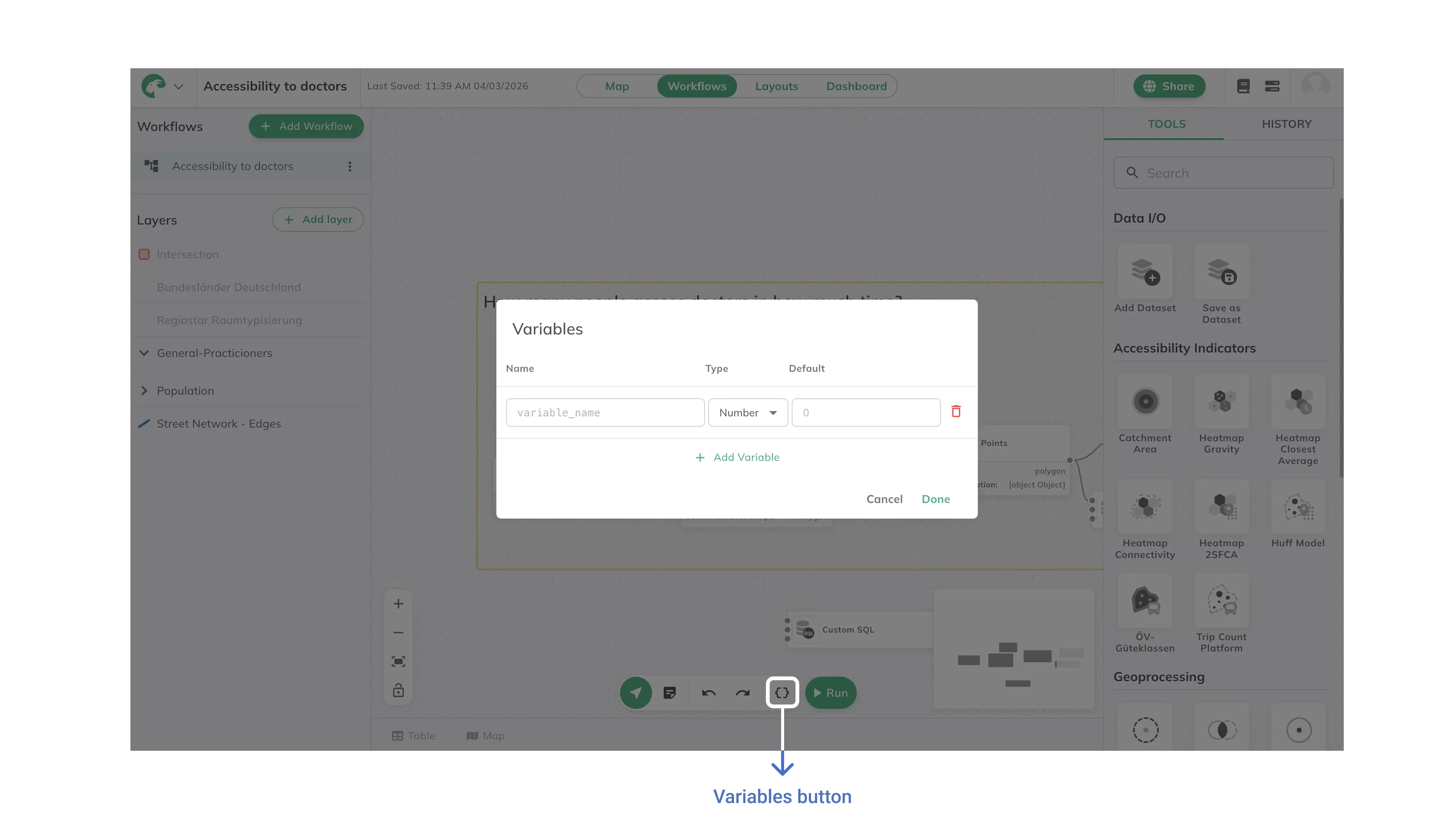
Variables

Workflow Variables allow you to create reusable, parameterized workflows by defining dynamic values that can be changed without modifying the workflow structure. This powerful feature makes your analysis adaptable and shareable.

Map Interface Overview

Overview

Variables enable you to:

  • Create templates for repeated analysis with different parameters
  • Build workflows that others can customize without technical knowledge
  • Test different scenarios by easily changing key values
  • Share standardized analytical processes across projects

Variables use the syntax {{@variable_name}} and can be used in most tool parameters throughout your workflow.

Variable Types

GOAT supports several variable types to match different parameter needs:

Text Variables

For string values like dataset names, labels, or filter criteria:

Variable Name: district_name
Type: Text
Default Value: Downtown
Usage: {{@district_name}}

Number Variables

For numerical parameters like distances, thresholds, or calculations:

Variable Name: buffer_distance
Type: Number
Default Value: 500
Usage: {{@buffer_distance}}

Boolean Variables

For true/false options and toggles:

Variable Name: include_residential  
Type: Boolean
Default Value: true
Usage: {{@include_residential}}

List Variables

For dropdown selections from predefined options:

Variable Name: amenity_type
Type: List
Options: [restaurant, school, hospital, park]
Default Value: restaurant
Usage: {{@amenity_type}}

Creating Variables

Using the Variables Panel

1
Open the Variables Panel on the right side of the workflow interface.
2
Click the Add Variable button to create a new variable.
3
Configure the variable properties:
  • Name: Use descriptive names like search_radius or poi_type
  • Type: Select the appropriate data type
  • Default Value: Set a sensible default for the parameter
4
Click Save to add the variable to your workflow.

Variable Management

Edit Variables: Click on any variable in the Variables Panel to modify its properties.

Delete Variables: Use the delete button to remove unused variables.

Using Variables in Workflows

In Tool Parameters

Variables can be used in most many configuration fields:

Buffer Analysis: Set dynamic buffer distances

Buffer Distance: {{@analysis_radius}}

Filters: Create flexible filtering criteria

Amenity Type: {{@selected_amenity}}
Population Threshold: {{@min_population}}

Custom SQL: Parameterize queries

SELECT * FROM input_1 
WHERE category = '{{@category_filter}}'
AND value > {{@threshold_value}}

Variable Syntax Rules

  • Format: Always use {{@variable_name}} syntax
  • Case Sensitive: Variable names are case-sensitive
  • No Spaces: Use underscores instead of spaces (e.g., max_distance not max distance)
  • Descriptive Names: Use clear, descriptive names that explain the parameter's purpose

Best Practices

Variable Design

Meaningful Names

Use descriptive variable names that clearly indicate their purpose: search_radius instead of radius, poi_type instead of type.

Reasonable Defaults

Set default values that work for common use cases, allowing users to run workflows immediately while still enabling customization.

Limitations

  • Variable names must be unique within a workflow
  • Some advanced tool parameters may not support variables
  • Variable values are saved with the workflow, not globally
  • List variables are limited to predefined options