Layouts Interface
The Layouts in GOAT allows you to create professional map reports and export them as PDF, PNG, or JPEG files. You can design custom layouts with maps, text, and other elements, and generate both single-page and multi-page reports.
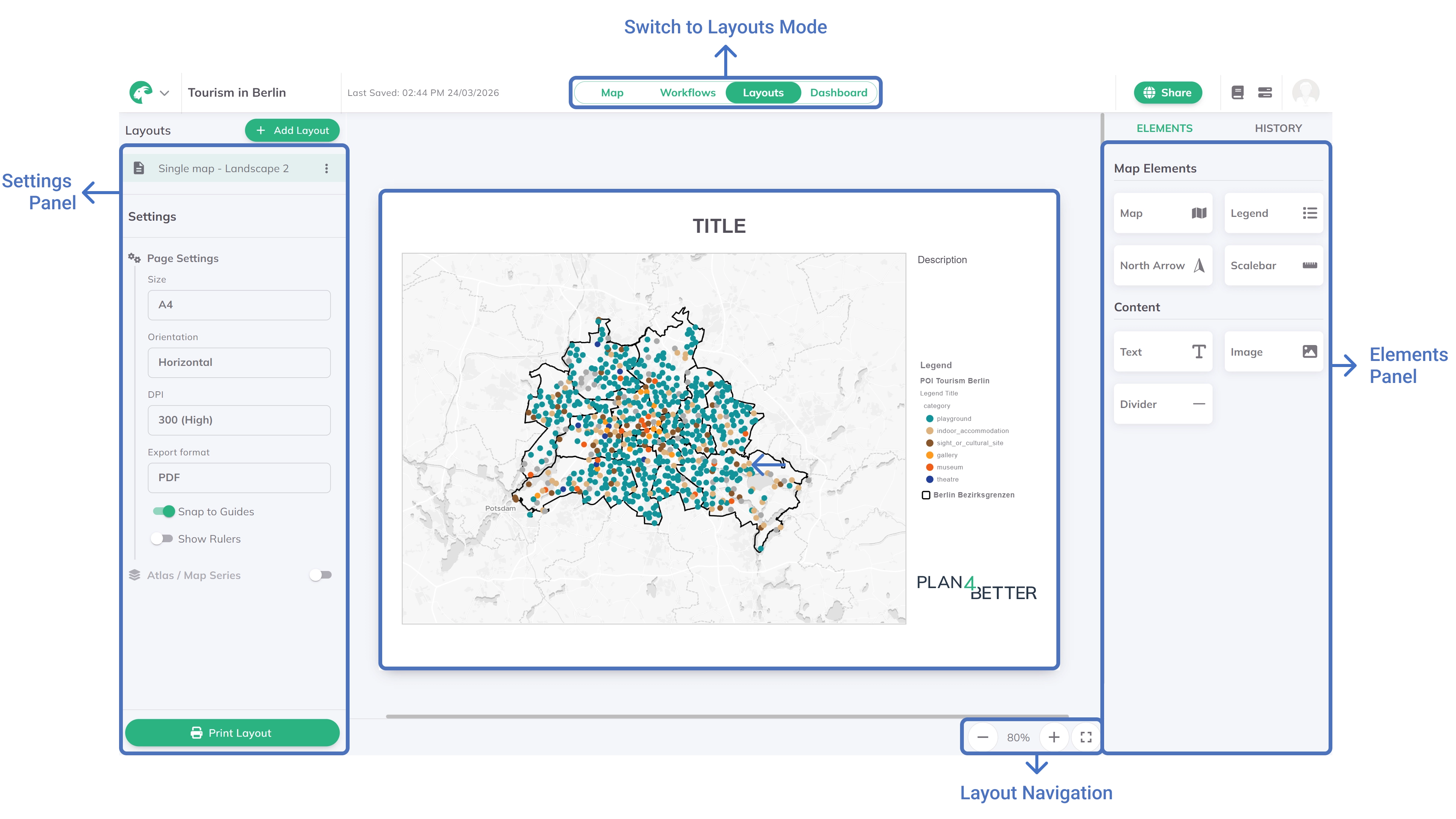
Settings Panel
The Settings Panel allows you to create a new layout, customize the overall layout properties, and print the layout. The customization includes page size, orientation, resolution, and export format. You can activate Snap to Guides and Rulers for a better alignment of elements while creating the layout.
Create a new Layout
+ add layout on the top right to create a new layout.page size (A4, A3, A2, A1, Letter, Legal, Tabloid, or Custom with your own width and height from 50 to 1500 mm). When you change the page of a layout that already has elements, GOAT asks whether to Scale elements to the new page or Keep sizes, orientation (Portrait or Landscape), resolution, and export format (PDF, PNG, or JPEG).Snap to Guides and Rulers for precise element alignment.Print Layout at the bottom to export your layout as PDF, PNG, or JPEG.Save as a template
A layout you have designed can be saved as a template and reused for other reports.
more options menu and choose Save as template….Name and, optionally, a Description and categories.Location (a space and folder) where it is saved. Everyone who can open that folder can use the template.Save. The template then appears as a choice when you create a new layout.If a template was already saved from this layout, you can Update template from source with the current version instead of creating a duplicate.
Elements Panel
The Elements Panel contains all the tools you need to add and customize elements in your layout. You can add maps, text boxes, images, legends, scale bars, north arrows, and more.
Elements Panel (Map, Text, Legend, Scale Bar, North Arrow, etc.).Properties Panel on the right to customize its appearance and settings.