Teams & Members
Sharing datasets and projects allows for a more efficient workflow because granting access to other members enables them to simultaneously edit and/or view your datasets or projects.
Sharing does not duplicate your data, only grants access to it.
Managing Teams and Members
Settings section.Team and view the list of Teams you are part of. Teams can represent departments or groups within your organization.Members tab to see the members and their roles.- Click
+ New Memberto add a new member. - Click the
More options menu and then on
 Deleteto remove a member
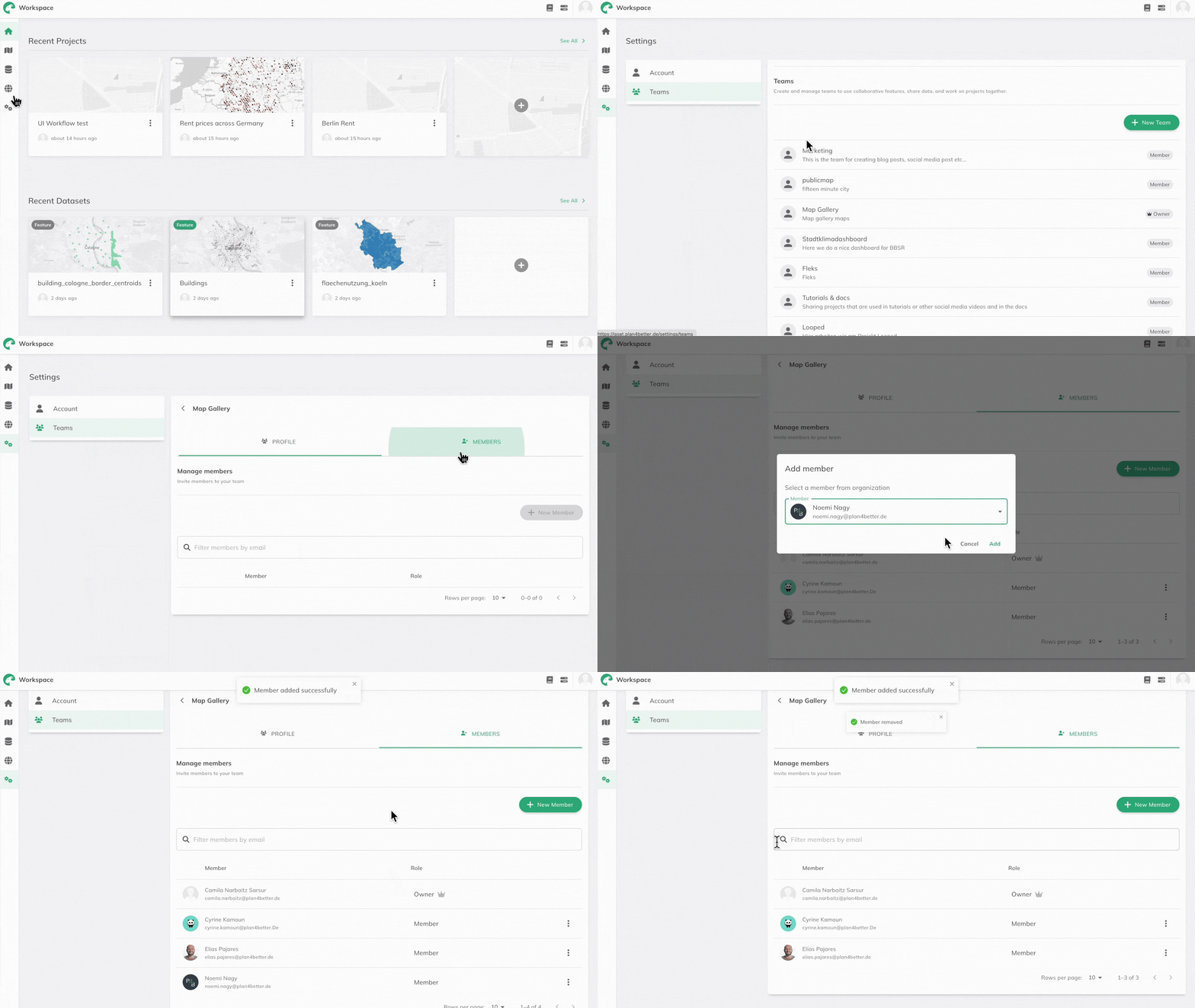
When you share a dataset/project with a Team/Organization, all members will have access to it.
Managing access to a Dataset, Project, or Folder
More options menu on your dataset or project.Share and choose to share with an Organization or Team.viewer or editor access as needed.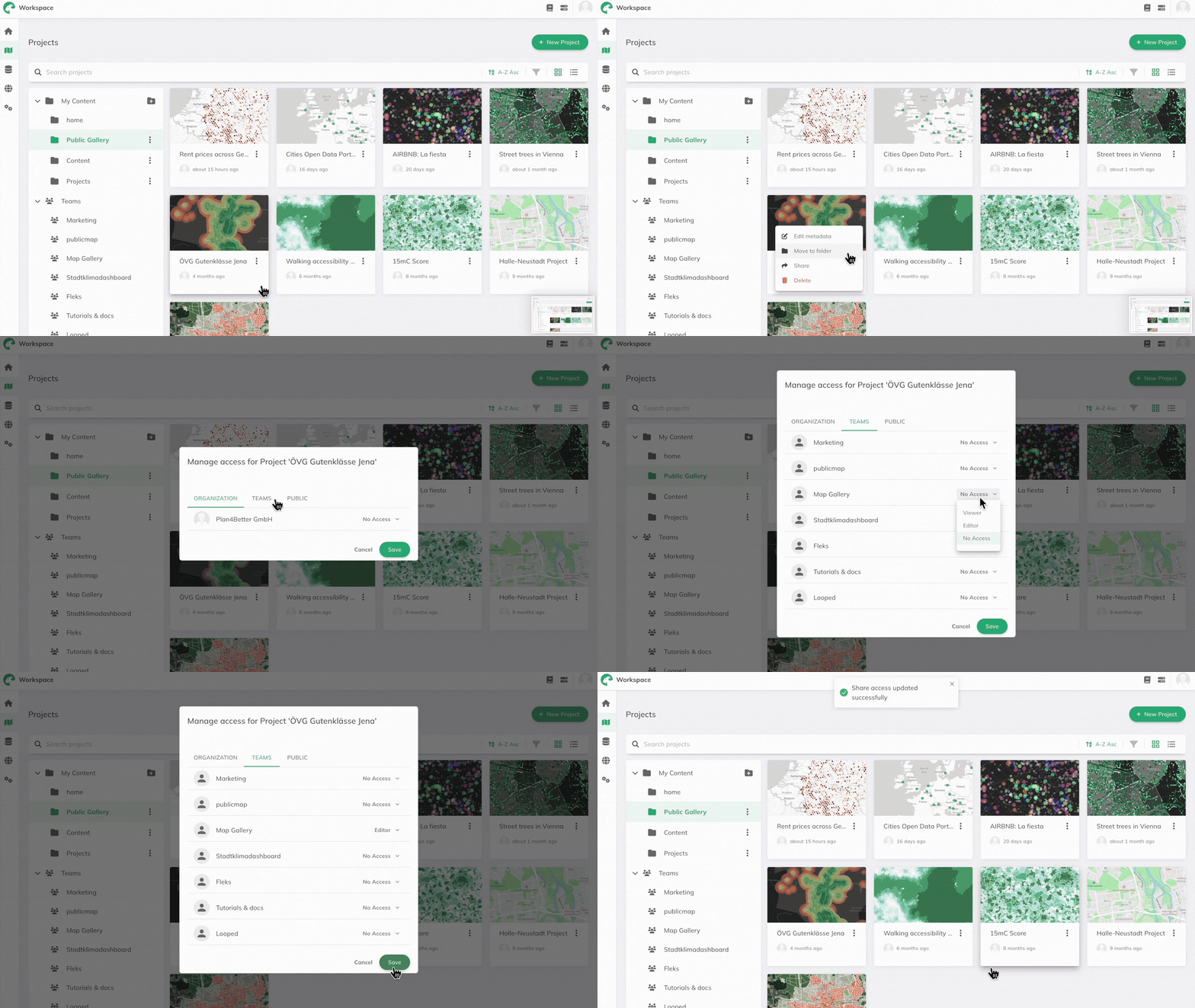
More options menu on your dataset or project and select no access.Sharing a Folder
You can also share an entire folder at once. Sharing a folder grants access to all datasets and projects inside it, so you don't have to share each item individually.
More options menu on a folder you own and select Share.Organization or Team and grant viewer or editor access as needed.Share dialog again and set the role back to no access.A folder can be shared with either one Organization or one Team, not both at the same time. Items inside a shared folder inherit the folder's access, so sharing them individually is not needed.
Accessing Shared Items
You can find shared items in your workspace:
- Projects shared with you:
Workspace→Projects→Teams/Organizations - Datasets shared with you:
Workspace→Datasets→Teams/Organizations
Roles
See the table below to learn what each user can do within an Organization/Team and in a shared Dataset/Project:
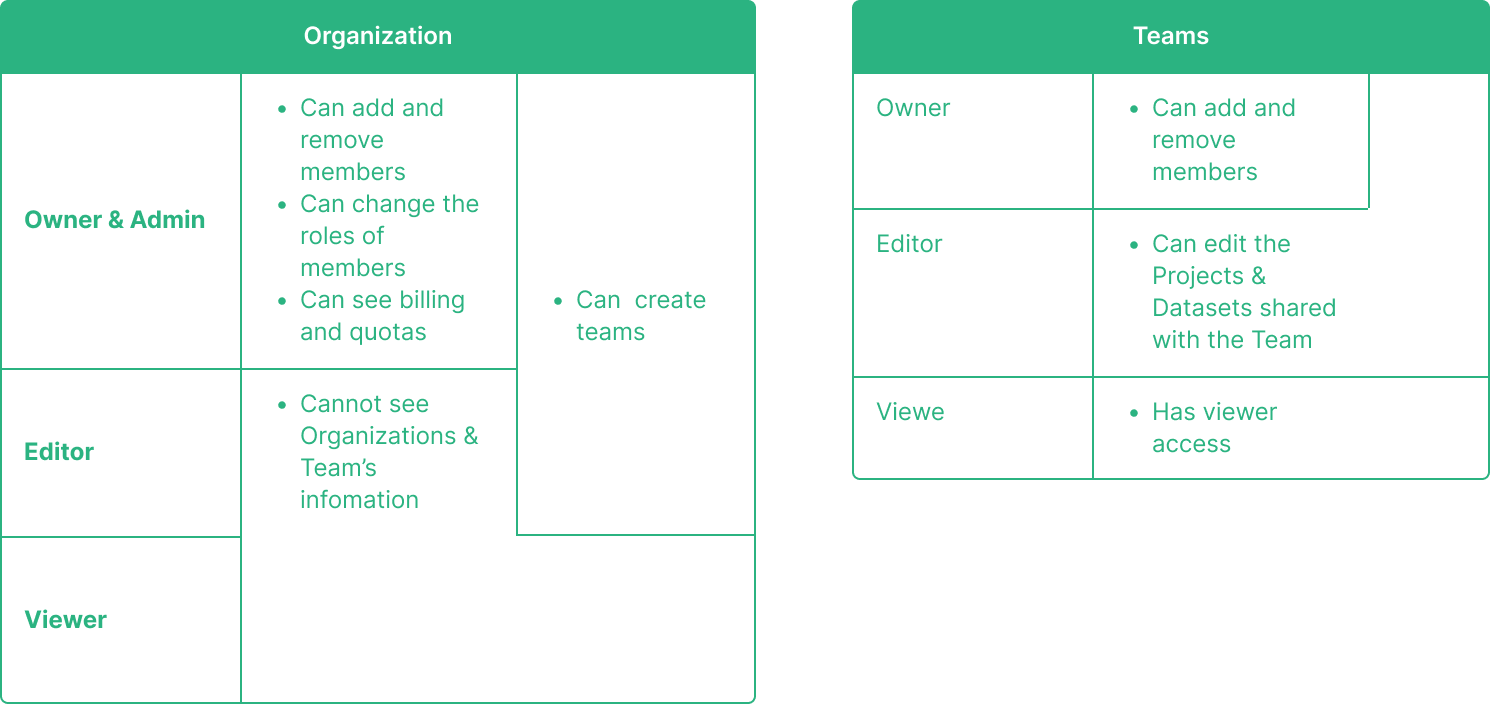
Deleting a dataset from a shared project that you own will cause it to be deleted for other users as well. As an editor if you delete a dataset or (layer from the) project, the owner will still have it in their personal dataset.