Add New Features
With your scenario active, it's time to add the hypothetical features that represent your planning proposal.
Types of Scenario Edits
GOAT supports three types of edits:

Add
New features

Modify
Existing features
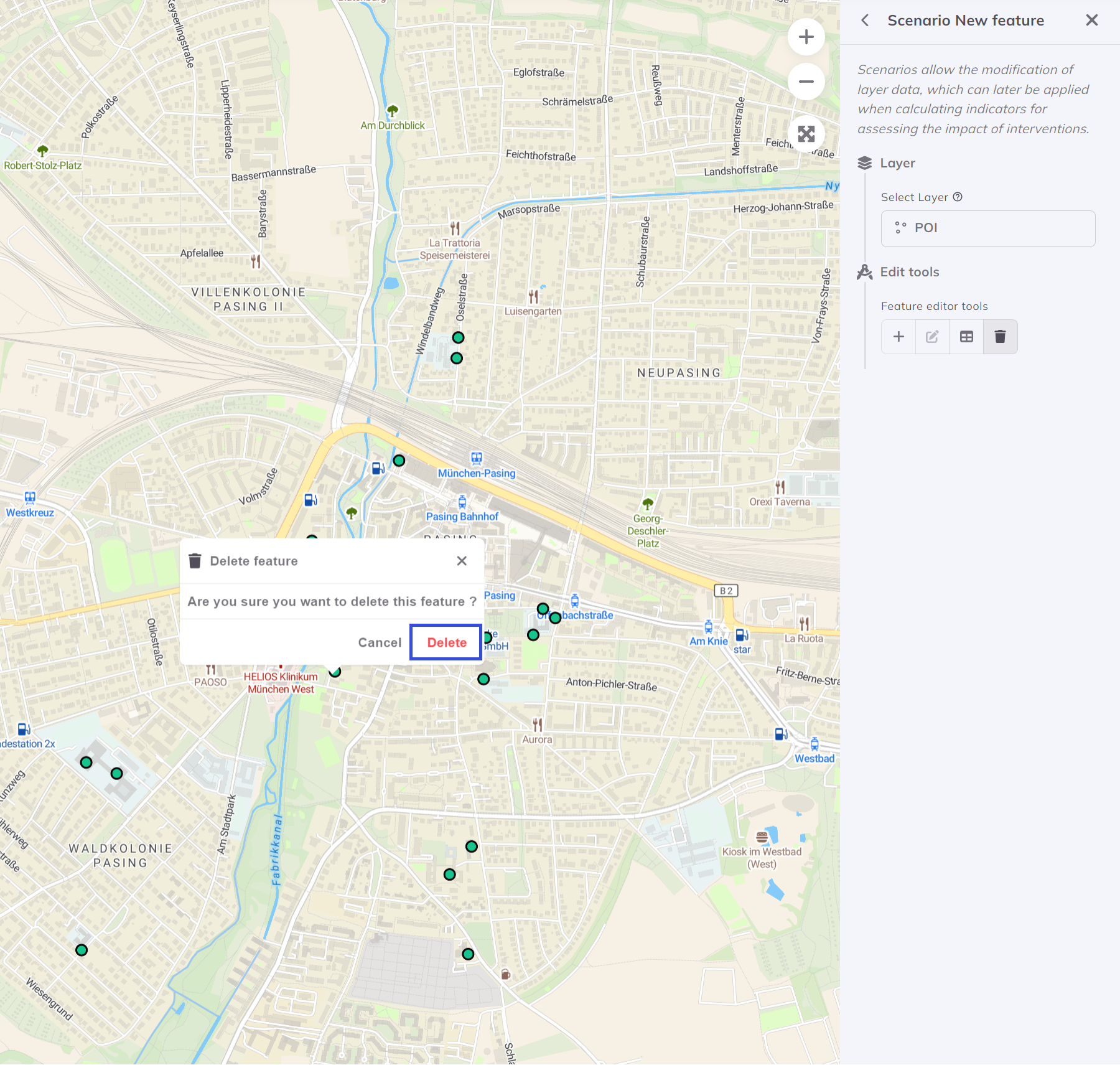
Delete
Remove features
Adding a New Point Feature
For our community center example:
1. Select the Editable Layer
Choose the POI or facilities layer you want to edit.
2. Enter Edit Mode
Click the Edit button or press E to enable editing.
3. Add a Point
- Click Add Feature tool
- Click on the map where you want the new facility
- A form appears to enter attributes
4. Fill in Attributes
For a community center, enter:
| Attribute | Value |
|---|---|
| Name | "New Community Center" |
| Category | "Community Facility" |
| Capacity | 500 |
| Opening Year | 2027 |
5. Save Changes
Click Save to commit your addition to the scenario.
Adding Polygon Features
For buildings, parks, or zones:
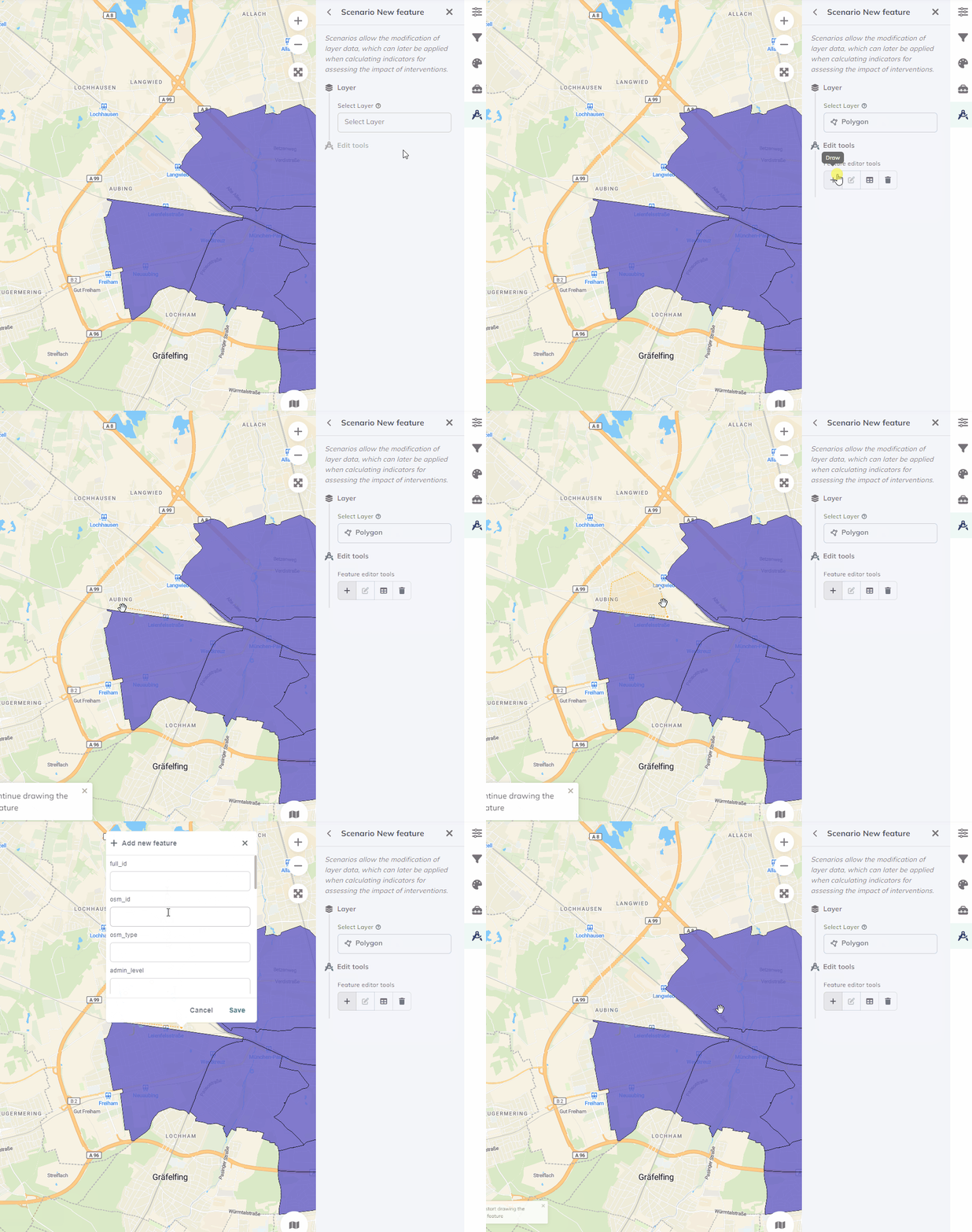
Drawing polygon features in GOAT
Steps:
- Select polygon drawing tool
- Click to create vertices
- Double-click to finish the shape
- Fill in attribute form
- Save
Modifying Existing Features
Sometimes you need to change what already exists:
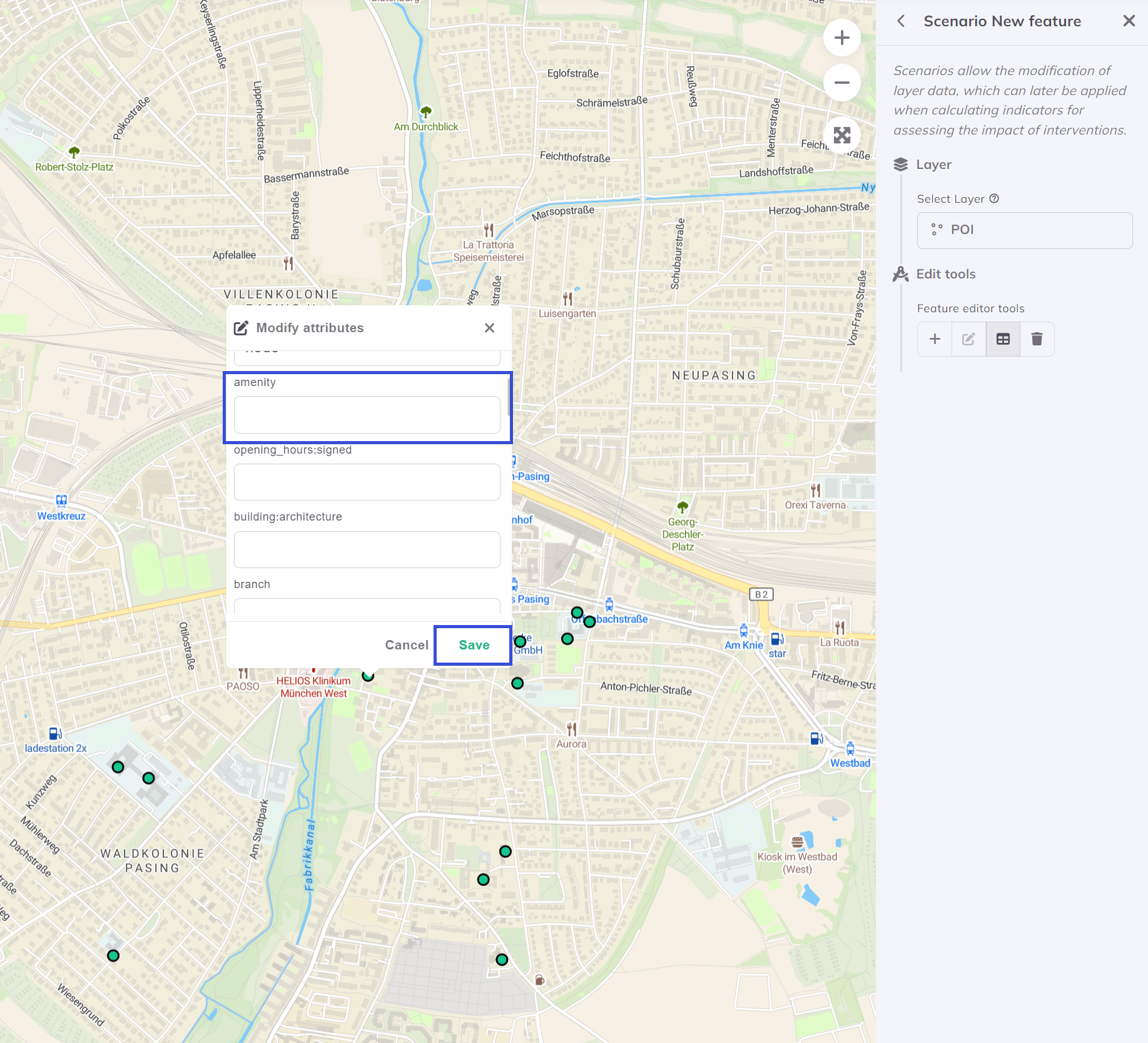
Modifying existing features in a scenario
Common modifications:
- Change facility capacity
- Update operating hours
- Relocate a feature
- Change land use type
Editing the Street Network
For transport scenarios, you can modify the street network:
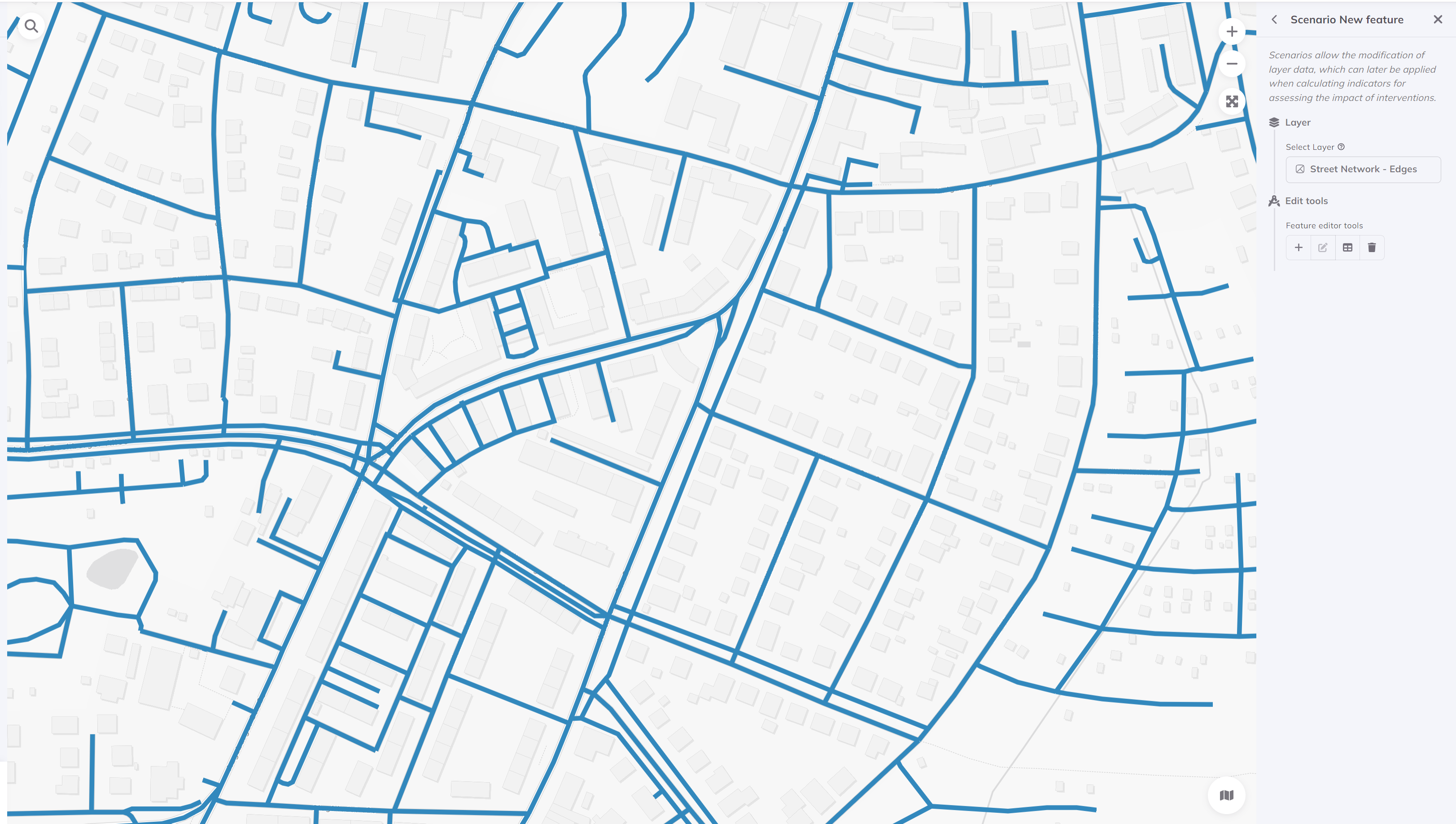
Editing street network for transport scenarios
Possible edits:
- Add new streets or bike paths
- Close streets to traffic
- Add pedestrian connections
- Modify speed limits
Our Tutorial Scenario
For this tutorial, add:
- New Community Center (Point)
- Location: In an identified accessibility gap
- Category: Community Facility
- Pedestrian Path (Line) - Optional
- Connect the center to nearby transit
Verify Your Edits
Before running analysis:
- New features appear on the map
- Attributes are correctly filled
- Scenario is still active
- Changes are saved
Next Step
Your scenario features are in place! Let's run the comparative analysis.
Progress: 2 of 4 steps completed