Prepare Data
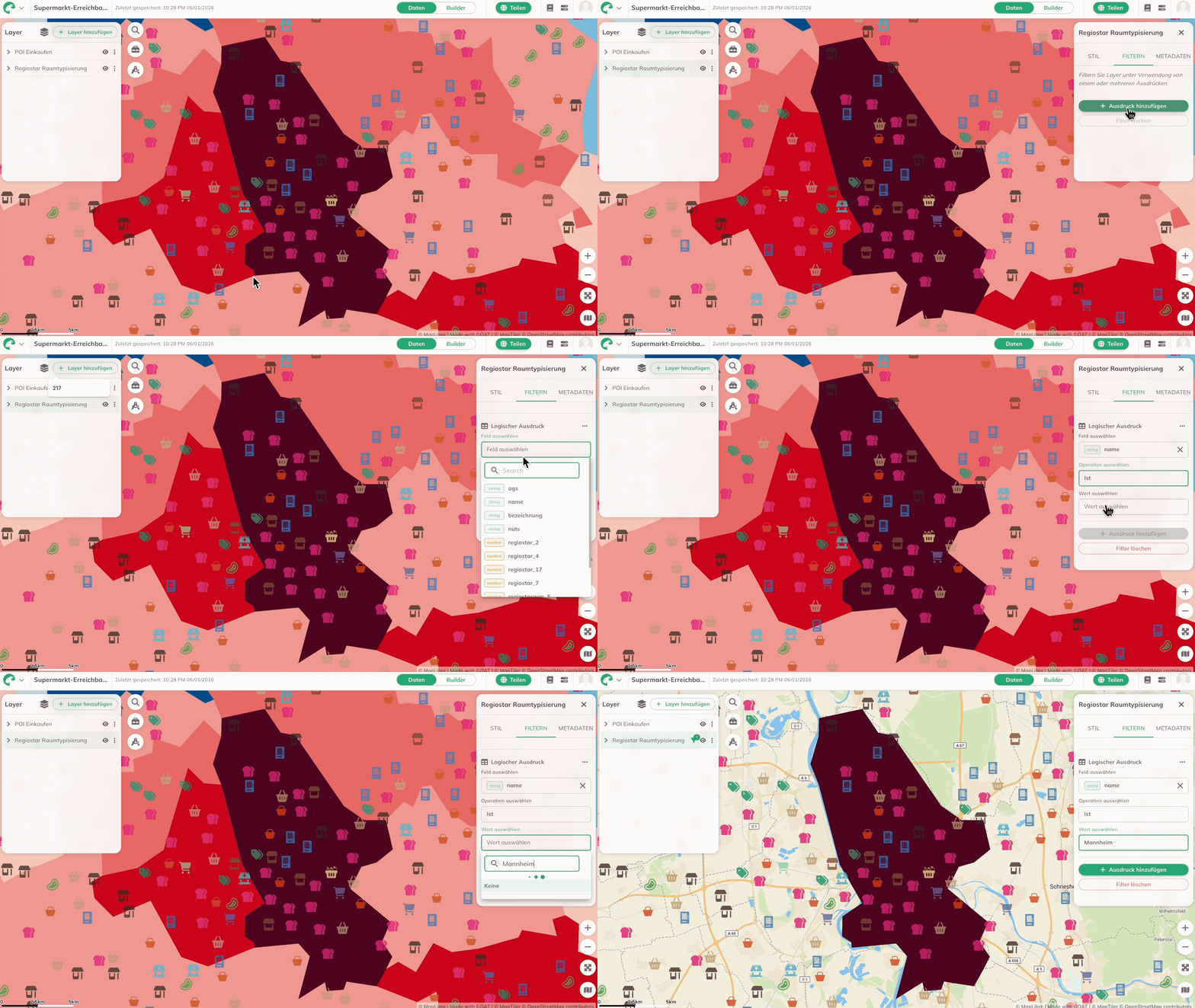
To focus our analysis specifically on Mannheim, we will filter both layers.
Filter the Boundaries Layer
- Click on the "Regiostar Raumtypisierung" layer - a panel will appear on the right
- Select the
Filtertab - Click
+ Add Expressionand chooseLogical Expression - Configure the filter:
- Field: "name"
- Operator: "is"
- Value: "mannheim" (search for this value)
Filter & Clip the "POI Shopping" Layer
- Click on the "POI Shopping" layer - a panel will appear on the right
- Select the
Filtertab - Click
+ Add Expressionand chooseLogical Expression - Configure the filter:
- Field: "category"
- Operator: "Contains"
- Value: "supermarket", "discount_supermarket" and "hypermarket"
- Click on
Toolboxin the top menu bar - Under the
Geoprocessingmenu click onClip - Select the following settings:
- Input layer: "POI Shopping" (the layer you want to clip)
- Overlay layer: "Regiostar Raumtypisierung" (Mannheim as the clipping layer)
- Click
Runto start the tool. The new clipped layer will be added to the map. - Remove the original "POI Shopping" layer and keep only the new clipped layer in the project.
Rename Layers
For better overview, let's rename the layers:
- Click on
More Options(⋯) next to the "Regiostar Raumtypisierung" layer - Select
Renameand enter "Mannheim" - Repeat for the new clipped layer and rename it to "Supermarkets"