Create a Scenario
Scenarios in GOAT let you modify data without affecting your original datasets. Think of them as "sandbox" environments for planning experiments.
Understanding Scenarios
What is a Scenario?
A scenario is a parallel version of your project where you can:
- Add new features (buildings, POIs, roads)
- Modify existing features
- Delete features
- Run analyses to compare with baseline
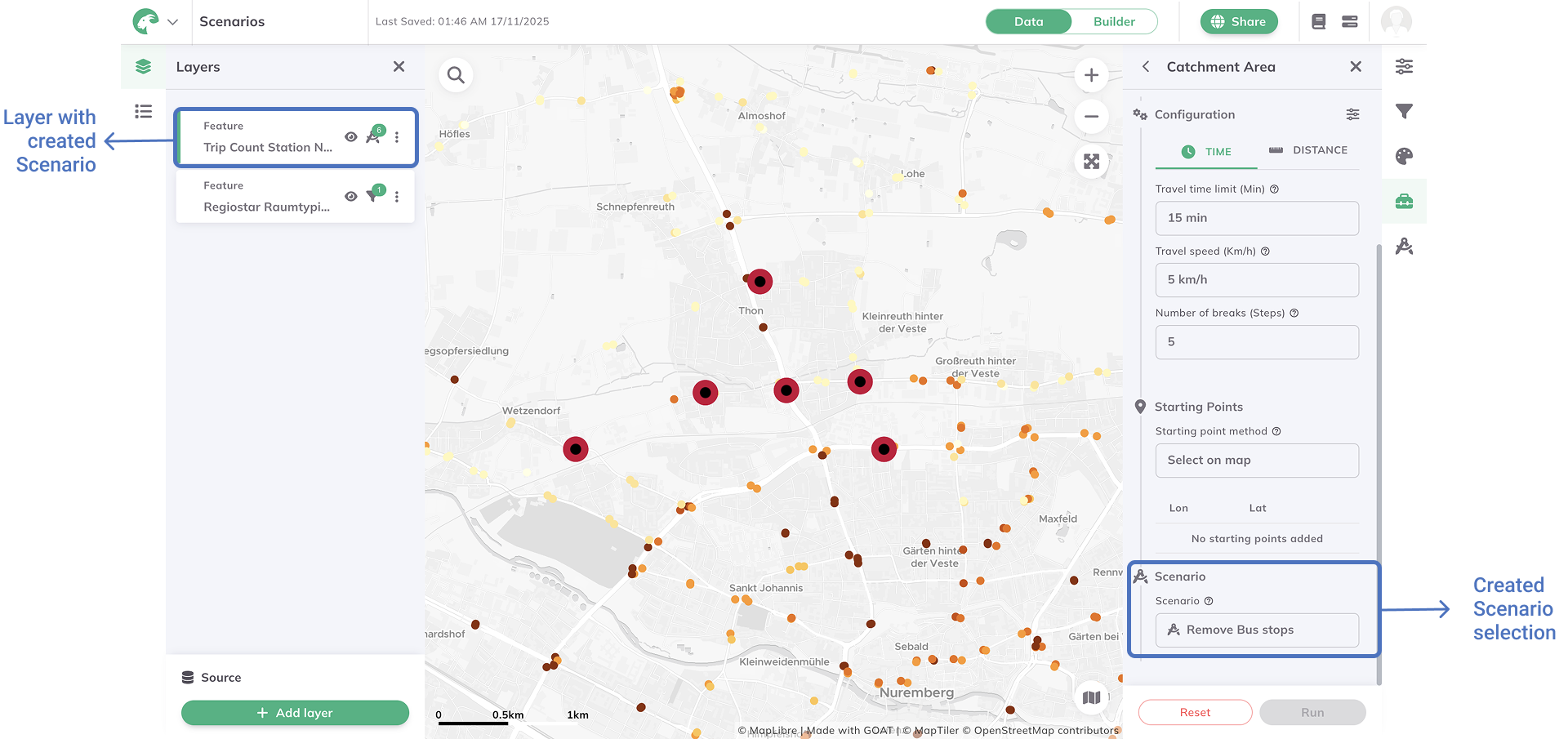
The scenario indicator shows when you're working in a scenario
Baseline vs. Scenario
| Baseline | Scenario |
|---|---|
| Current real-world data | Hypothetical changes |
| Cannot be modified | Fully editable |
| Your reference point | Your planning proposal |
Step-by-Step Instructions
1. Open Scenario Manager
In your project, click on the Scenarios panel in the left sidebar.
2. Create New Scenario
- Click "+ New Scenario"
- Name your scenario descriptively, e.g.:
- "New Community Center - Location A"
- "2030 Transit Expansion"
- "Bike Lane Network Phase 1"
- Optionally add a description explaining the scenario
3. Scenario Settings
Configure your scenario:
- Base data - Which layers to include from baseline
- Editable layers - Which layers you can modify
- Analysis scope - Geographic extent of analysis
4. Activate the Scenario
Click "Activate" to switch from baseline to your scenario.
When a scenario is active, you'll see a colored indicator in the toolbar. This reminds you that changes won't affect real data.
Best Practices for Scenarios
Naming Convention
Use clear, consistent names:
[Year]_[Project]_[Variant]

Examples:
2026_NewSchool_LocationA
2026_NewSchool_LocationB
2030_MetroExtension_Phase1
Document Your Changes
For each scenario, keep notes on:
- What features were added/changed
- Assumptions made
- Data sources for new features
- Analysis parameters used
Version Control
Create multiple scenarios to compare alternatives:
| Scenario | Description |
|---|---|
| Baseline | Current state |
| Option A | Community center in north |
| Option B | Community center in south |
| Option C | Two smaller centers |
Next Step
Your scenario is ready! Now let's add new features to model your planning proposal.
Progress: 1 of 4 steps completed