Layouts Interface
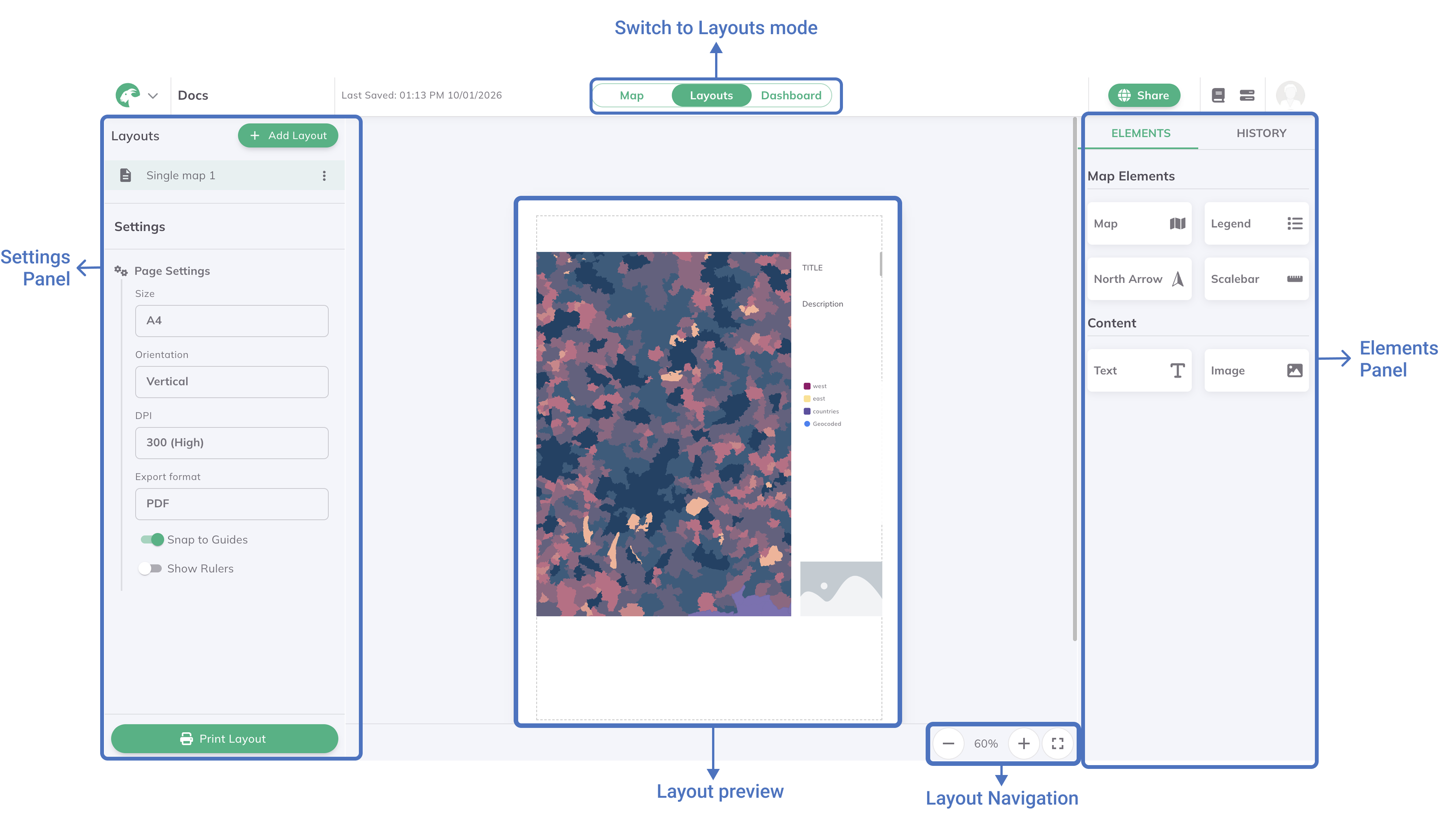
The Layouts in GOAT allows you to create professional map reports and export them as PDF or PNG files. You can design custom layouts with maps, text, and other elements, and generate both single-page and multi-page reports.
Settings Panel
The Settings Panel allows you to create a new layout, customize the overall layout properties, and print the layout. The customization includes page size, orientation, resolution, and export format. You can activate Snap to Guides and Rulers for a better alignment of elements while creating the layout.
Create a new Layout
+ add layout on the top right to create a new layout.page size (A4, A3, Letter), orientation (Portrait or Landscape), resolution, and export format (PDF or PNG).Snap to Guides and Rulers for precise element alignment.Print Layout at the bottom to export your layout as PDF or PNG.Layout Preview
The Layout Preview is the main area that displays the current layout you are working on. You can interact with the elements, move them around, and see how they will appear in the final report.
Elements Panel
The Elements Panel contains all the tools you need to add and customize elements in your layout. You can add maps, text boxes, images, legends, scale bars, north arrows, and more.
Elements Panel (Map, Text, Legend, Scale Bar, North Arrow, etc.).Properties Panel on the right to customize its appearance and settings.Layout Navigation
You can use the zoom controls on the bottom right to zoom in or out for detailed positioning. You can also click the fit to screen button to see the entire layout at once.